- Step 1 of 14
Open PDF Report
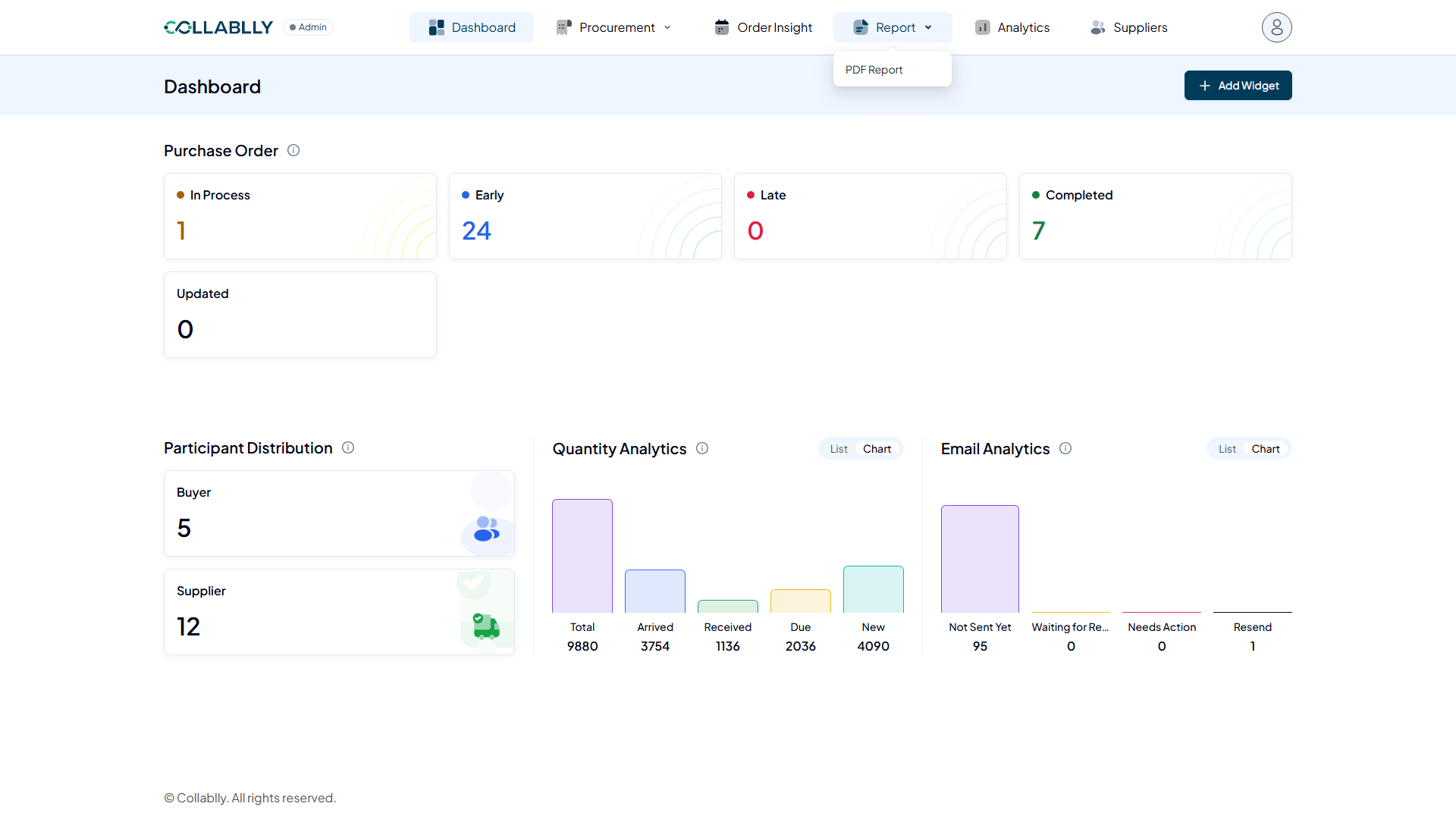
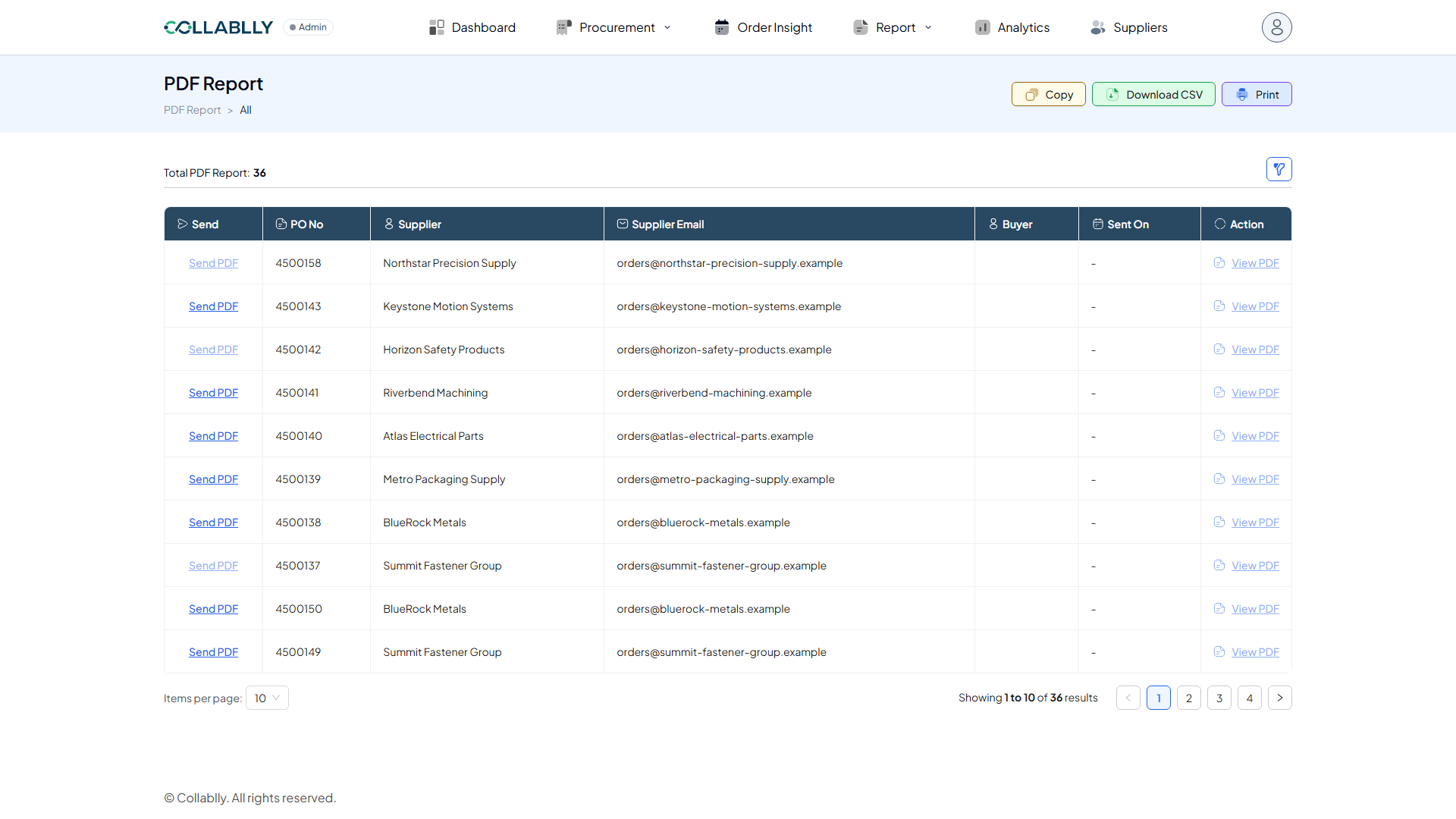
From the top navigation, open Report and select PDF Report. This is where a PDF copy of every PO can be generated, viewed, and sent to its supplier.
- Step 2 of 14
What this page shows
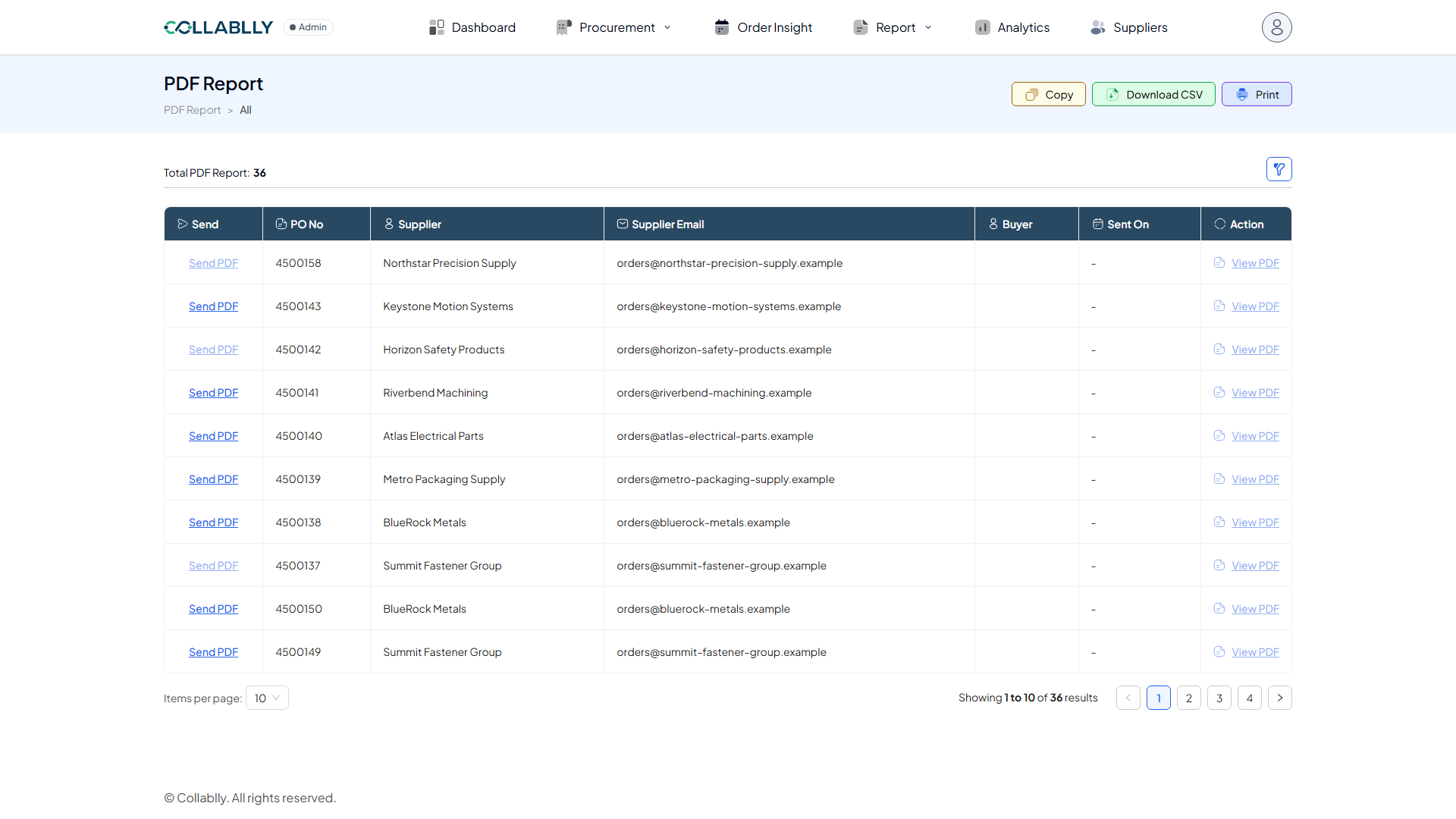
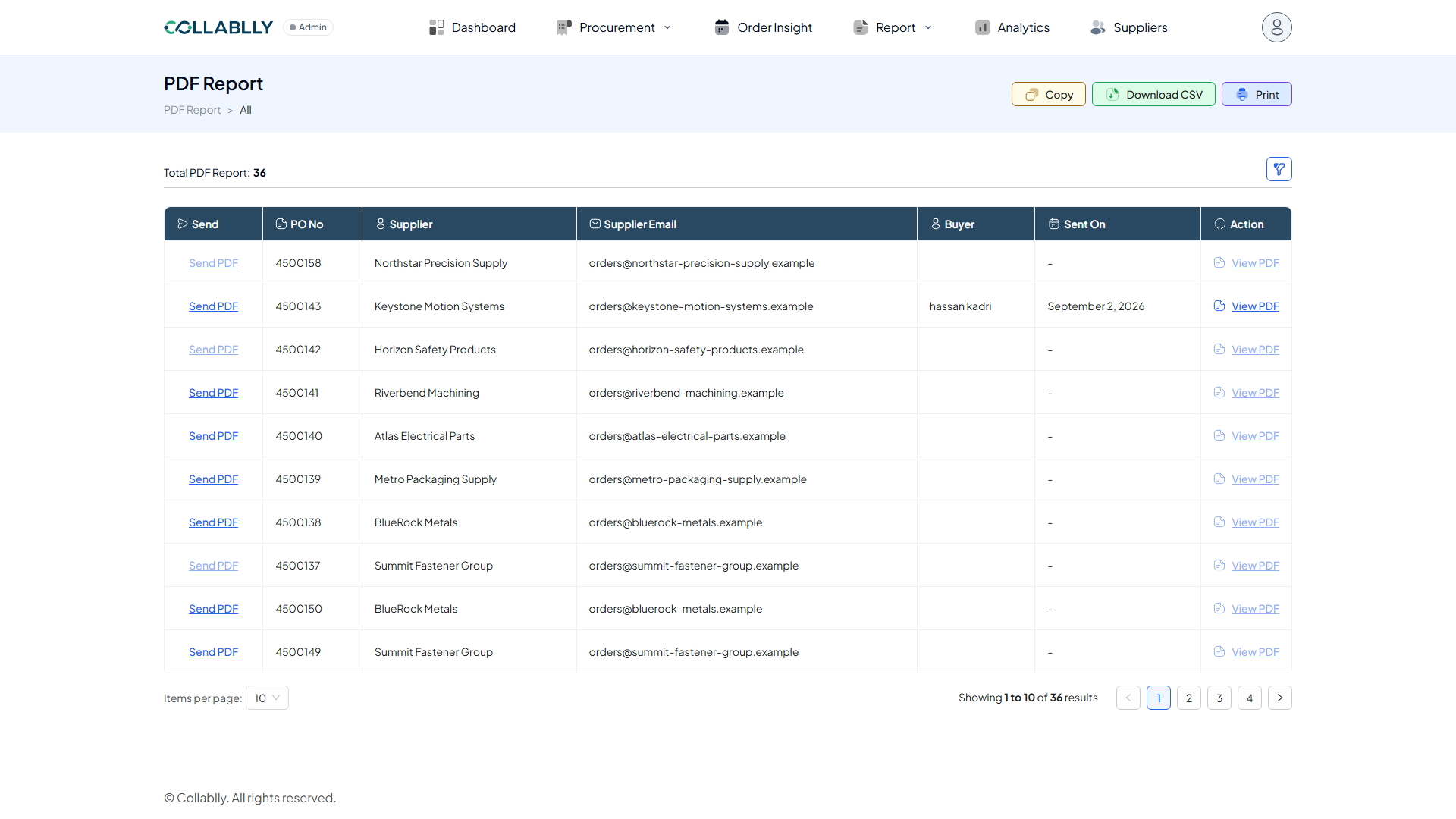
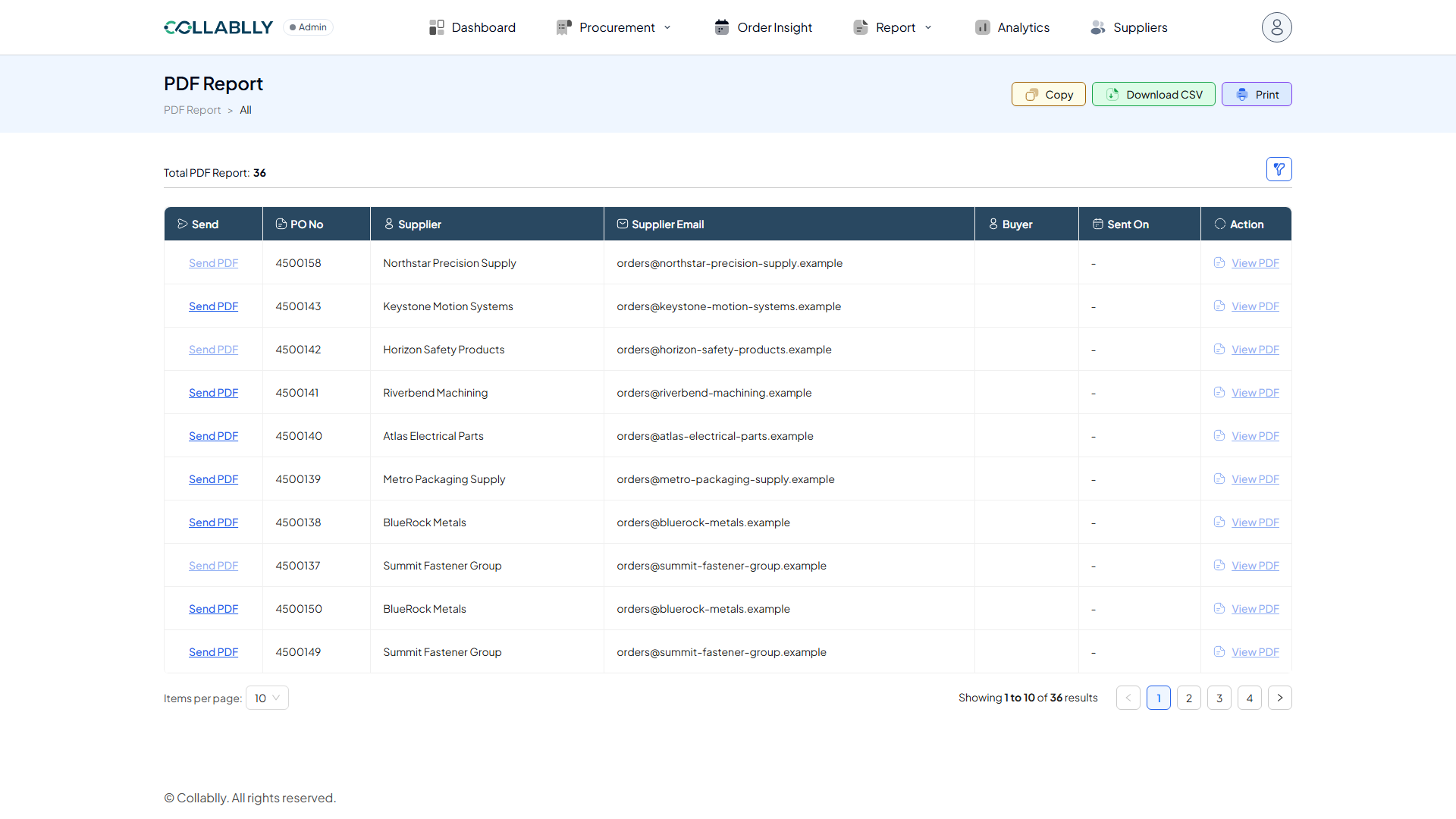
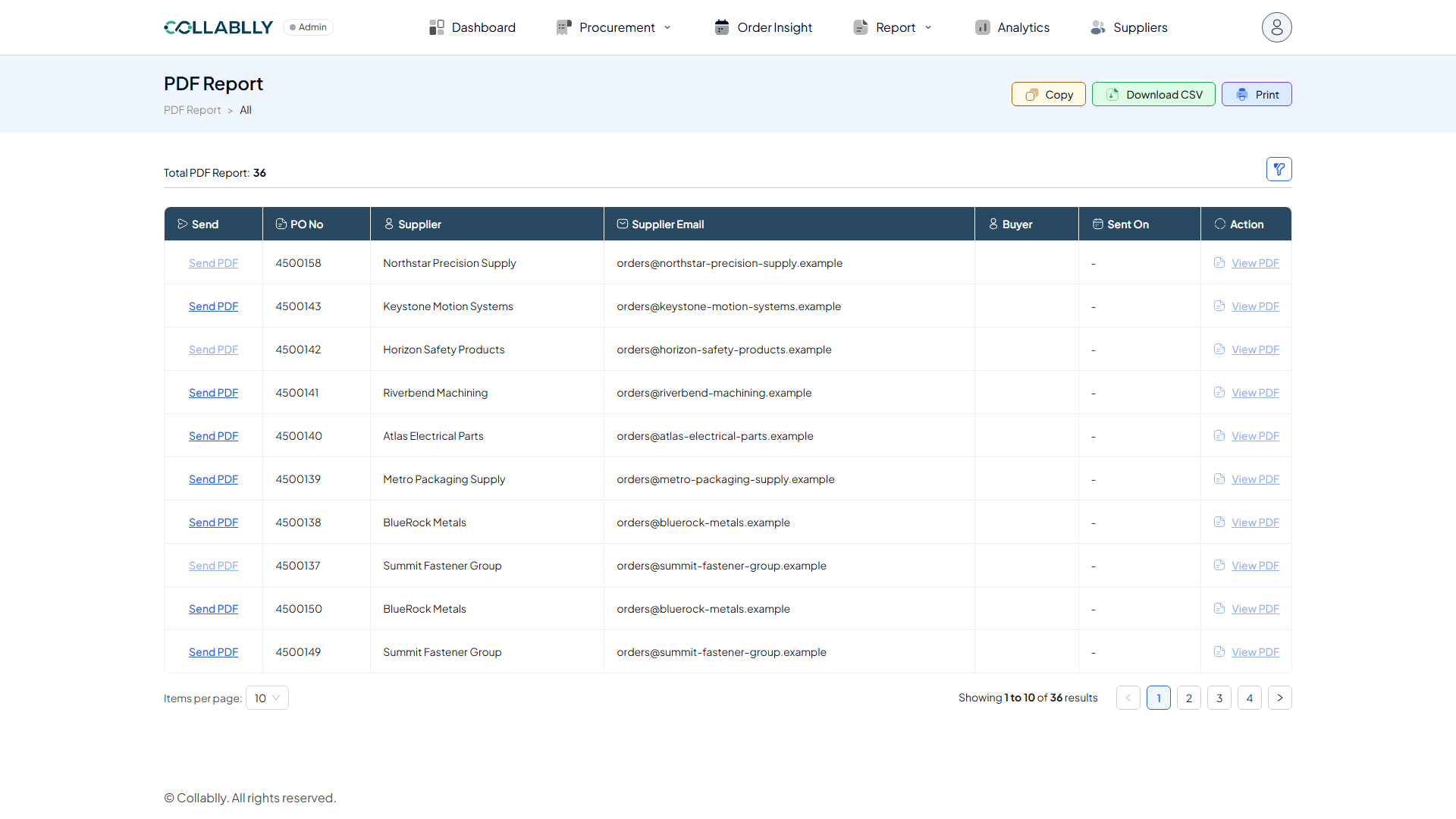
PDF Report lists every PO with a generated PDF, one row per PO, alongside its send status.
- Step 3 of 14
Total PDF Report
A running count of how many PDF reports exist across your POs.
- Step 4 of 14
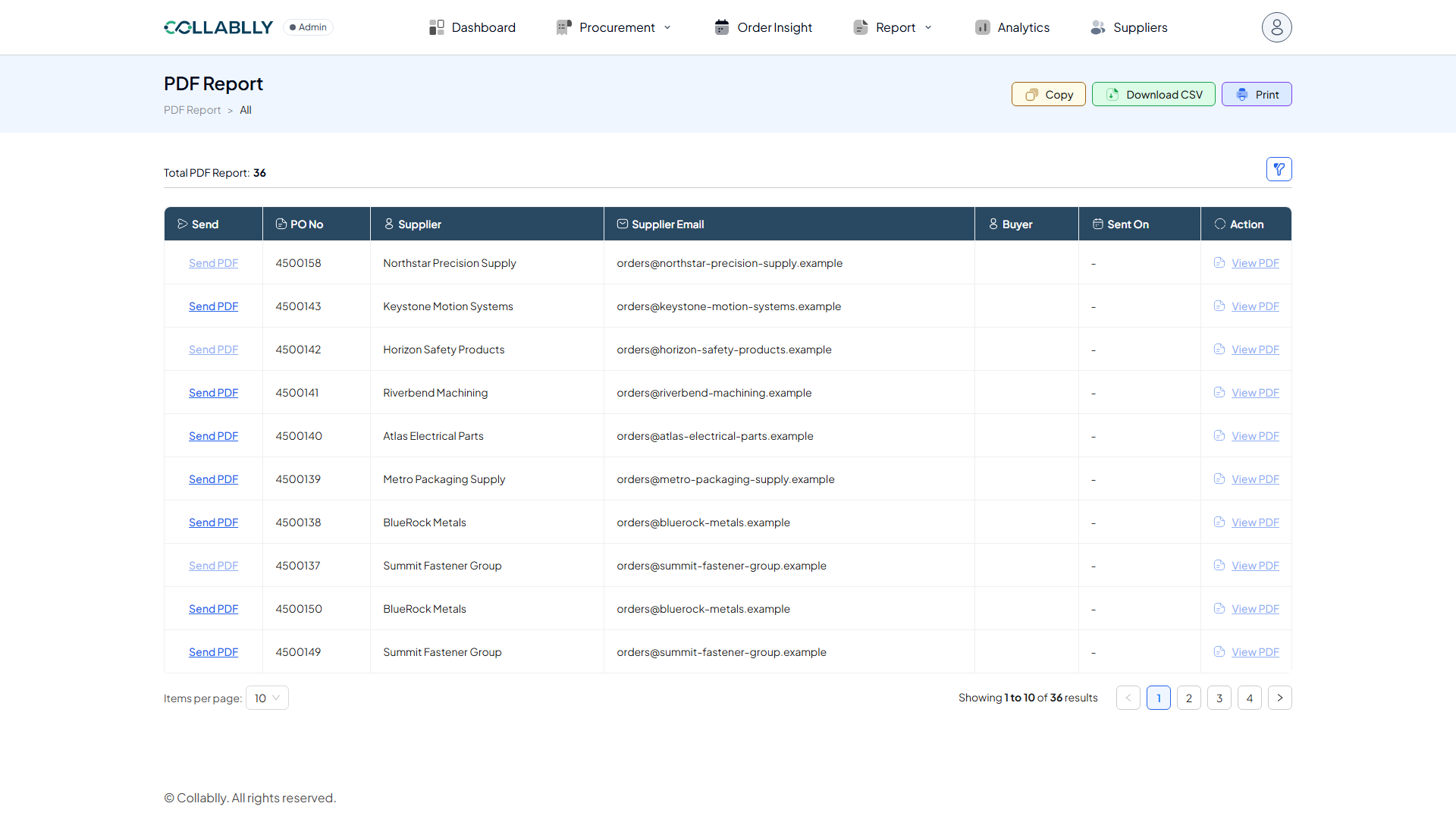
Filter
Opens search fields to narrow the list, the same filter pattern used across Collablly SRM.
- Step 5 of 14
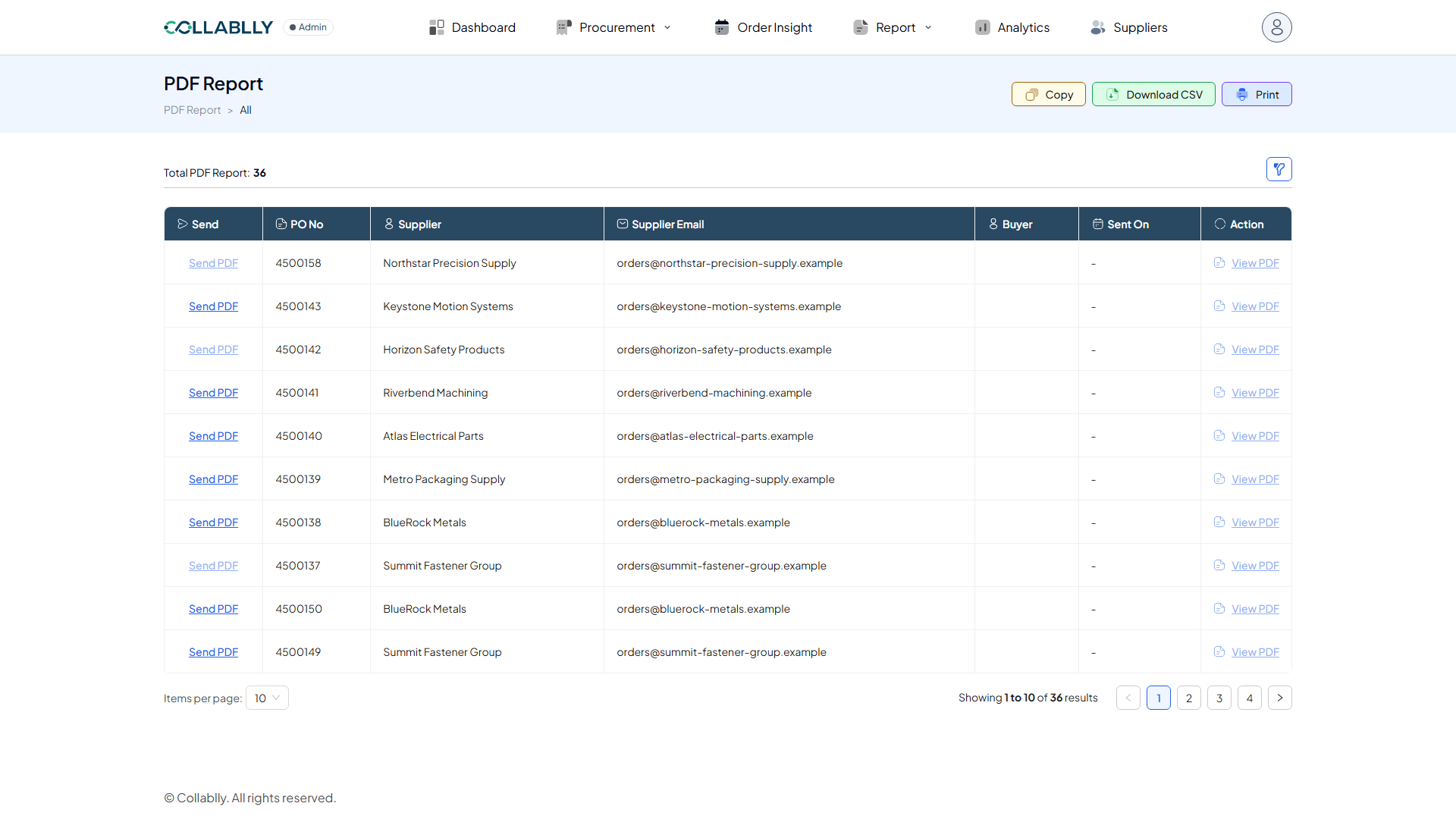
Copy
Copies the current table to your clipboard, ready to paste into a spreadsheet or email.
- Step 6 of 14
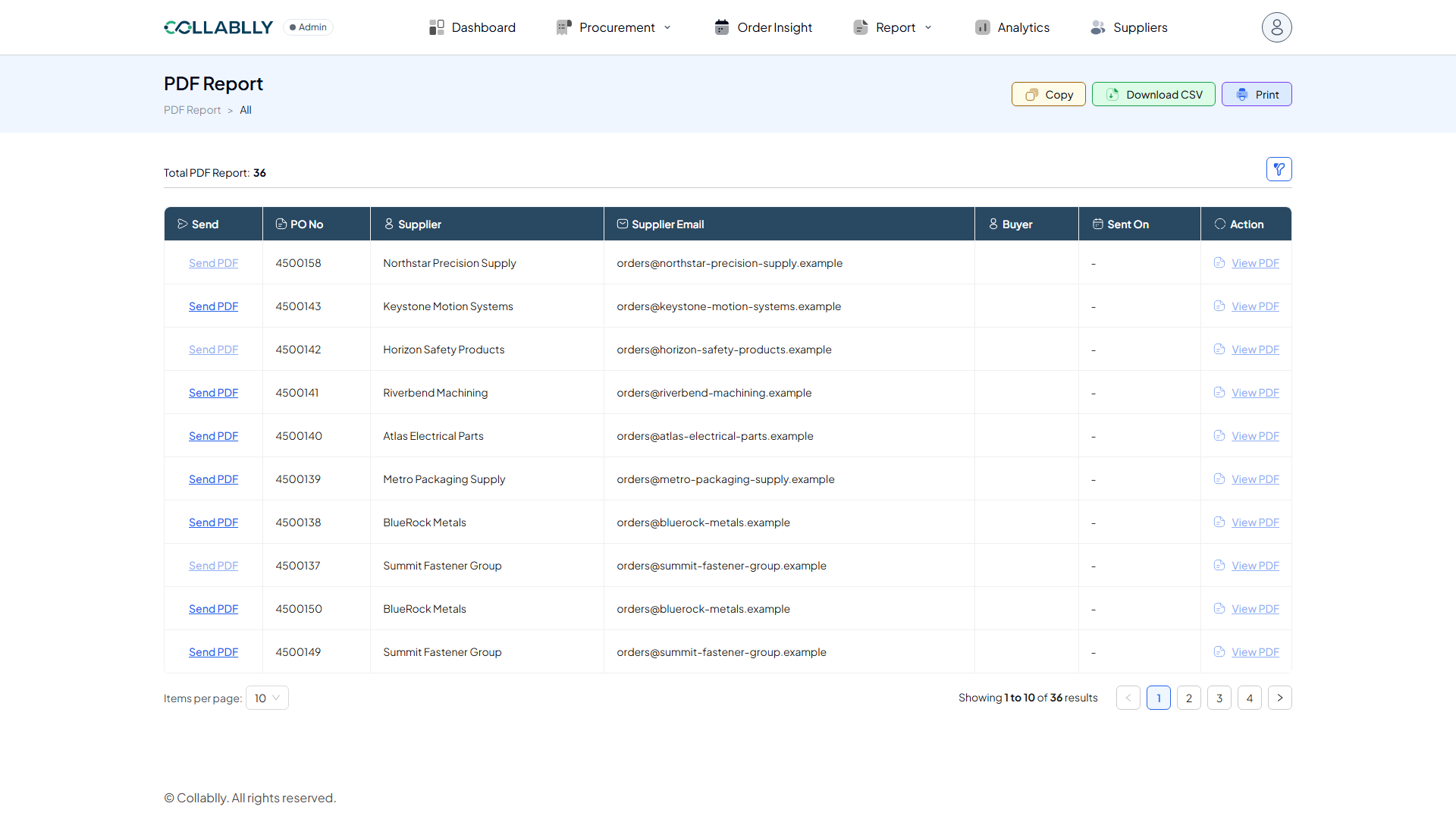
Download CSV
Exports the current view as a CSV file.
- Step 7 of 14
Print
Opens a print-friendly version of the current table.
- Step 8 of 14
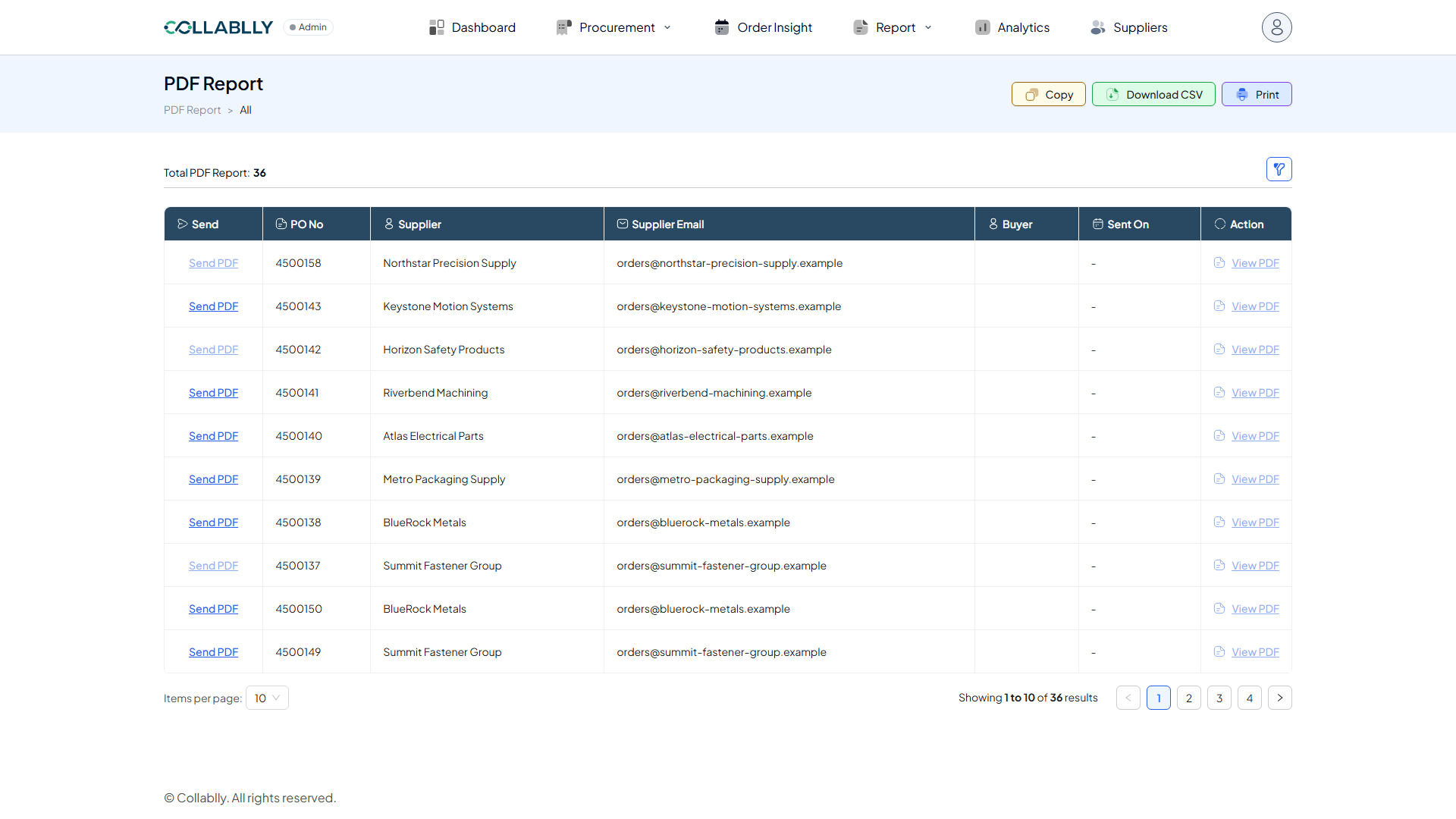
Column: Send
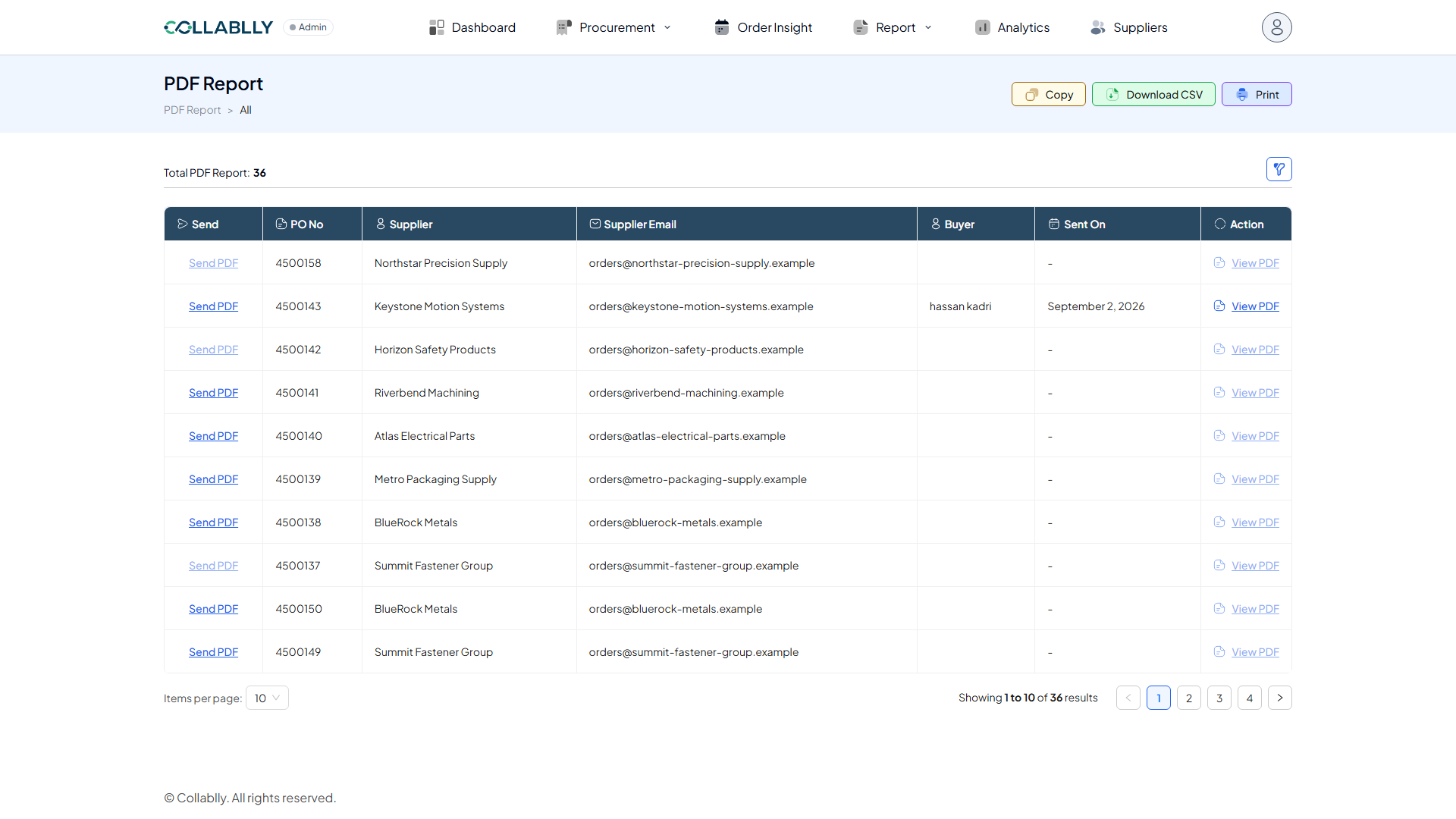
Click Send PDF to email that PO's PDF to its supplier directly from this list. Send PDF stays greyed out and unclickable until the PO is approved, here PO 4500158 (top row) is still Not Approved, so it's disabled, while every approved PO below it has an active Send PDF link. Once the PO is approved, the link goes dark and clickable.
- Step 9 of 14
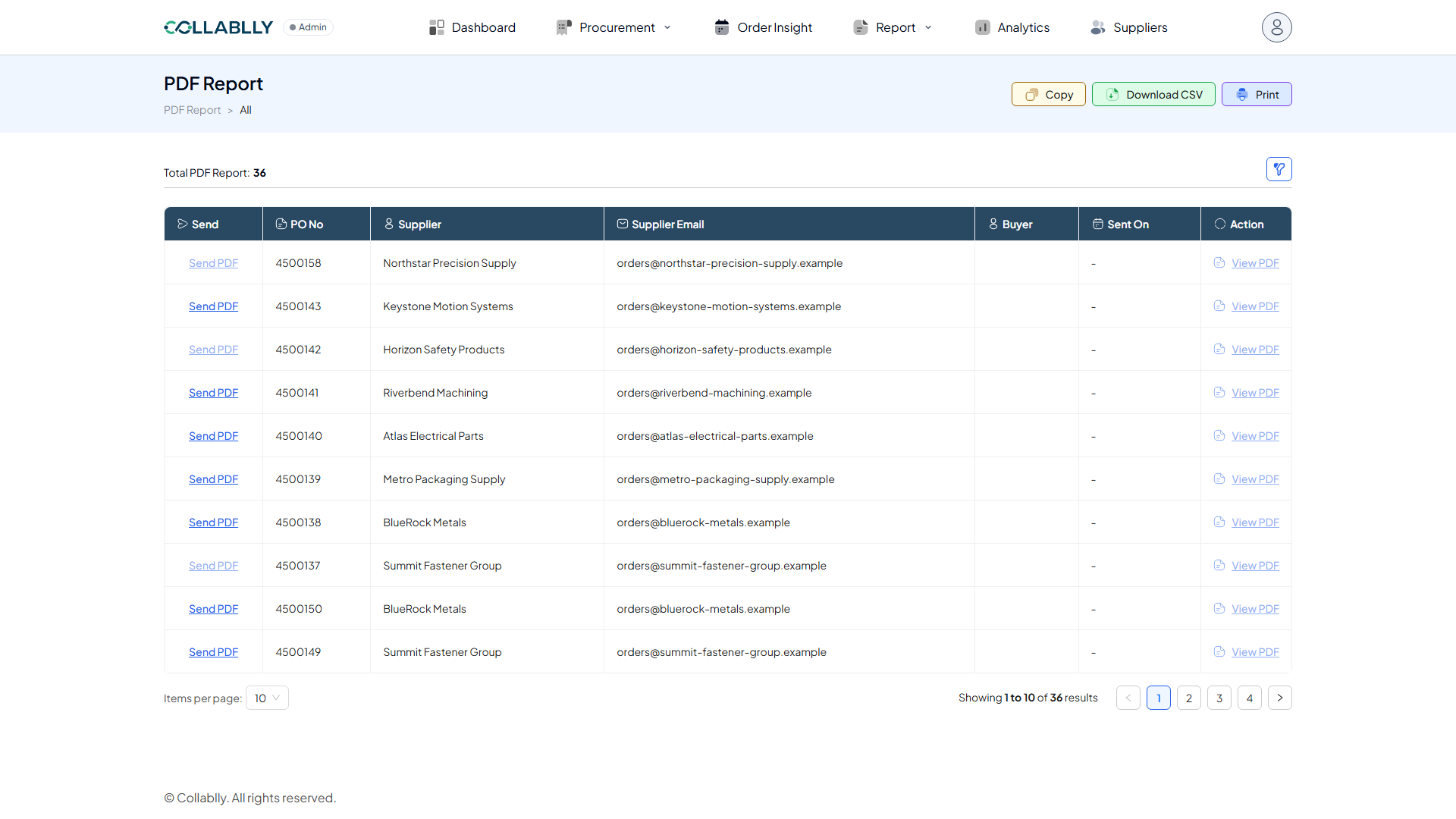
Column: PO No
The purchase order this PDF was generated for.
- Step 10 of 14
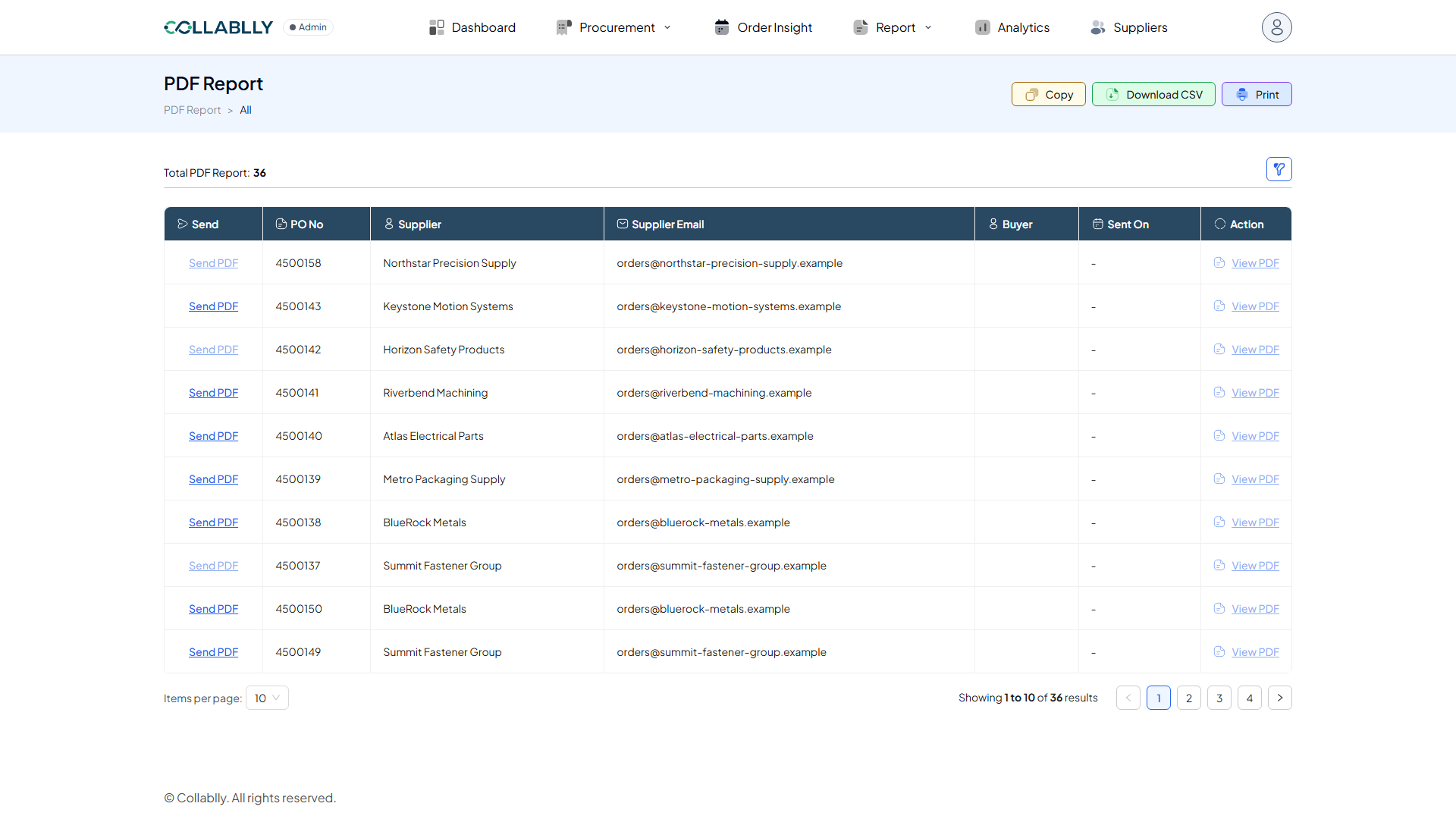
Column: Supplier
The supplier’s company name.
- Step 11 of 14
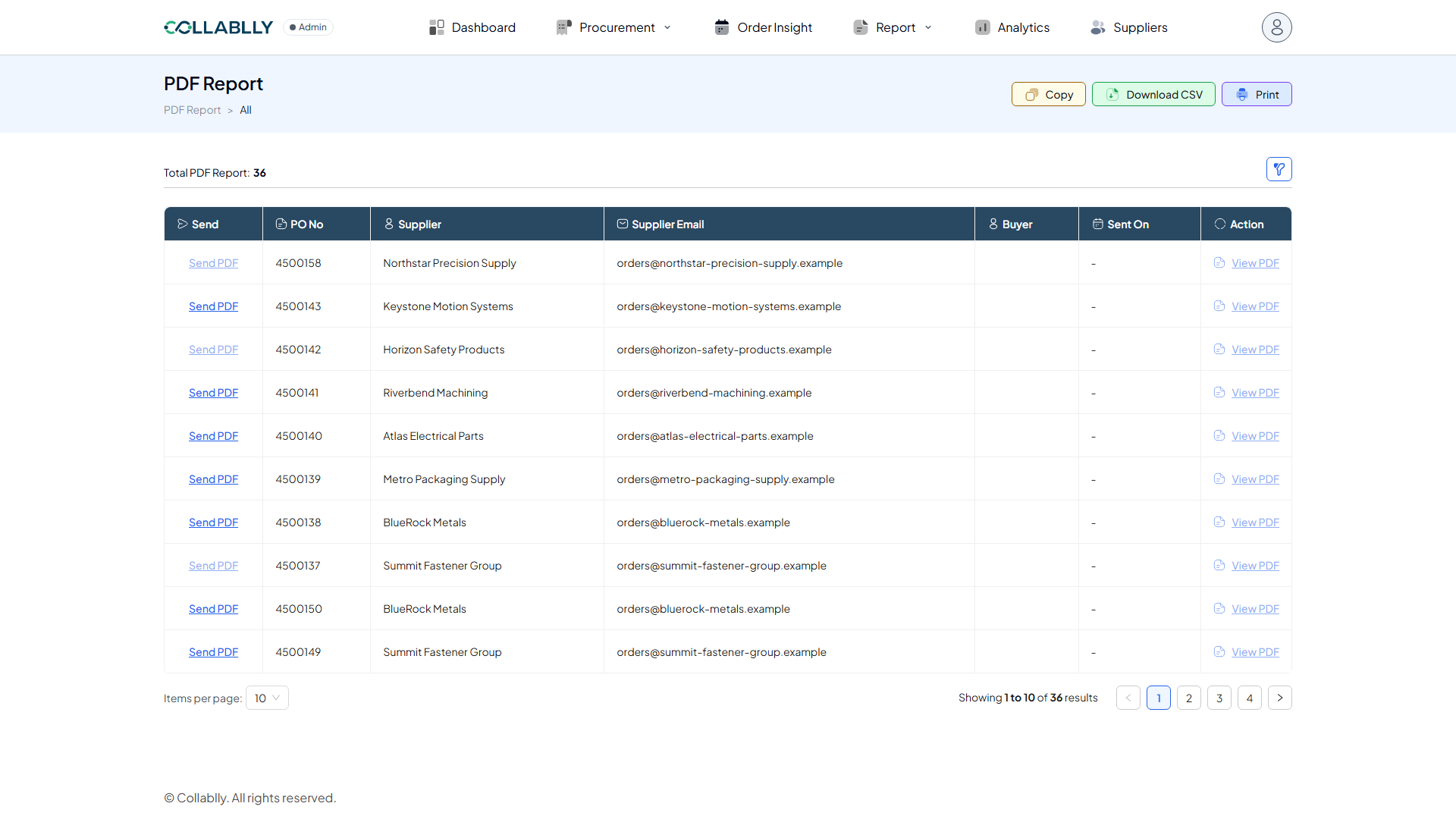
Column: Supplier Email
The email address this PDF is sent to.
- Step 12 of 14
Column: Buyer
The buyer responsible for this PO.
- Step 13 of 14
Column: Sent On
The date this PDF was last sent to the supplier. Shows a dash if it has never been sent.
- Step 14 of 14
Column: Action
View PDF opens that PO's most recent PDF, but only after it's been sent at least once, it's disabled (like every row shown here except PO 4500143) until then. When you click Send PDF, the system generates and saves a copy, logs the sender under Buyer and the date under Sent On, and View PDF switches on to open that copy. Sending again regenerates the PDF and replaces View PDF with the newer file.