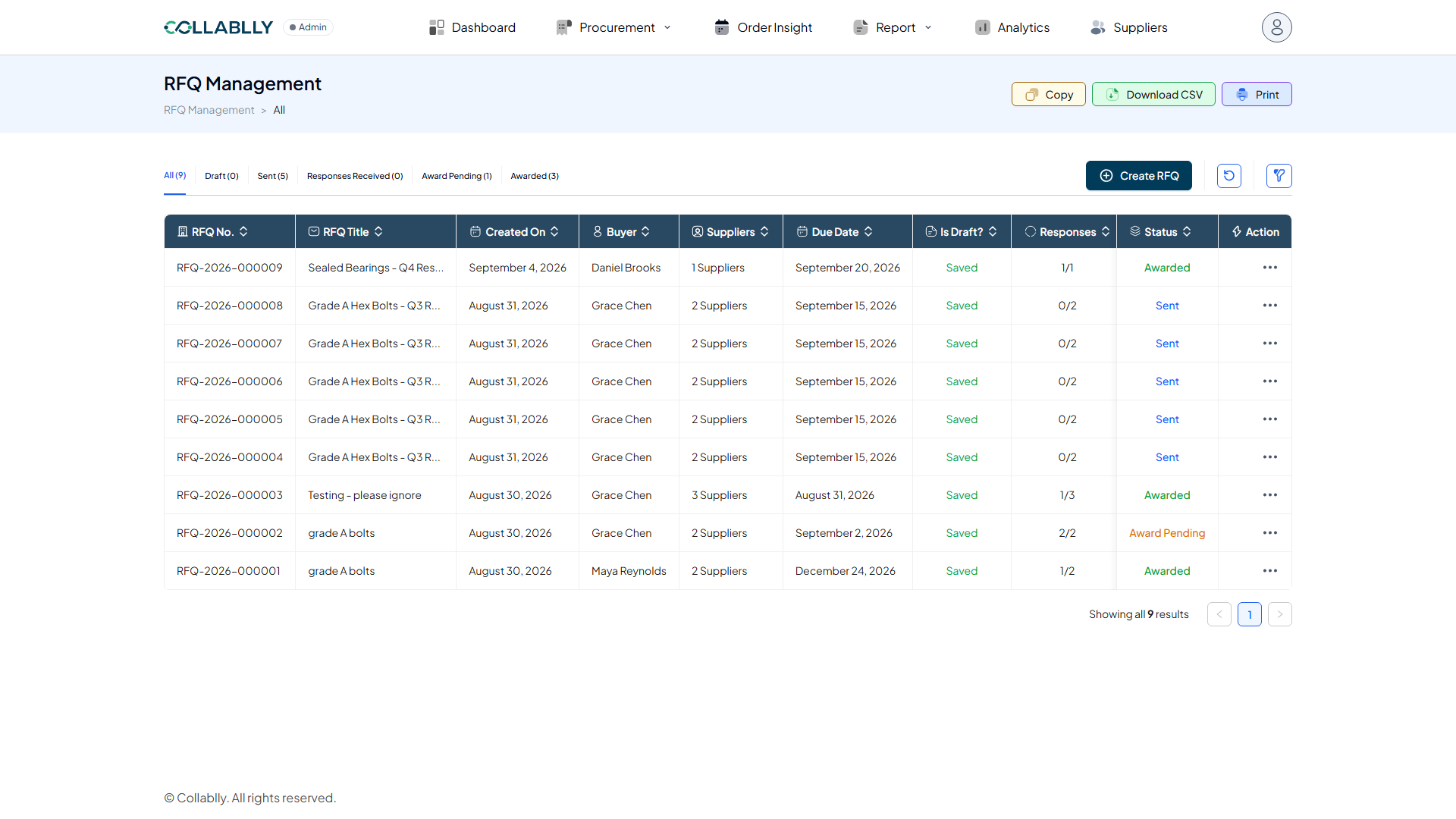
- Step 1 of 18
Start in RFQ Management
The tabs across the top, Draft, Sent, Responses Received, Award Pending, Awarded, are the real lifecycle an RFQ moves through. Click Create RFQ to start a new one.
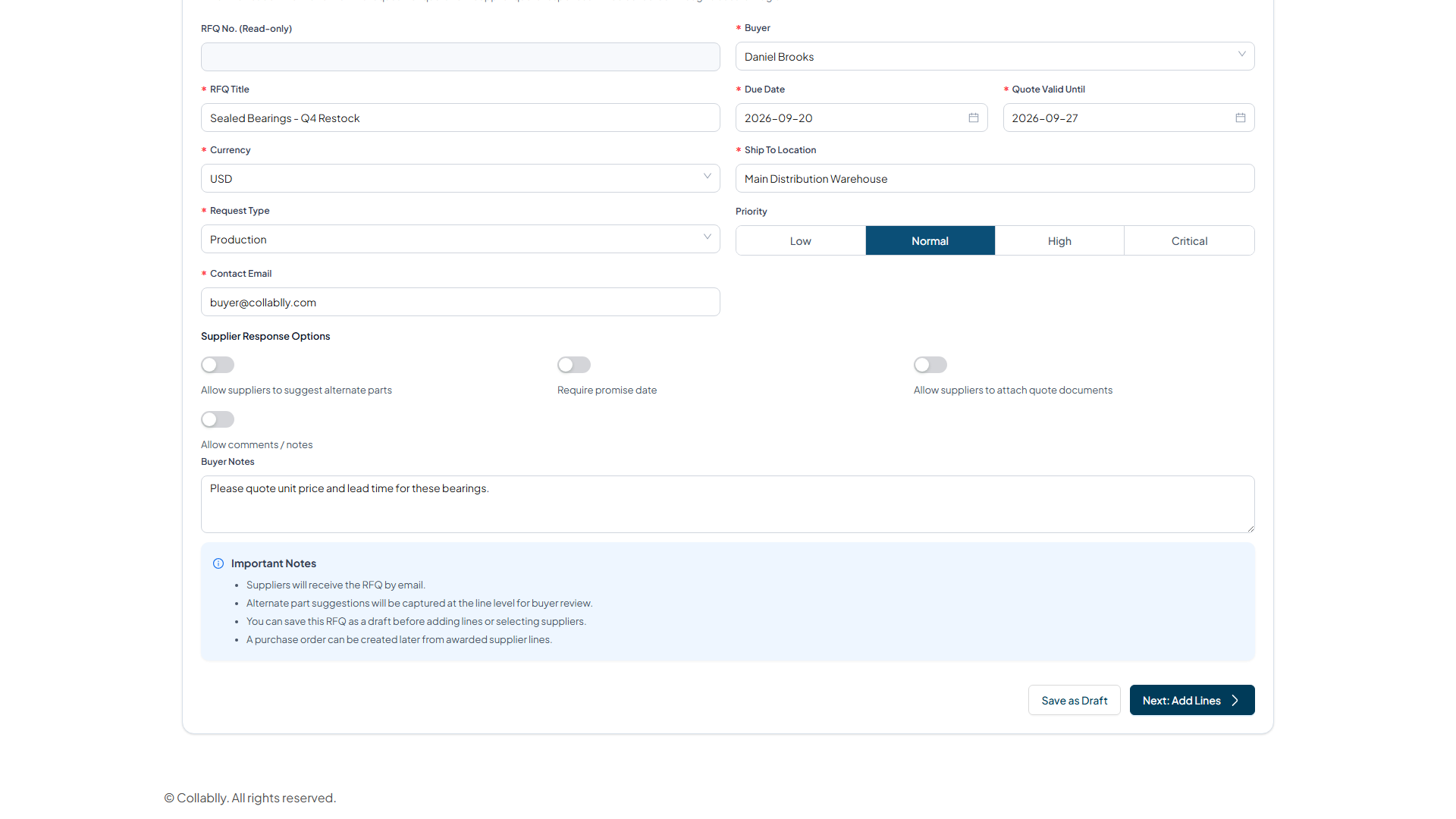
- Step 2 of 18
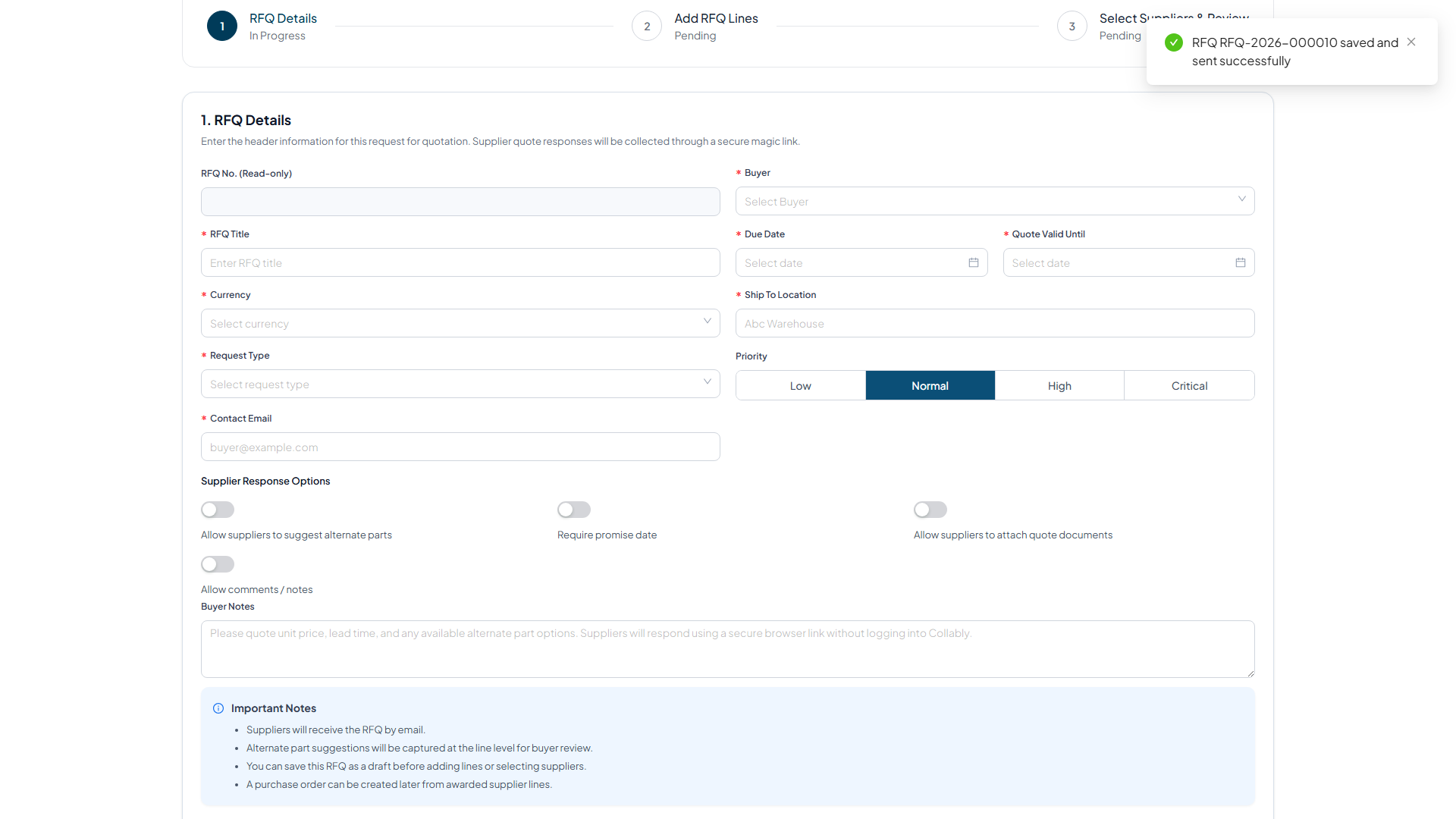
Fill in the RFQ Details
Buyer, title, due date, quote-valid-until date, currency, ship-to location, and a contact email. The page says it outright: supplier quote responses are collected through a secure magic link, the same no-portal pattern as everything else in this app. Buyer Notes here is a real field, worth remembering since the generic Message text in the email itself doesn't reflect it.
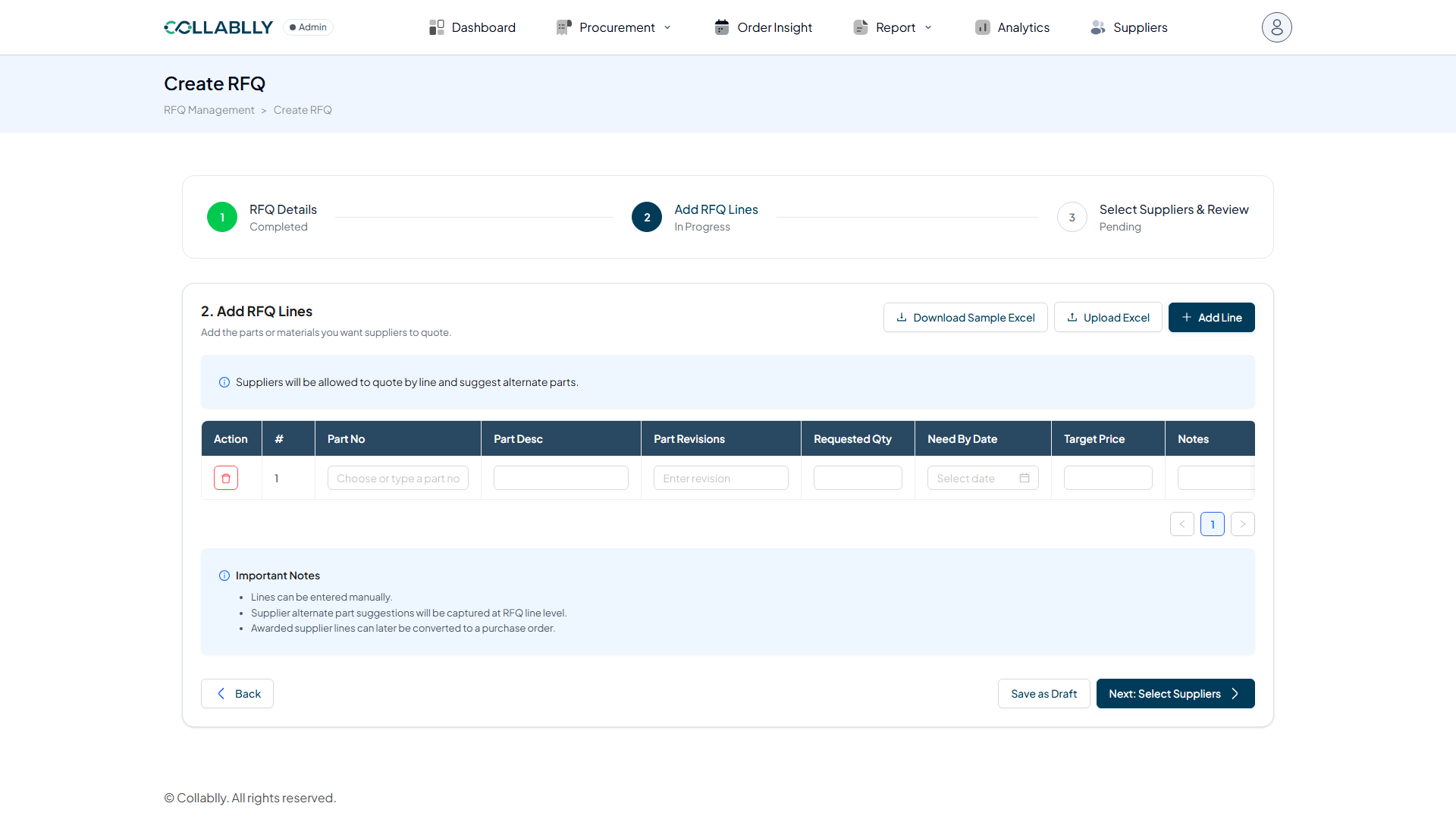
- Step 3 of 18
Add a line
Add Line opens an empty row. Part No accepts a real search, type to find an existing part rather than typing one blind.
- Step 4 of 18
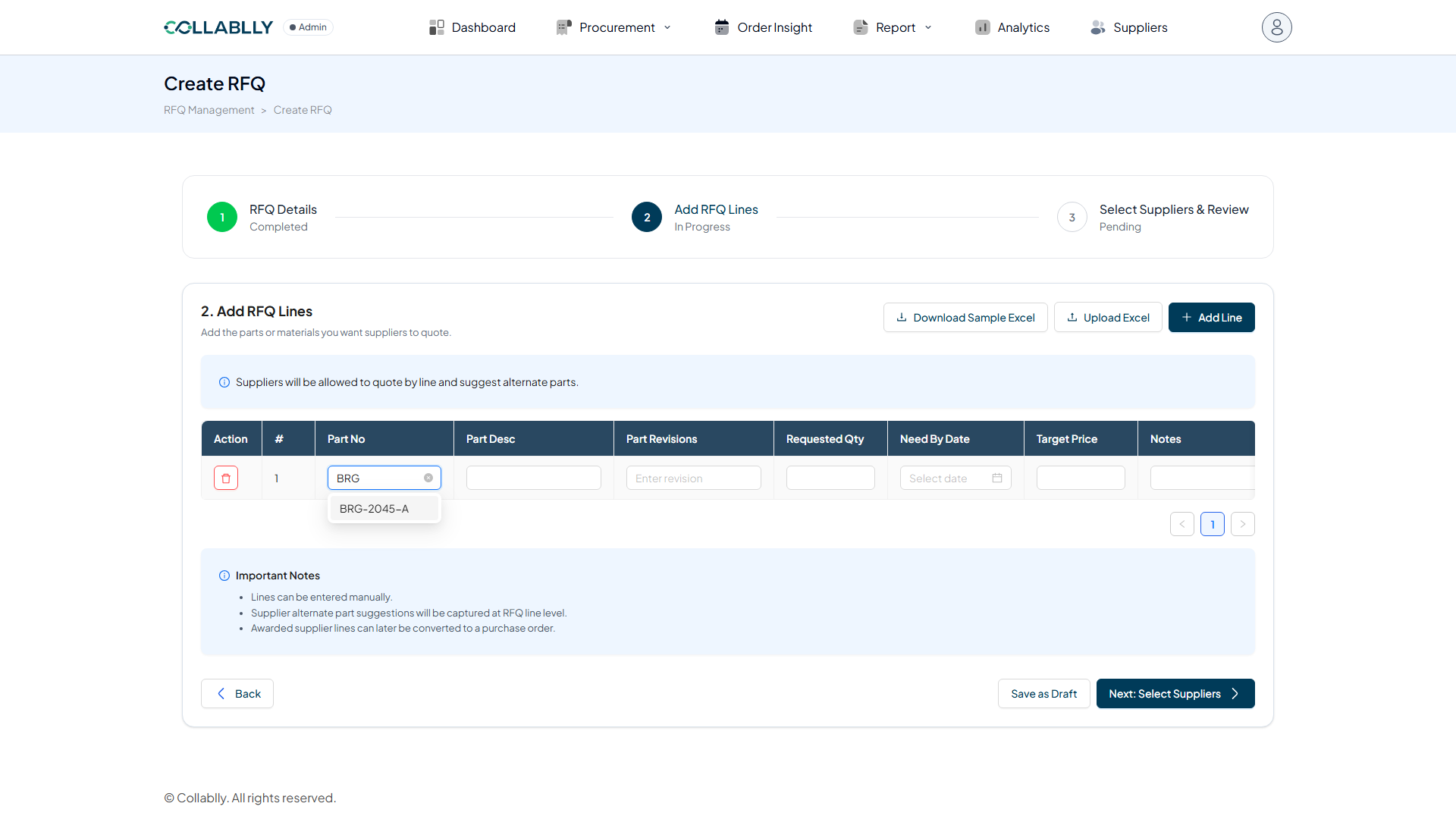
Pick a real part
Typing BRG surfaces the real part BRG-2045-A from the catalog. Selecting it auto-fills Part Desc, the rest, Requested Qty, Need By Date, Target Price, are left for the buyer to fill in.
- Step 5 of 18
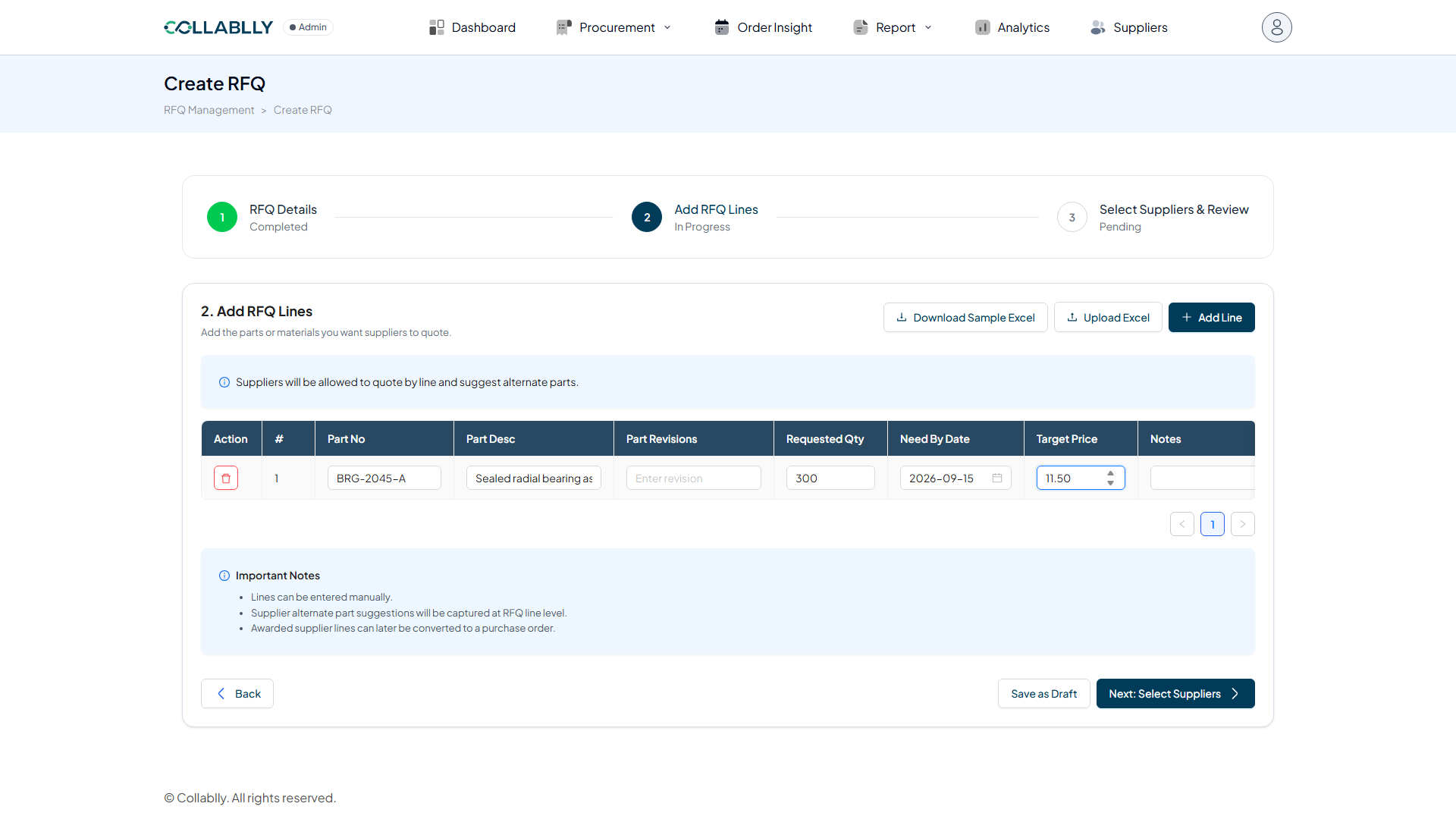
Finish the line
Qty 300, Need By September 15, Target Price 11.5, this is the number every supplier's quote gets measured against later. Next: Select Suppliers moves on.
- Step 6 of 18
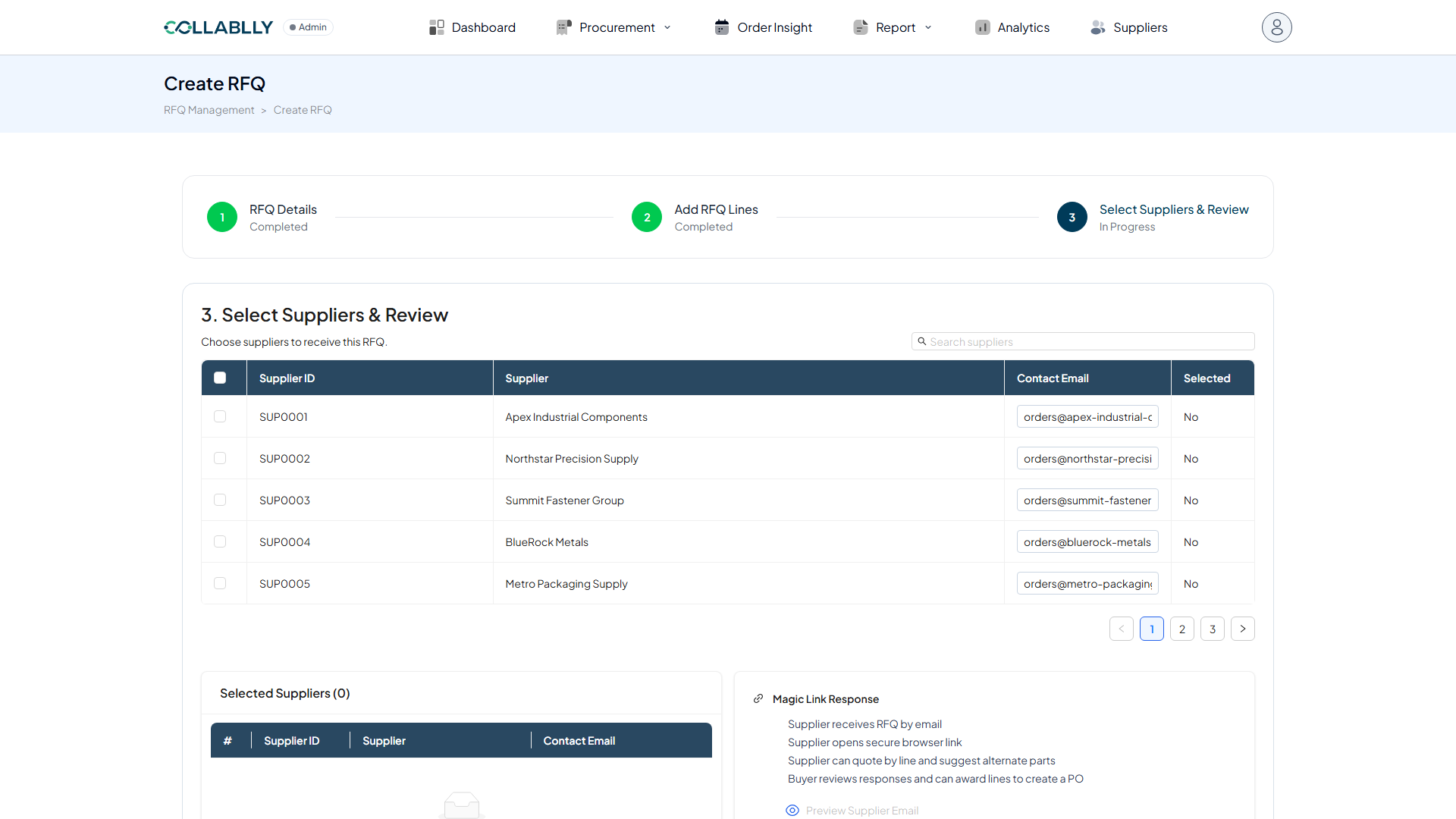
Choose who gets it
Checking a supplier adds them to Selected Suppliers below. The Magic Link Response panel on the right spells out the whole rest of this workflow in four lines: supplier receives it by email, opens a secure link, quotes by line, and the buyer reviews and awards.
- Step 7 of 18
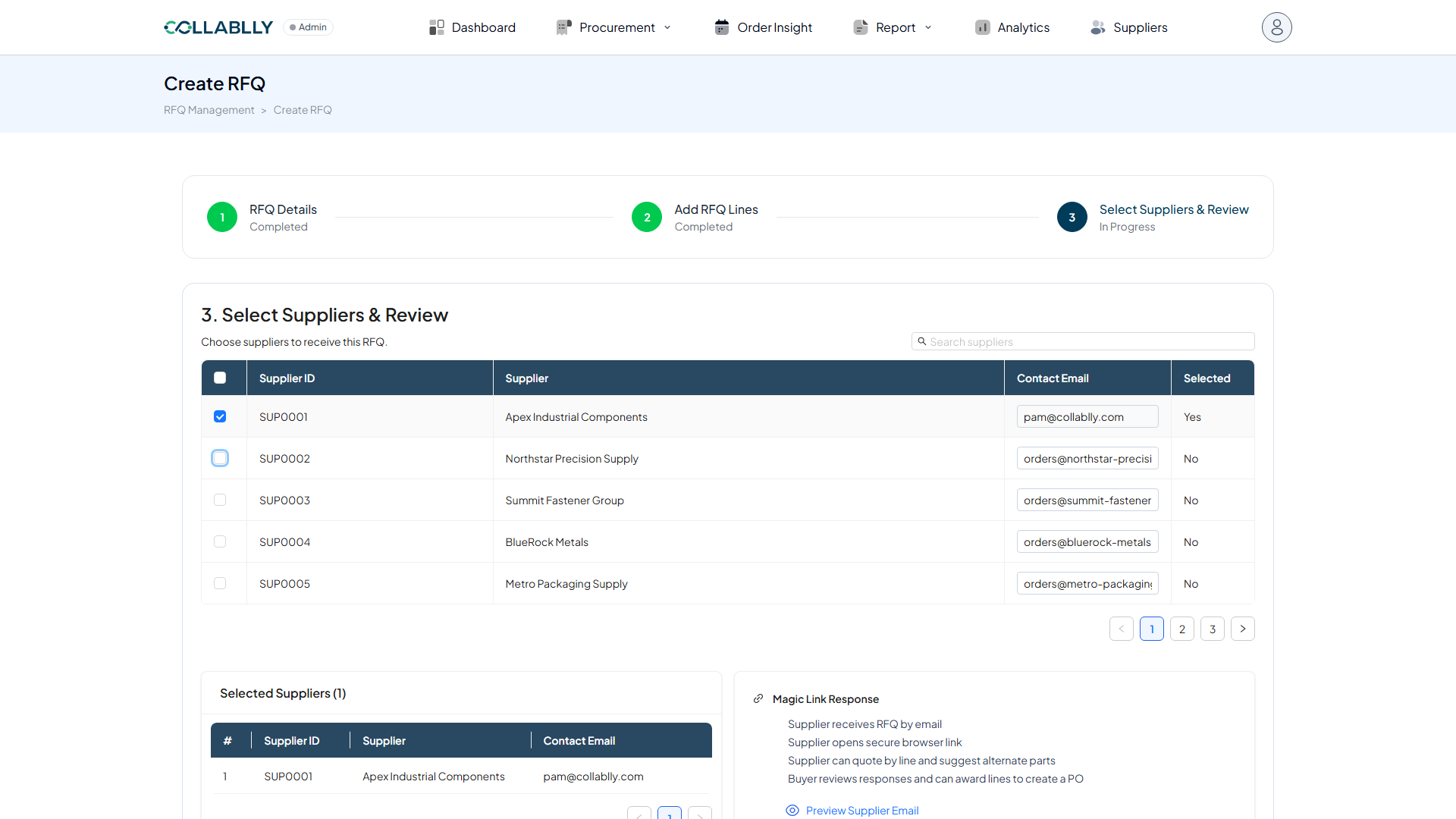
Point it at a real inbox
Contact Email is editable right here, pre-filled from the supplier record but not locked. Preview Supplier Email is worth knowing about but not fully trusting: it shows generic placeholder data, a different RFQ number and company than the one actually being sent, not a live preview of this specific RFQ.
- Step 8 of 18
Save & Send RFQ
This fires the real email immediately. RFQ-2026-000010 saved and sent, right to the address in the Contact Email field.
- Step 9 of 18
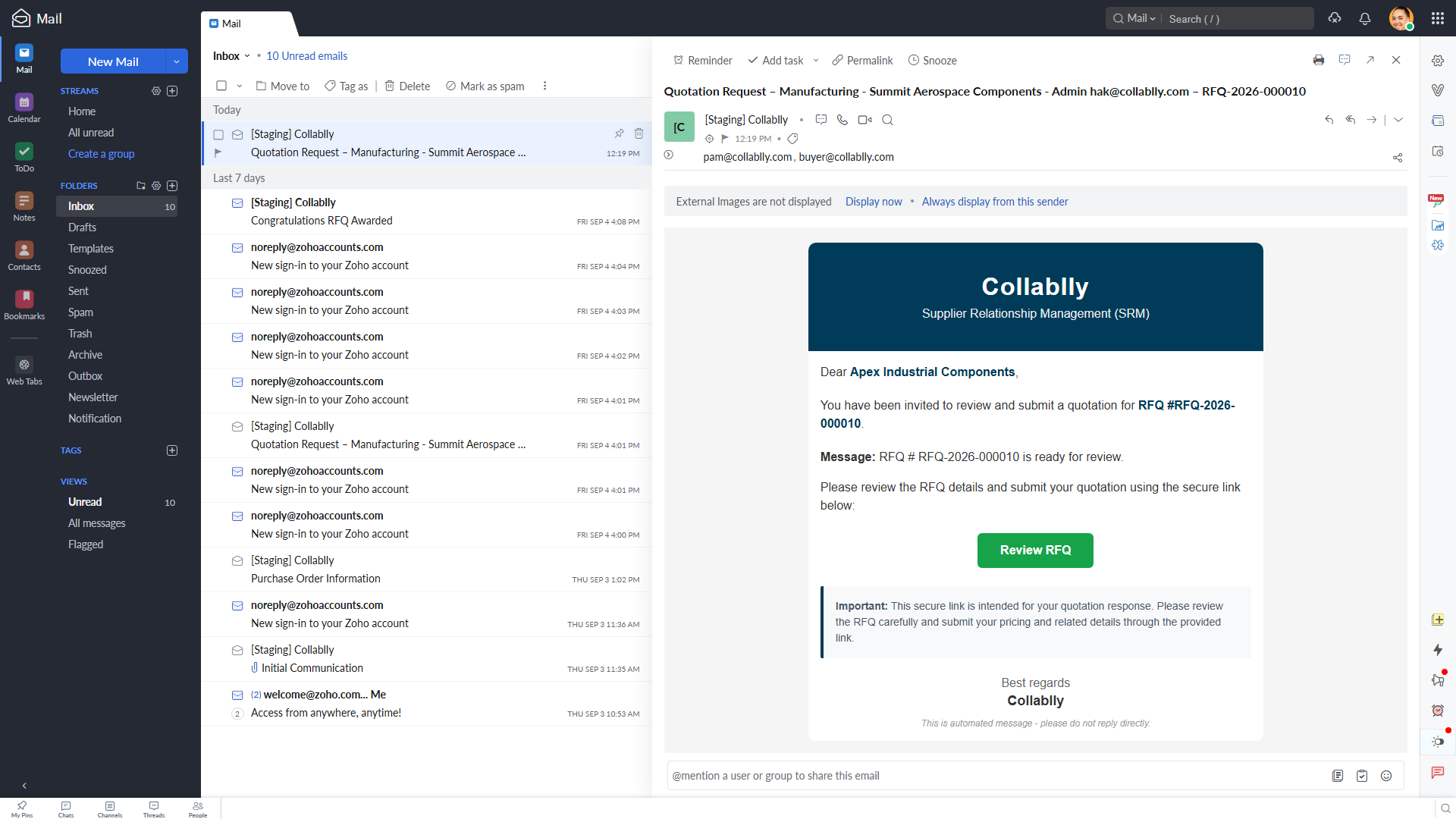
What the supplier's inbox shows
A real email arrives with a green Review RFQ button. One genuine quirk worth knowing: the subject line here reads a different, unrelated company name, that's boilerplate text the subject template doesn't tie to the real supplier, while the body underneath correctly greets "Dear Apex Industrial Components". Trust the body, not the subject.
- Step 10 of 18
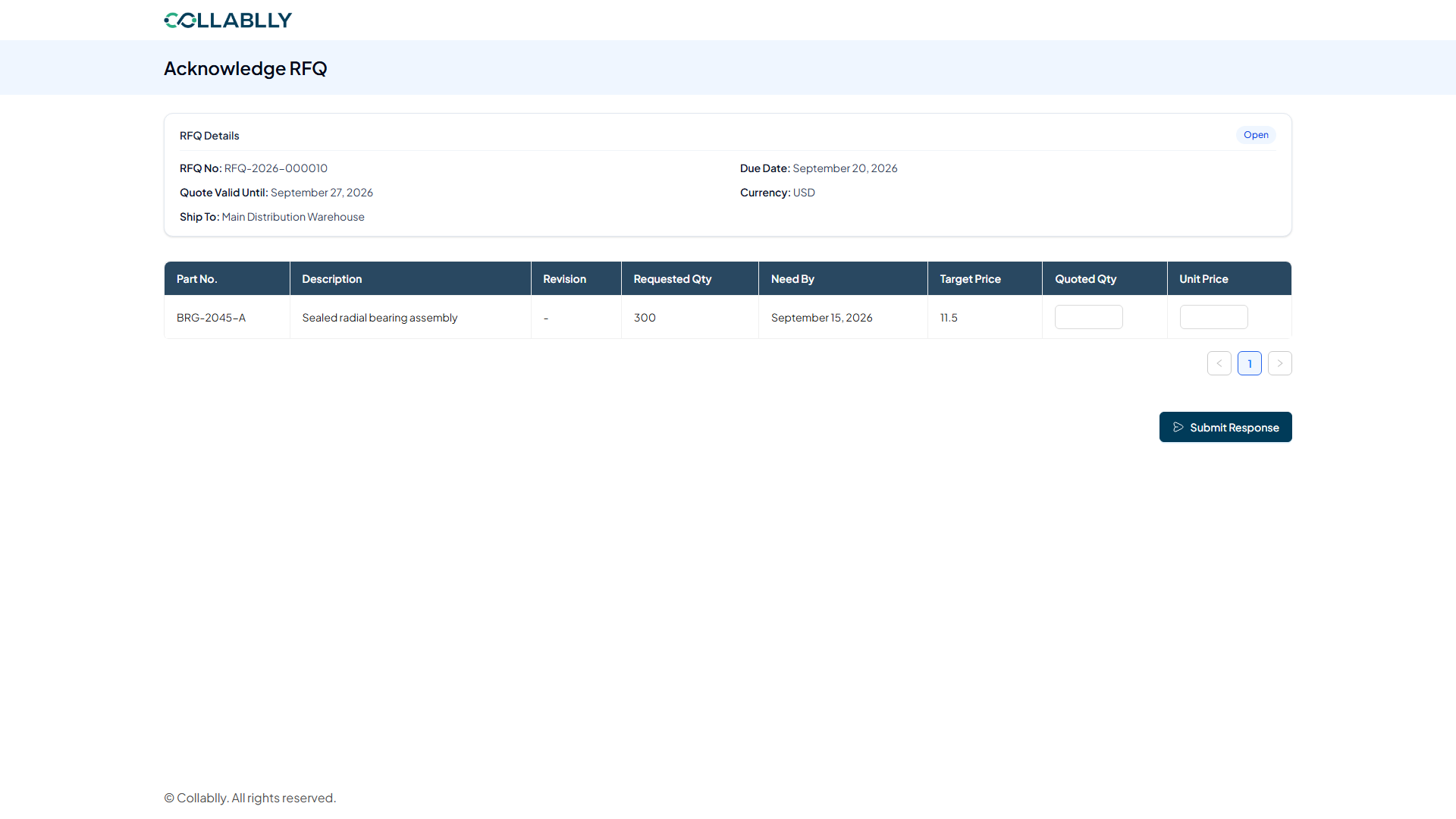
The Acknowledge RFQ page, no login required
Review RFQ opens a public page with the RFQ's real details, RFQ No, Due Date, Quote Valid Until, Currency, Ship To, and the real line, matching exactly what the buyer entered. No supplier account or password needed.
- Step 11 of 18
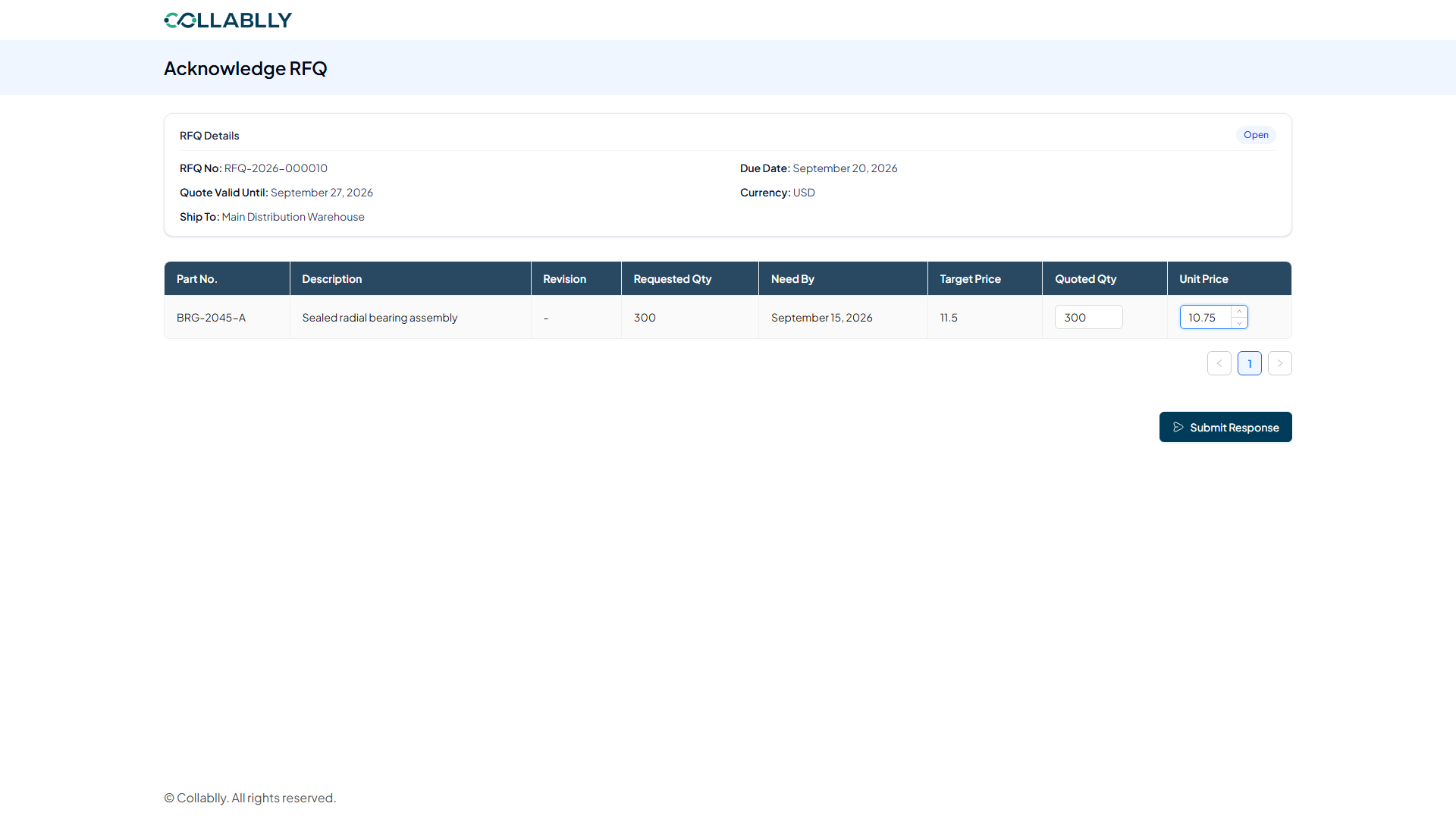
Quote it and submit
Quoted Qty 300, Unit Price 10.75, just under the buyer's target of 11.5. Submit Response is the supplier's only action here.
- Step 12 of 18
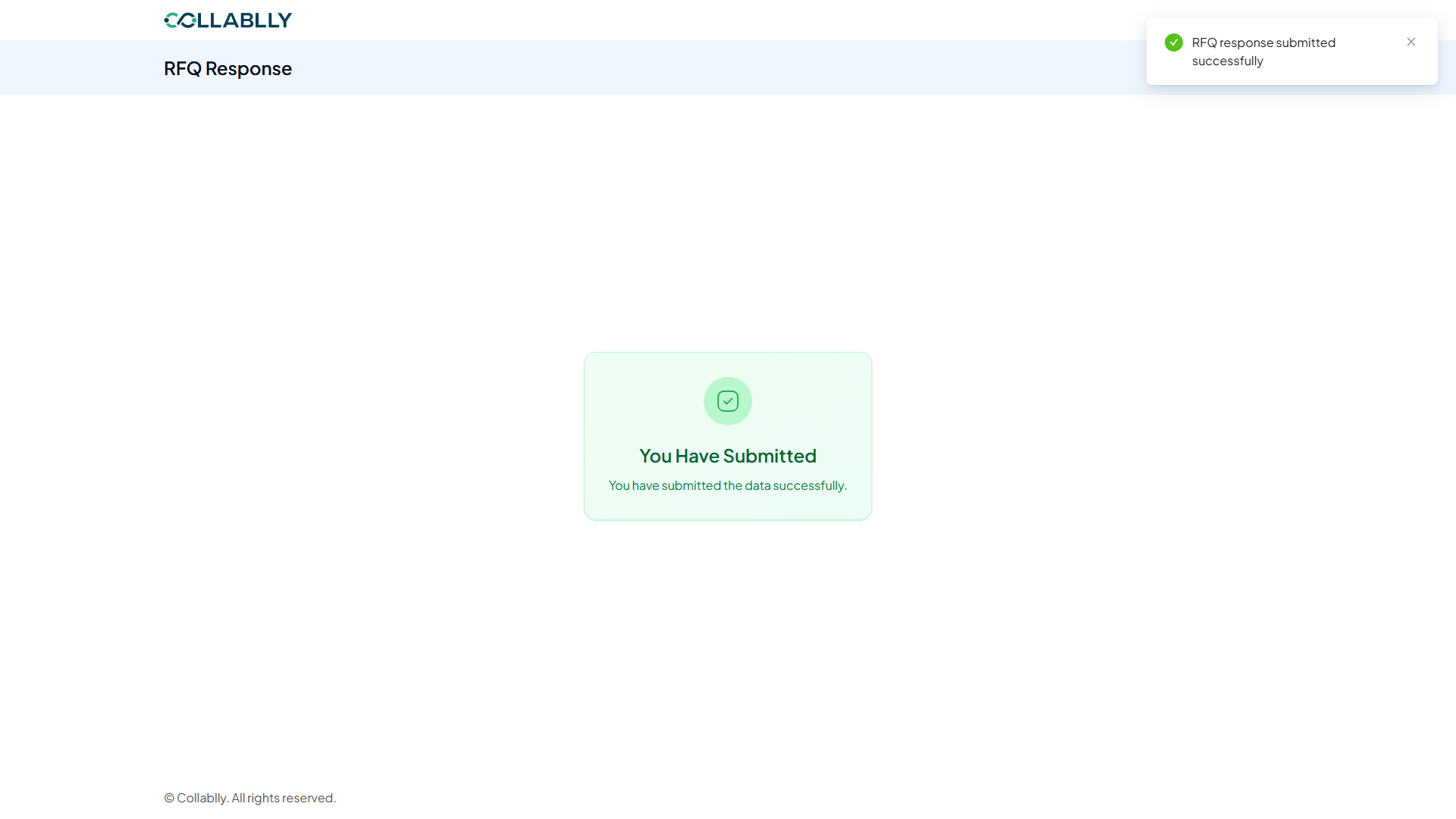
You Have Submitted
The supplier's part is done. Everything from here happens back on the buyer's side.
- Step 13 of 18
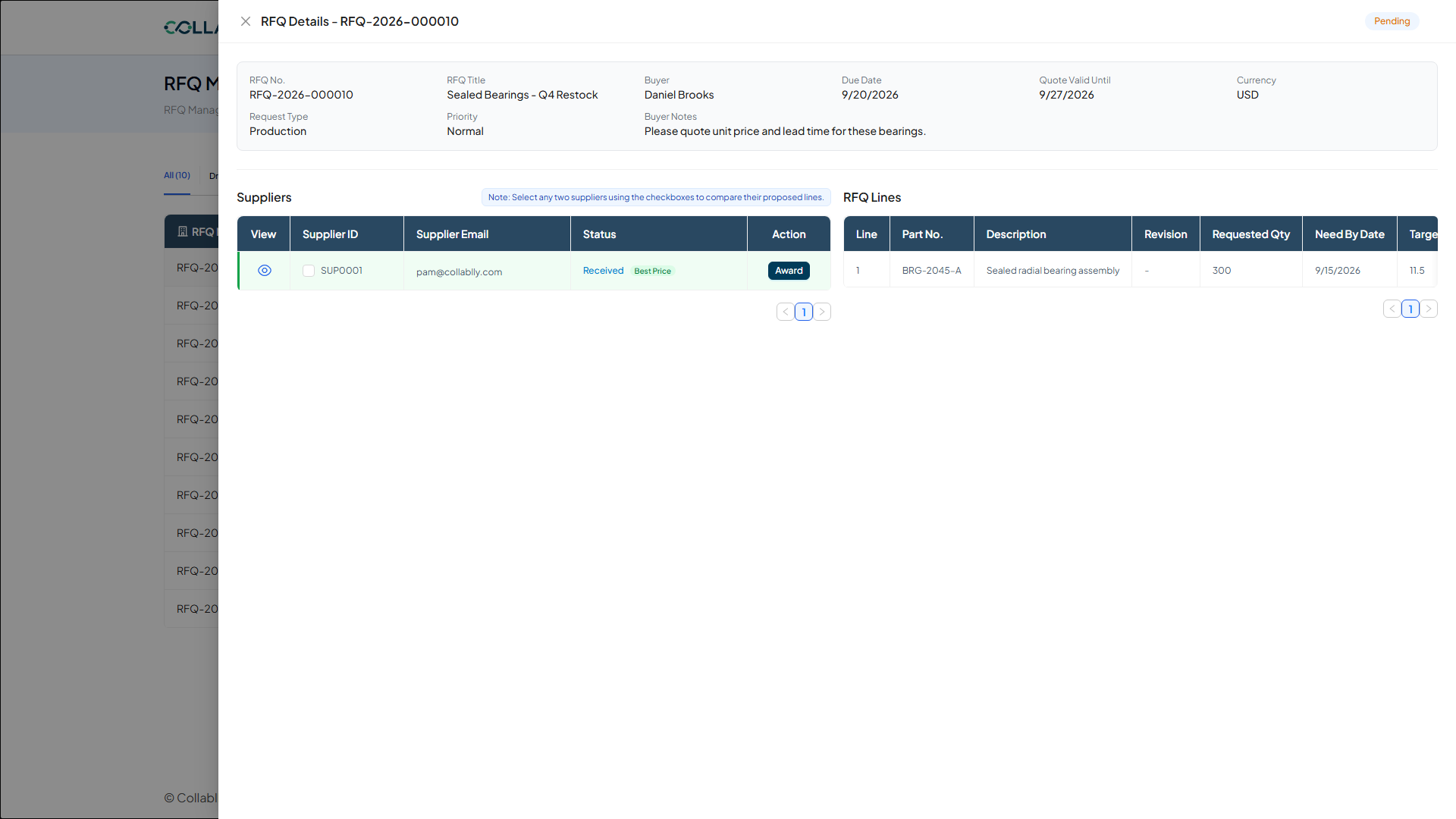
The quote lands
Back in RFQ Details, the supplier's Status now reads Received, tagged Best Price since it's the only quote in this case, and an Award button has appeared.
- Step 14 of 18
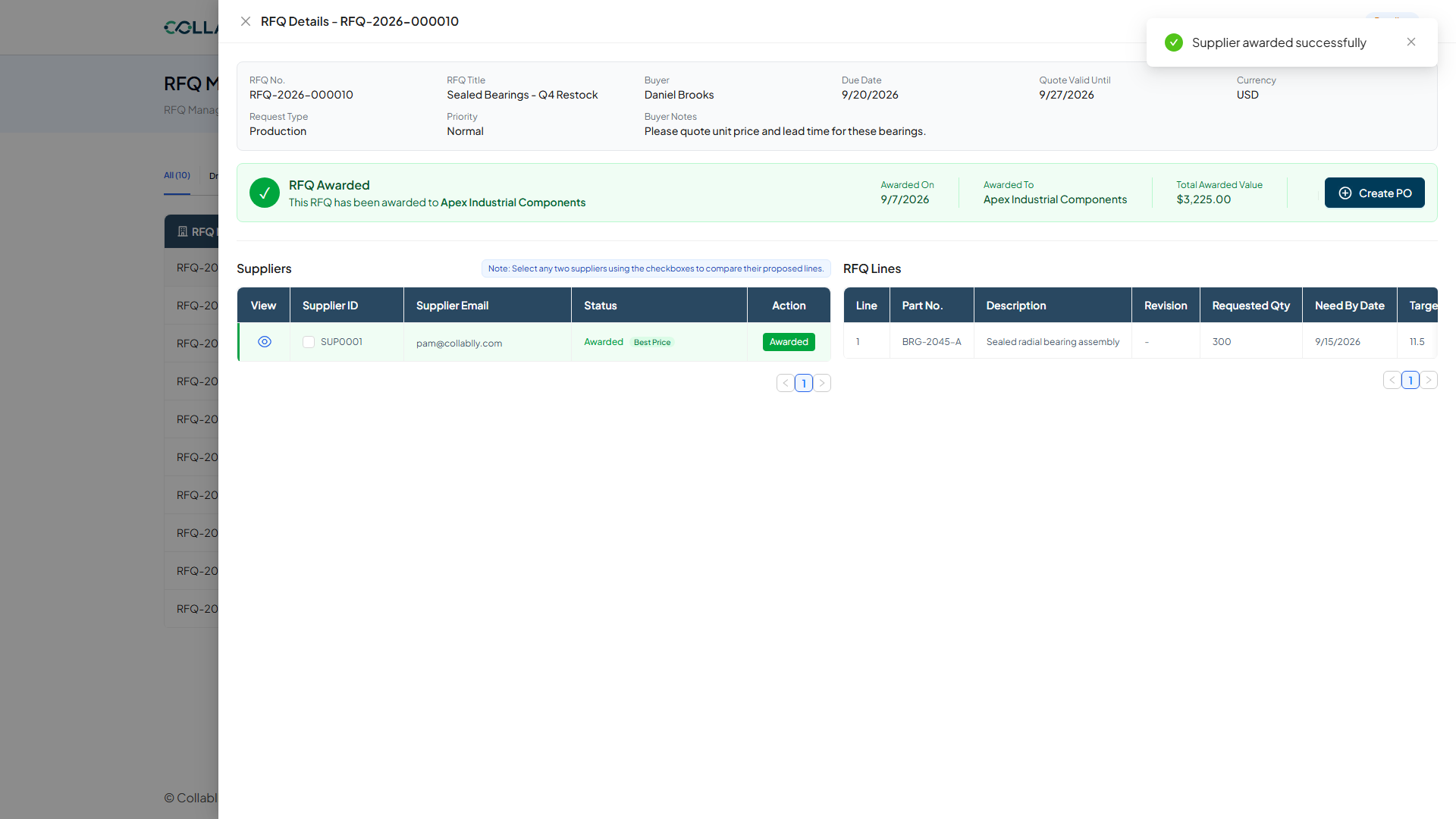
RFQ Awarded
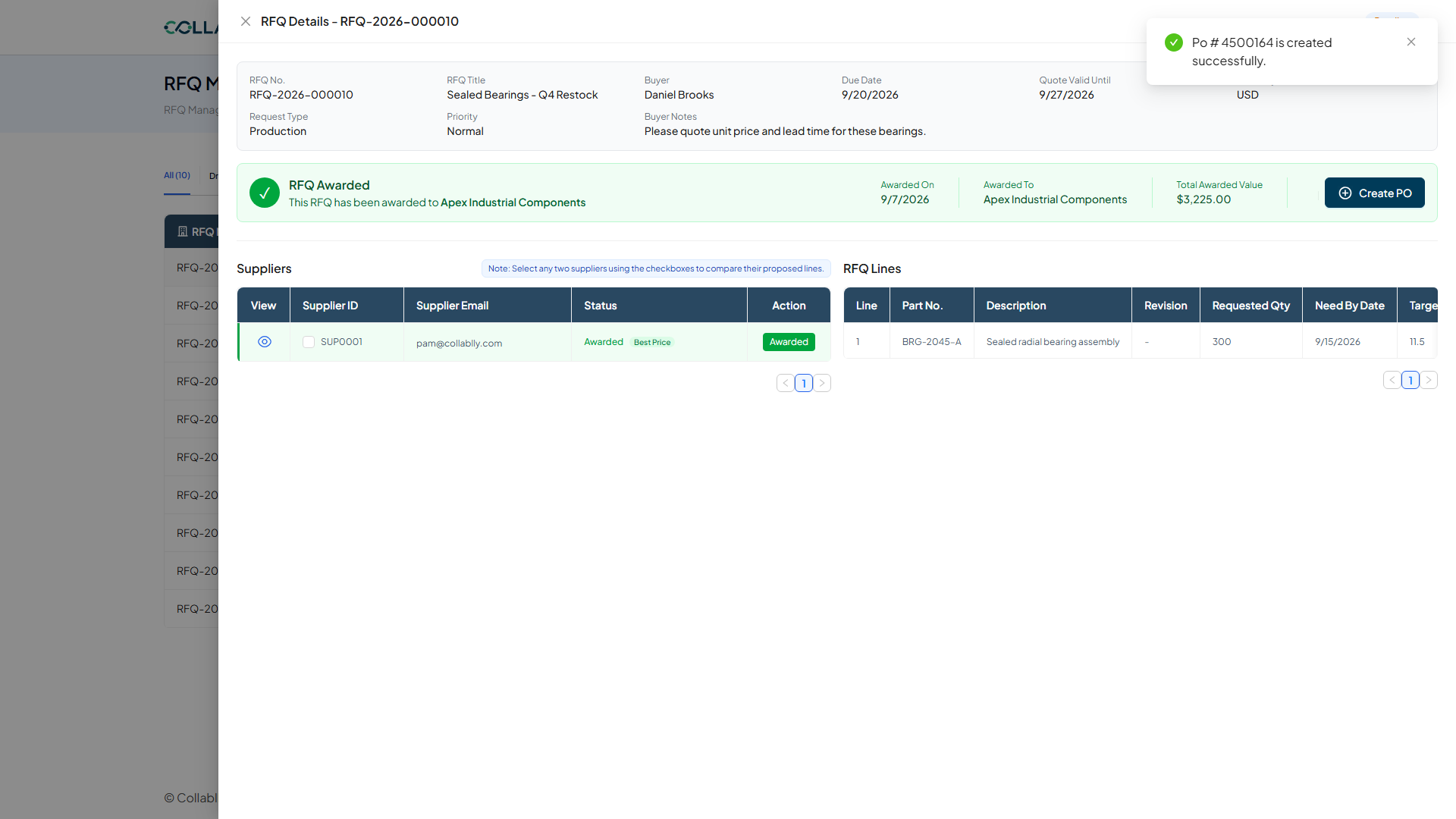
A green banner confirms it: awarded to Apex Industrial Components, Total Awarded Value $3,225.00, 300 units at 10.75. Awarding doesn't create the PO by itself, Create PO is a separate, deliberate click.
- Step 15 of 18
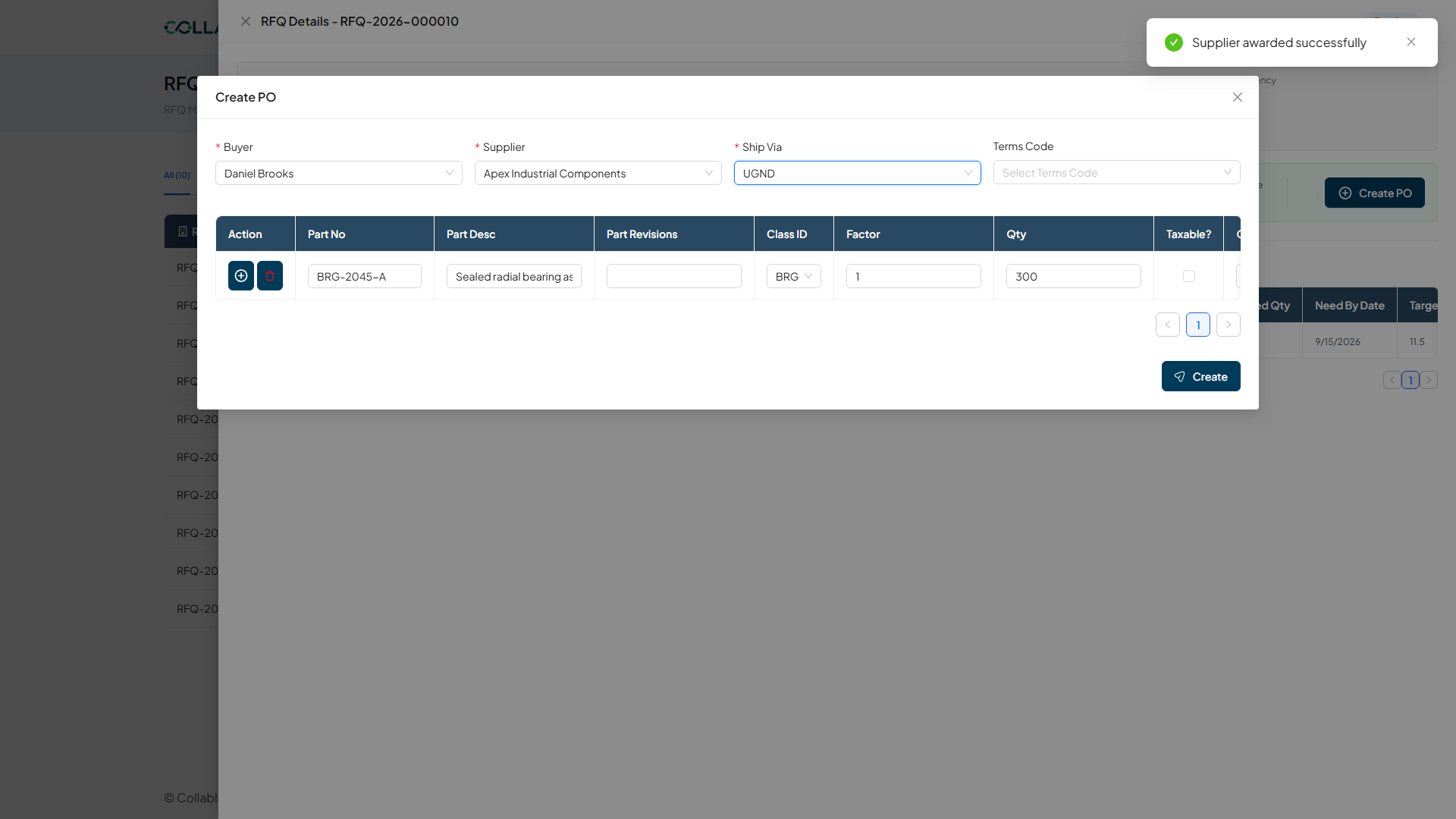
Confirm the PO details
Buyer, Supplier, Part No, and Qty all arrive pre-filled from the awarded RFQ line. Only Ship Via still needs picking before Create is enabled. Please review every field before continuing, once Create is clicked, the PO is real.
- Step 16 of 18
PO created
"Po # 4500164 is created successfully." The RFQ has done its job: Request for Quote to real Purchase Order.
- Step 17 of 18
Sync, the same ERP round trip
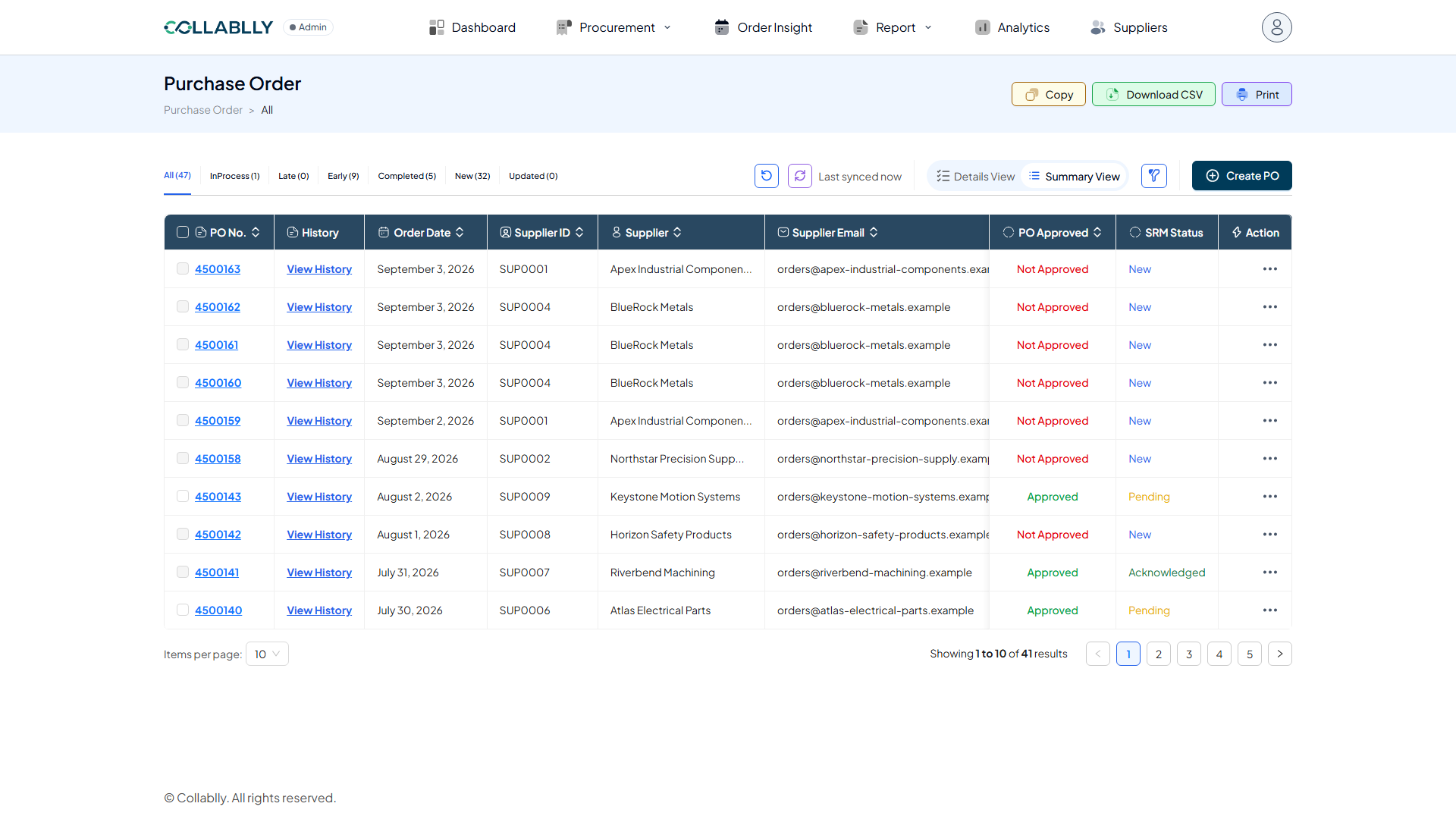
Same pattern as every other write in this app: the new PO lives in the ERP system first, not Collablly's own database. Click Sync and wait for Last synced now before expecting to see it.
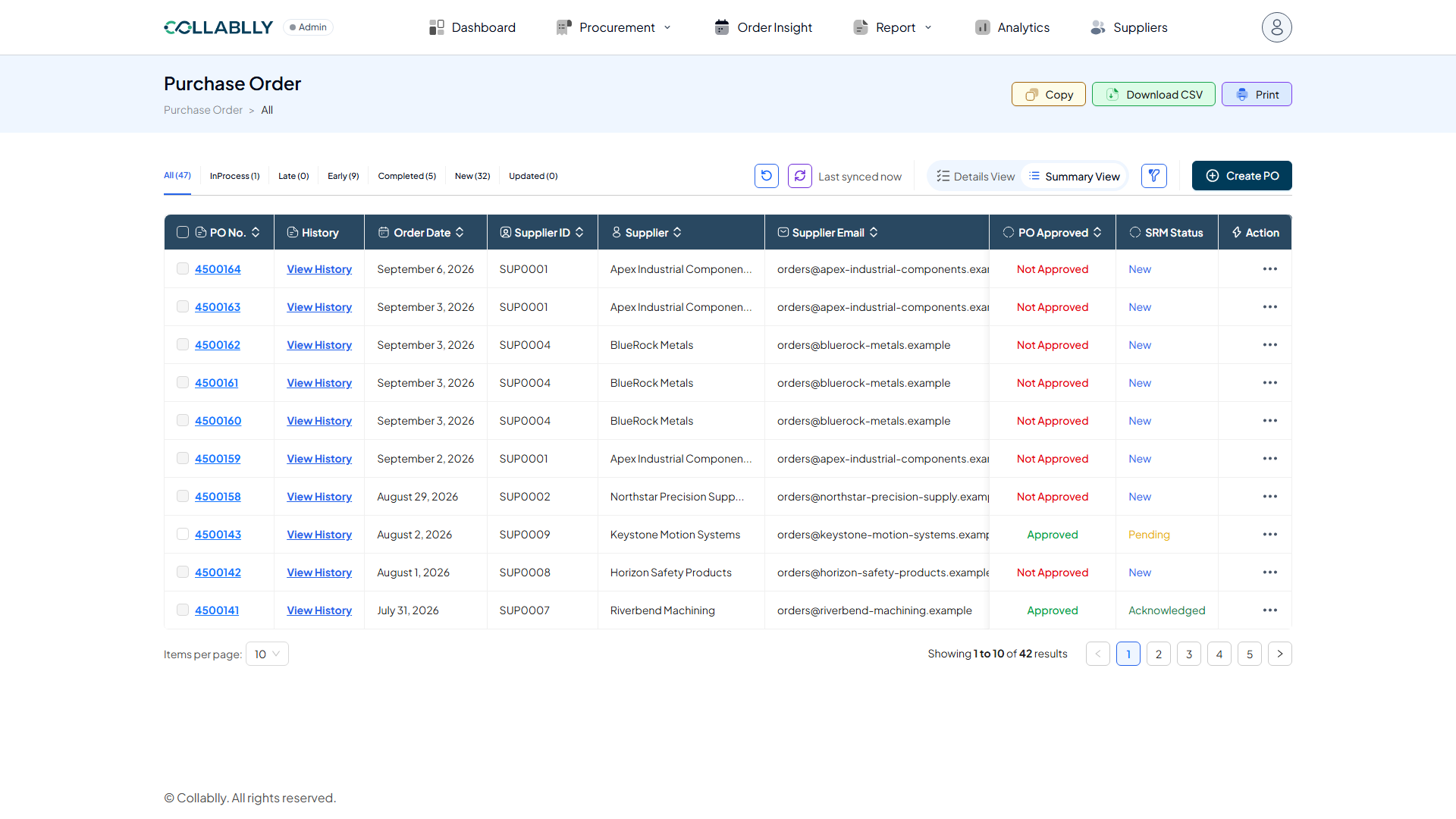
- Step 18 of 18
PO 4500164, in Summary View
Right at the top: 4500164, Apex Industrial Components, PO Approved Not Approved, SRM Status New, the same starting point as any other PO, ready for the normal approval and Initial Communication flow from here.