- Step 1 of 14
Mass PO Edit: a real three-step wizard
Mass PO Edit updates Price, Due Date, QTY, Part Rev, or Factor on many PO lines at once with one Excel file. No editing lines one by one. The page walks you through three steps: Download Template, Upload & Validate, Review & Save. You can start from an empty template, or download every open PO line you have right now.
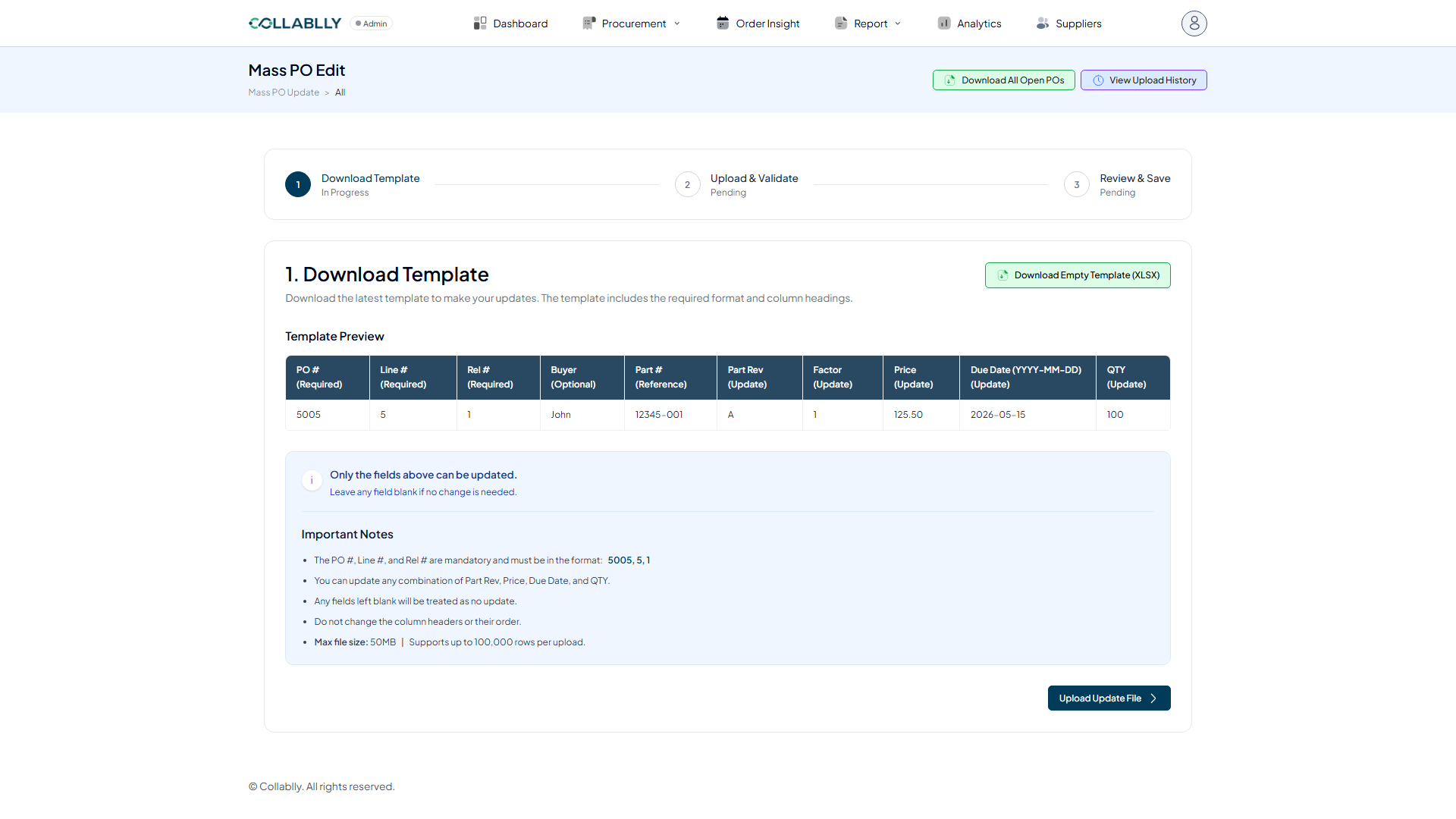
- Step 2 of 14
Download All Open POs
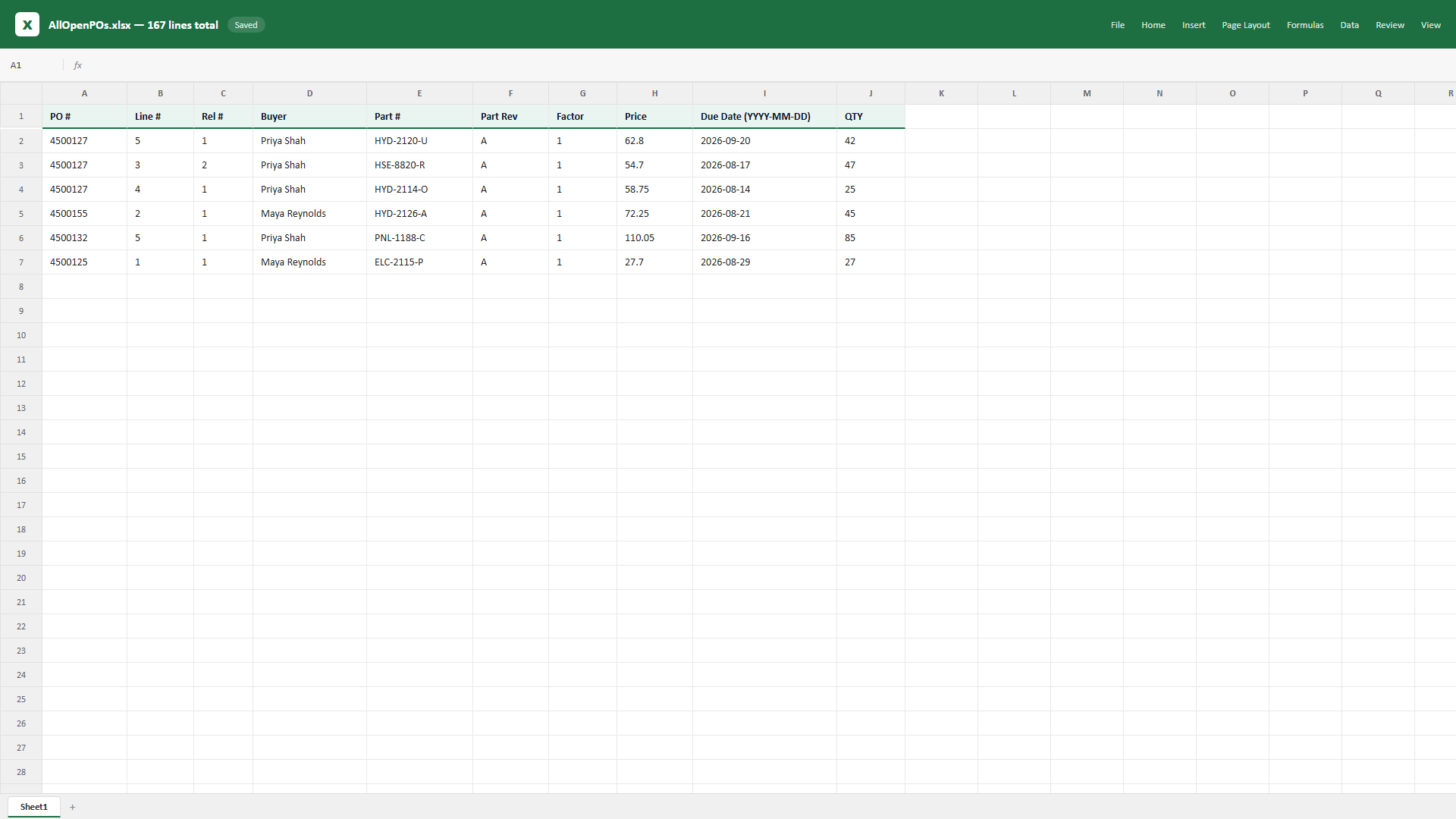
Click Download All Open POs instead of the empty template. You get a real export of every open PO line you're tracking, already in the exact column format the upload expects. This run pulled 167 real lines into one .xlsx file.
- Step 3 of 14
Every open line, in one file
Each row is one PO line. PO #, Line #, and Rel # identify it and must match exactly. Buyer and Part # are for reference only. Part Rev, Factor, Price, Due Date, and QTY are the fields Mass PO Edit can update. This file has 167 lines, far more than we need for one update.
- Step 4 of 14
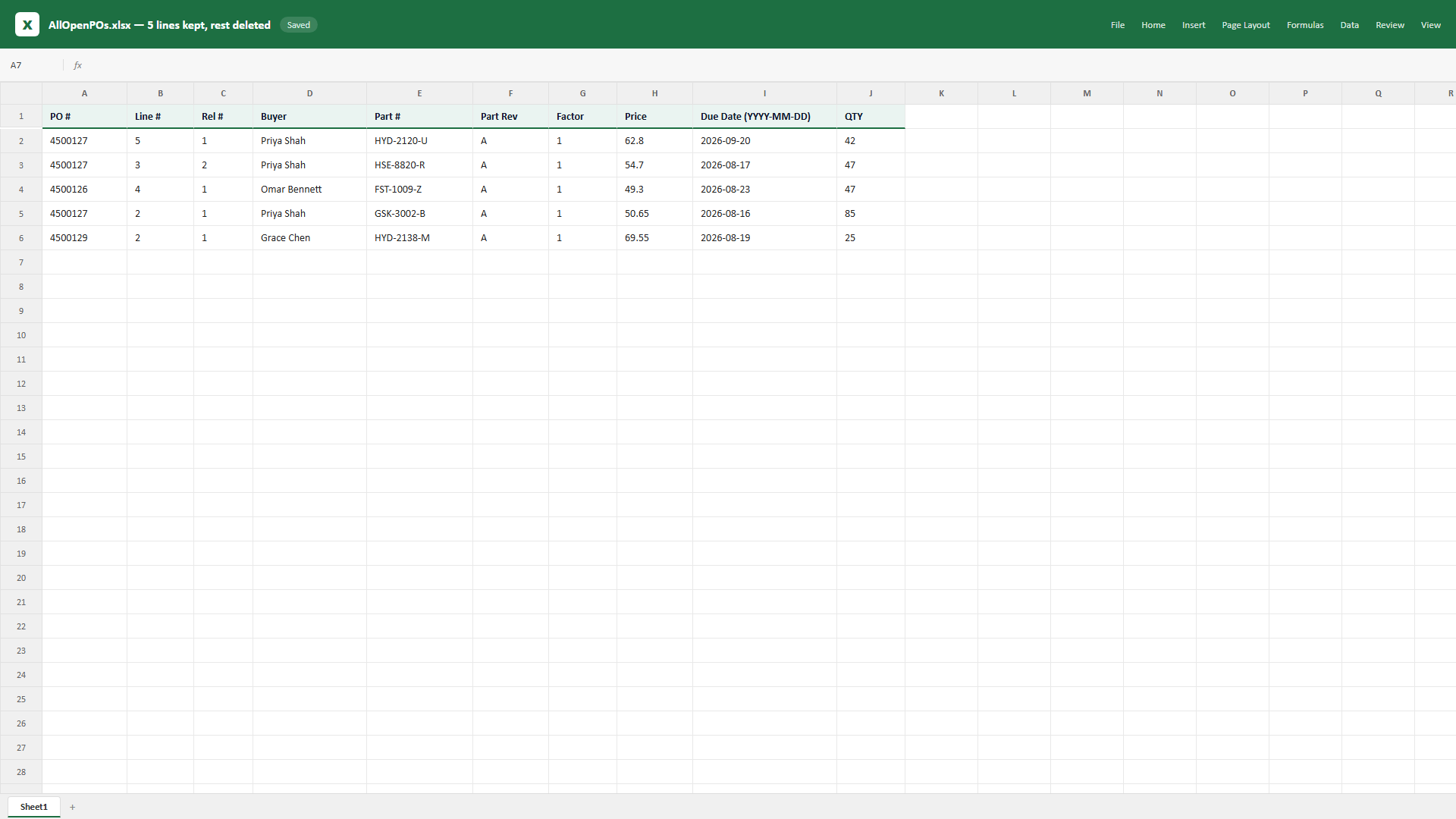
Delete every row except the ones you're changing
Open the file locally and delete every row except the ones you're updating. Here that's 5 lines from three different POs. PO #, Line #, and Rel # must stay exactly as downloaded on every kept row. Mass PO Edit uses that trio to find the real line, so changing or misspelling any of them fails validation.
- Step 5 of 14
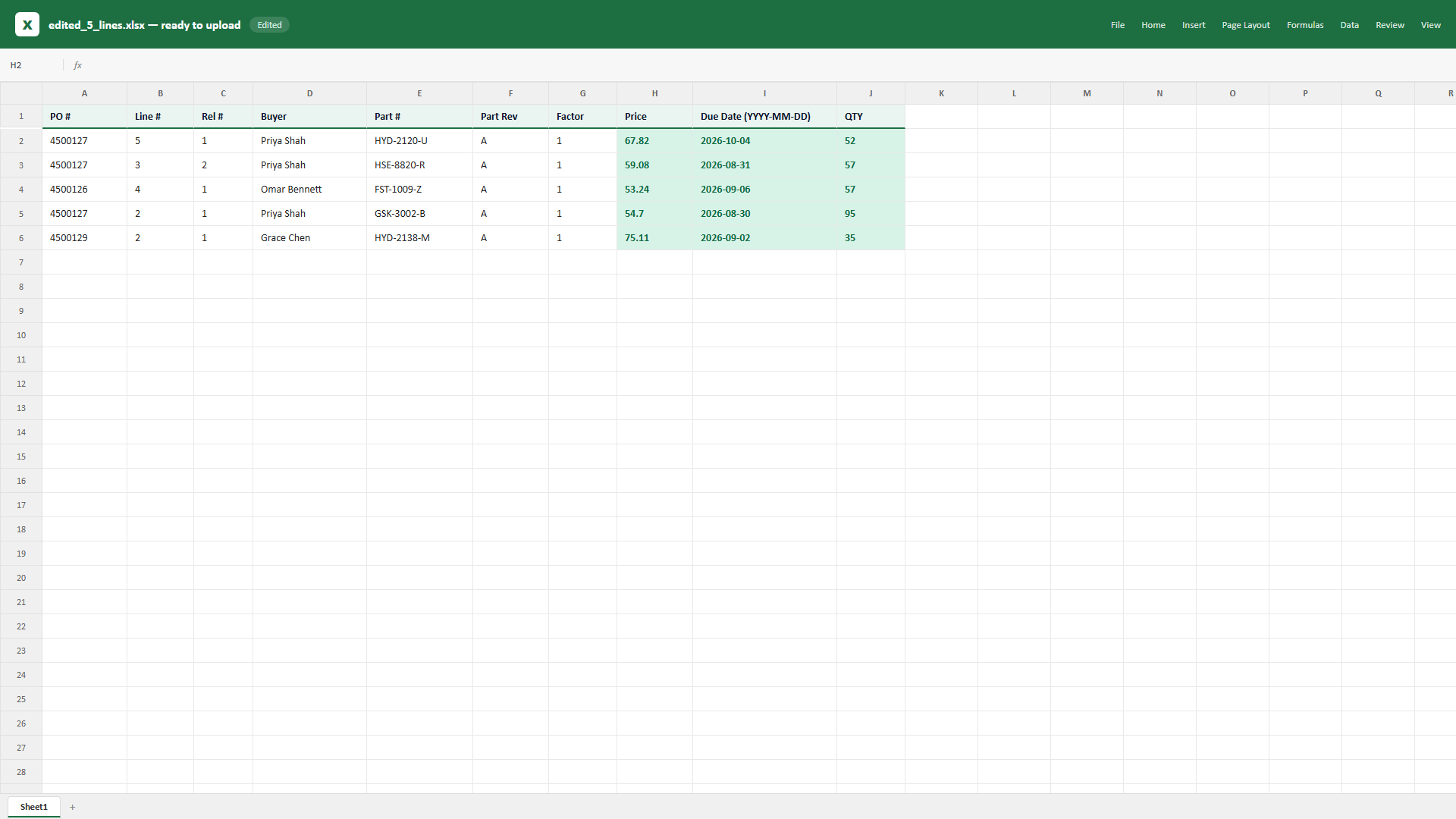
Edit only the columns you want to change
On the 5 kept rows, Price, Due Date, and QTY were edited, shown highlighted here. Part Rev and Factor are just as editable, they were simply left as-is on this run. Any update column can be left blank to mean no change. Column headers and their order must stay exactly as downloaded, or the upload gets rejected. Save the file locally once the edits are in.
- Step 6 of 14
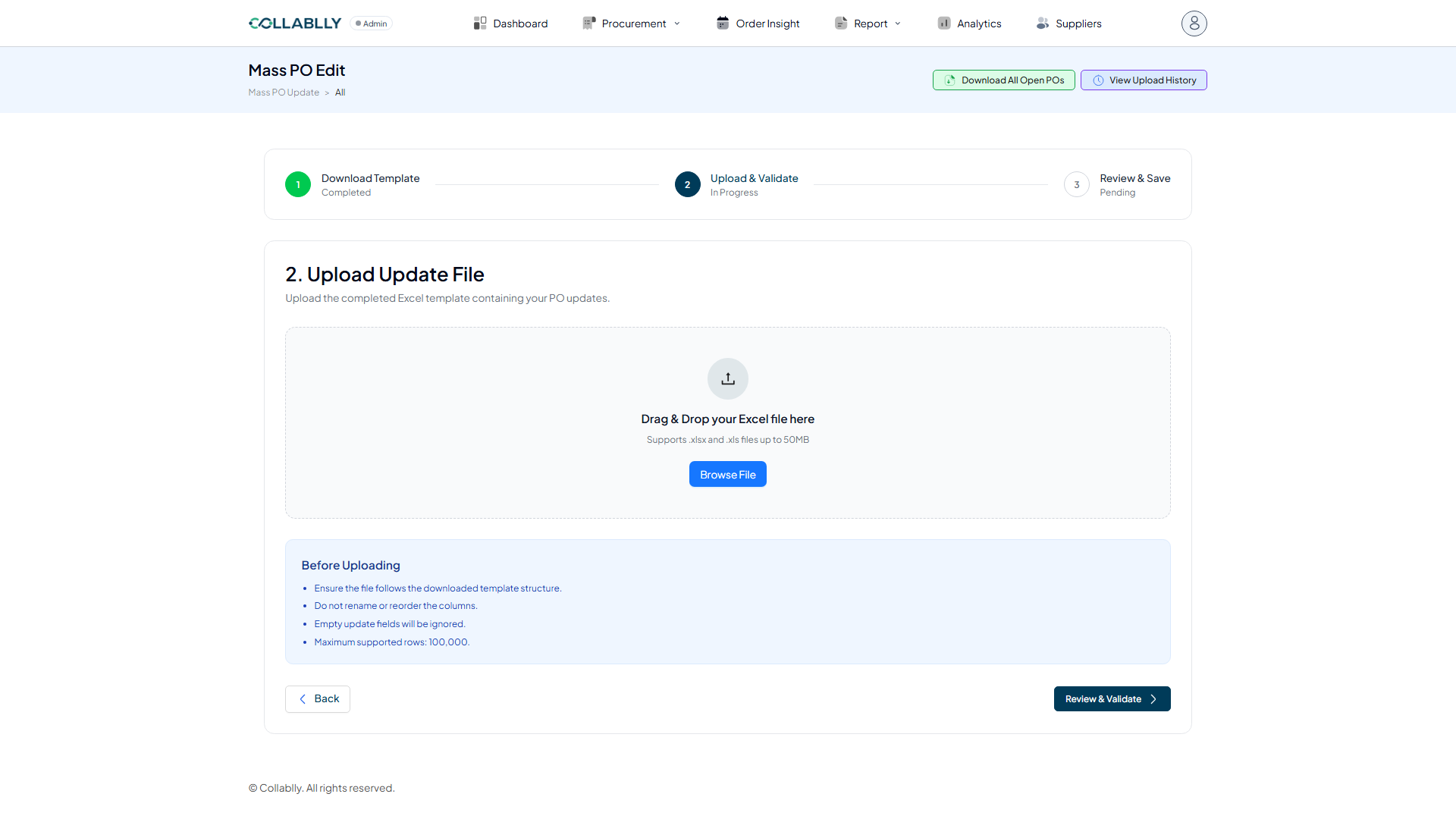
Back in the browser: Browse File
Step 2, Upload & Validate, gives you a drag-and-drop zone that also takes a regular file picker. Click Browse File and select the edited 5-line spreadsheet, or drag it straight onto the dashed box.
- Step 7 of 14
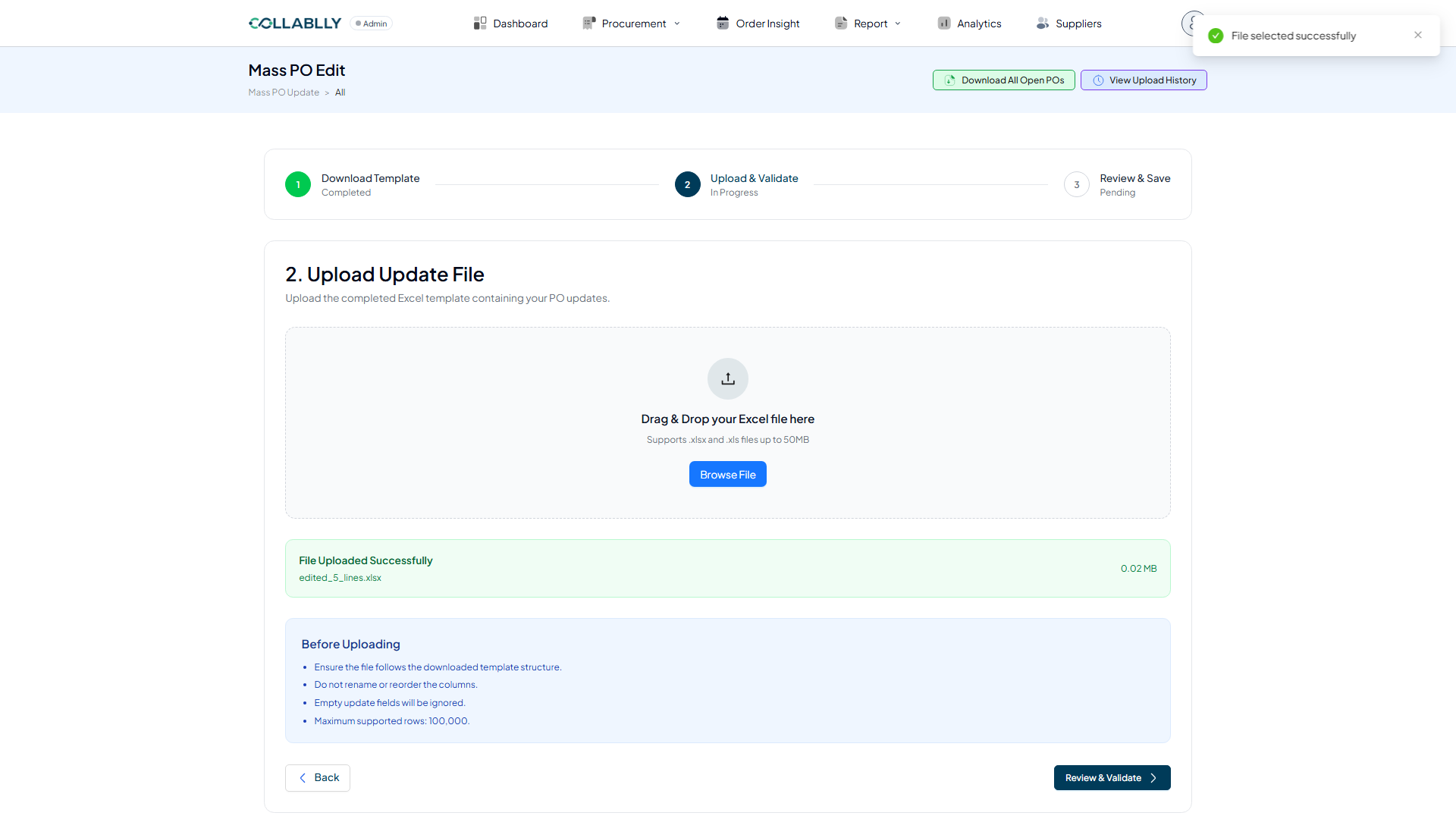
File uploaded successfully
A green confirmation bar names the exact file and its size: edited_5_lines.xlsx at 0.02 MB. The Before Uploading reminders stay visible as a checklist. Nothing has been saved yet, Review & Validate is the next real step.
- Step 8 of 14
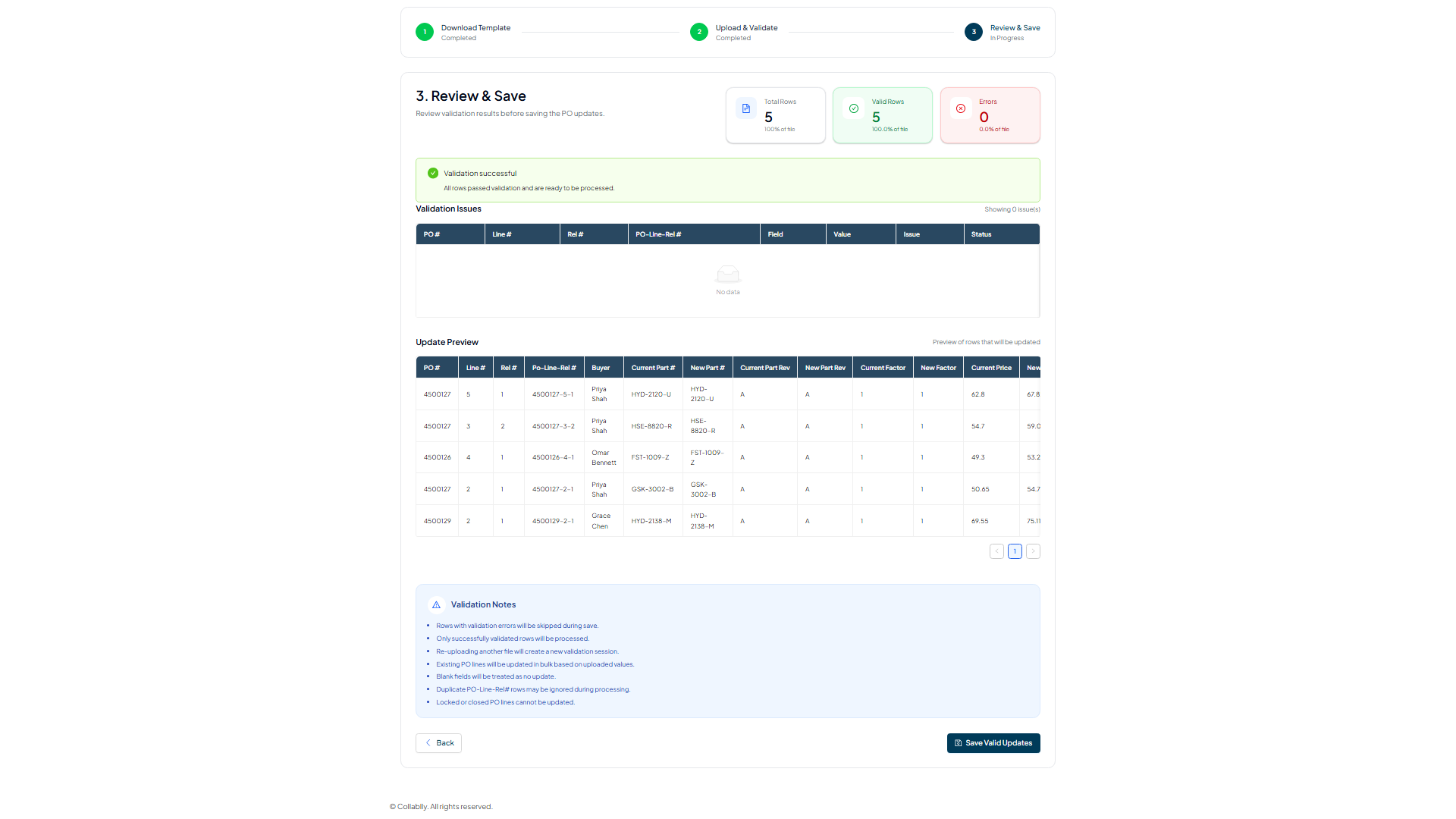
Review & Validate: the real verification pass
This is where Mass PO Edit actually checks the file. Total Rows, Valid Rows, and Errors tiles summarize the outcome, 5 of 5 valid here. A Validation Issues table lists exactly which row and field failed on any bad rows. An Update Preview table shows every field's Current value next to its New value, so you can sanity-check the real change before it's saved.
- Step 9 of 14
Save Valid Updates commits the change
Only rows that passed validation get written. Anything with an error is skipped automatically, per the Validation Notes on this same screen. With all 5 rows valid, Save Valid Updates writes every one of them to the real PO lines.
- Step 10 of 14
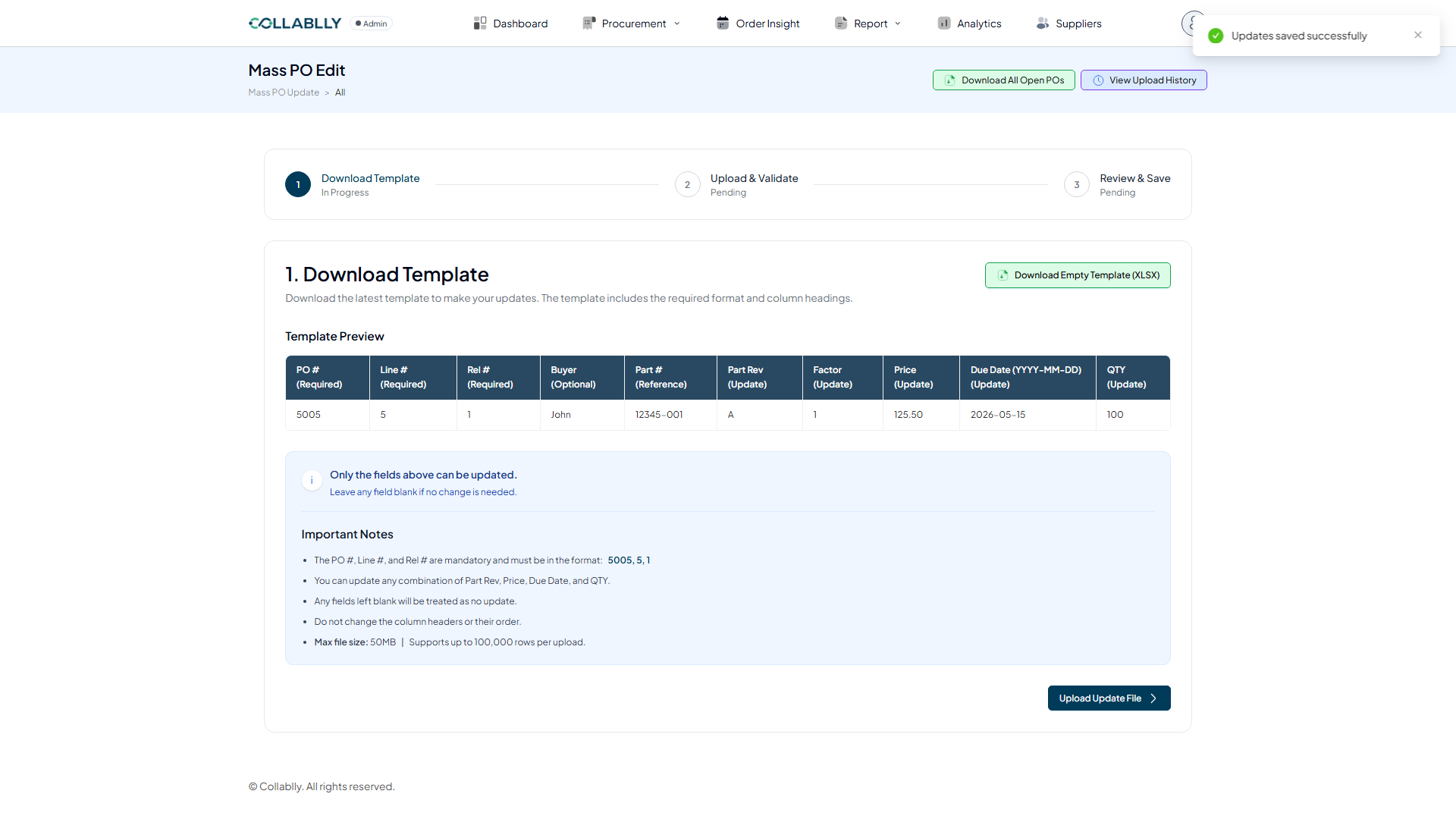
Updates saved successfully
A confirmation toast appears the moment the save completes. The wizard resets itself back to step 1, Download Template, ready for the next file.
- Step 11 of 14
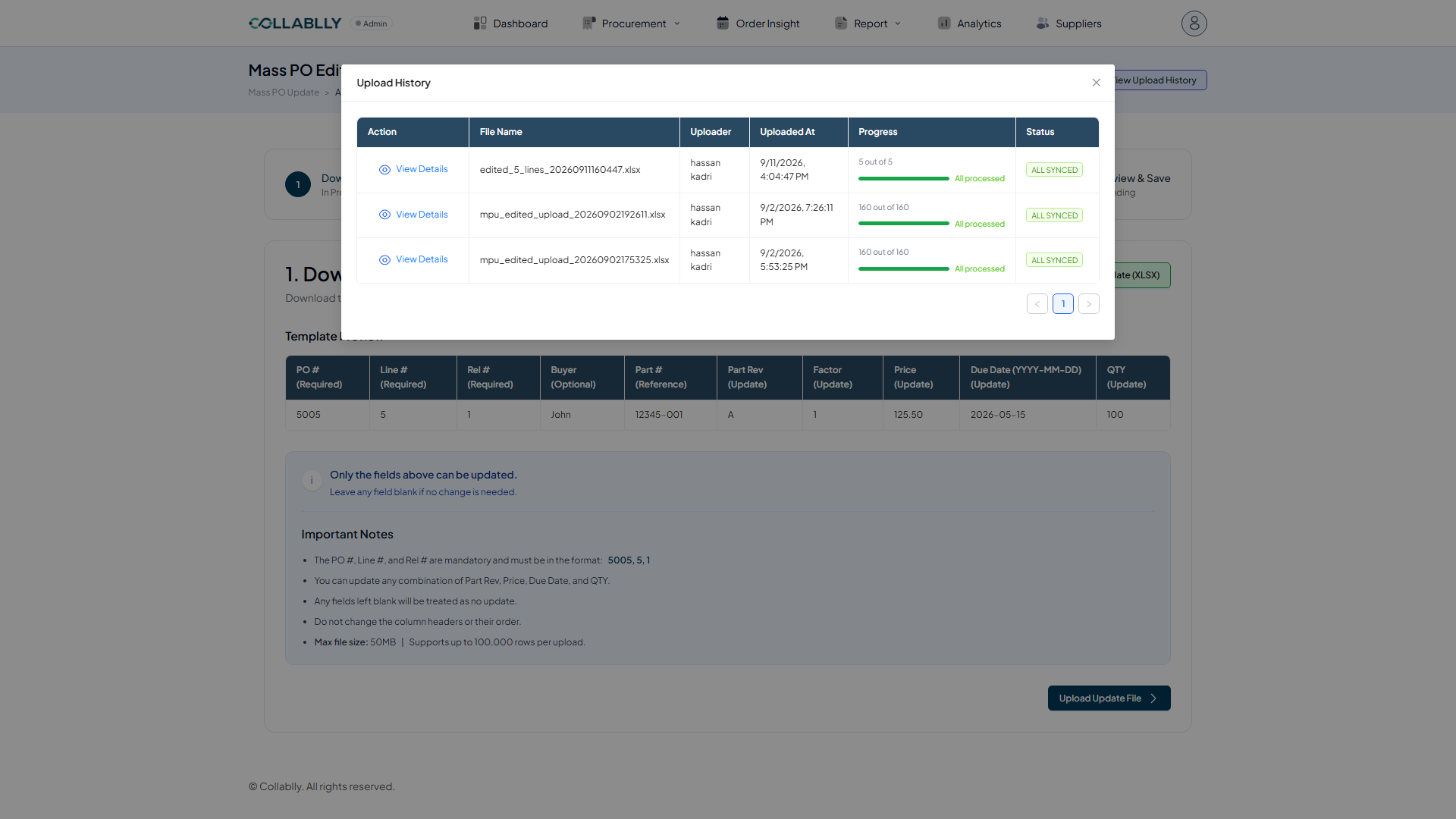
View Upload History: the collective progress
Every file you've ever uploaded lives here: uploader, timestamp, a live Progress bar (X out of Y rows processed), and a Status badge. Status reads PENDING while it's still processing, then ALL SYNCED once every row lands. This upload started at 0 out of 5 and, moments later, is showing 5 out of 5.
- Step 12 of 14
View Details opens one upload's own breakdown
Each row in Upload History has its own View Details link. Click the one on your upload to see exactly how each of its lines resolved, not just the file-wide total.
- Step 13 of 14
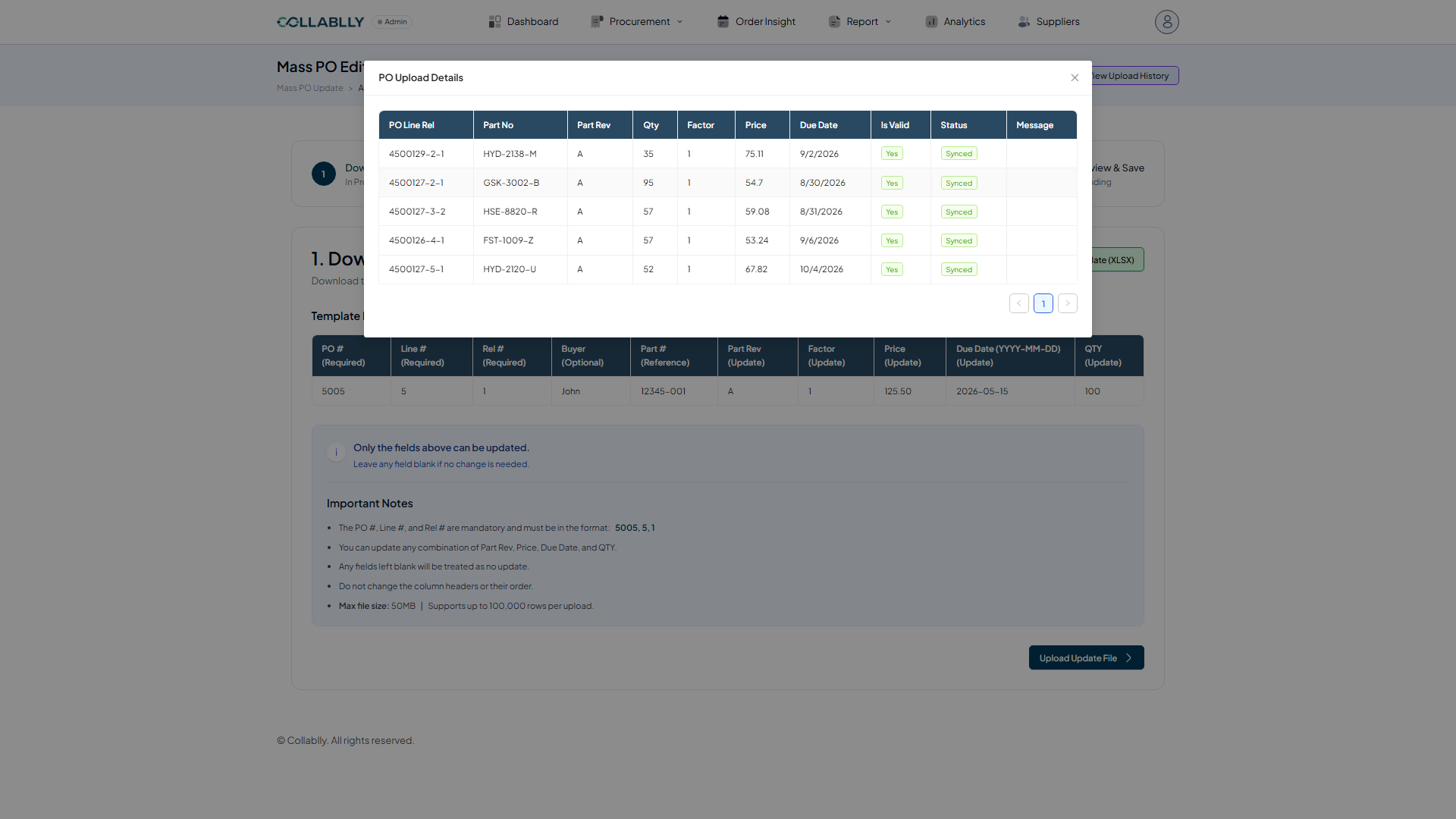
View Details: the individual line progress
This is that breakdown: the new Part Rev, Factor, Price, Due Date, and QTY each line landed on, an Is Valid flag, a per-row Status, and a Message column for any failure. All 5 lines here came back Yes and Synced, nothing to fix.
- Step 14 of 14
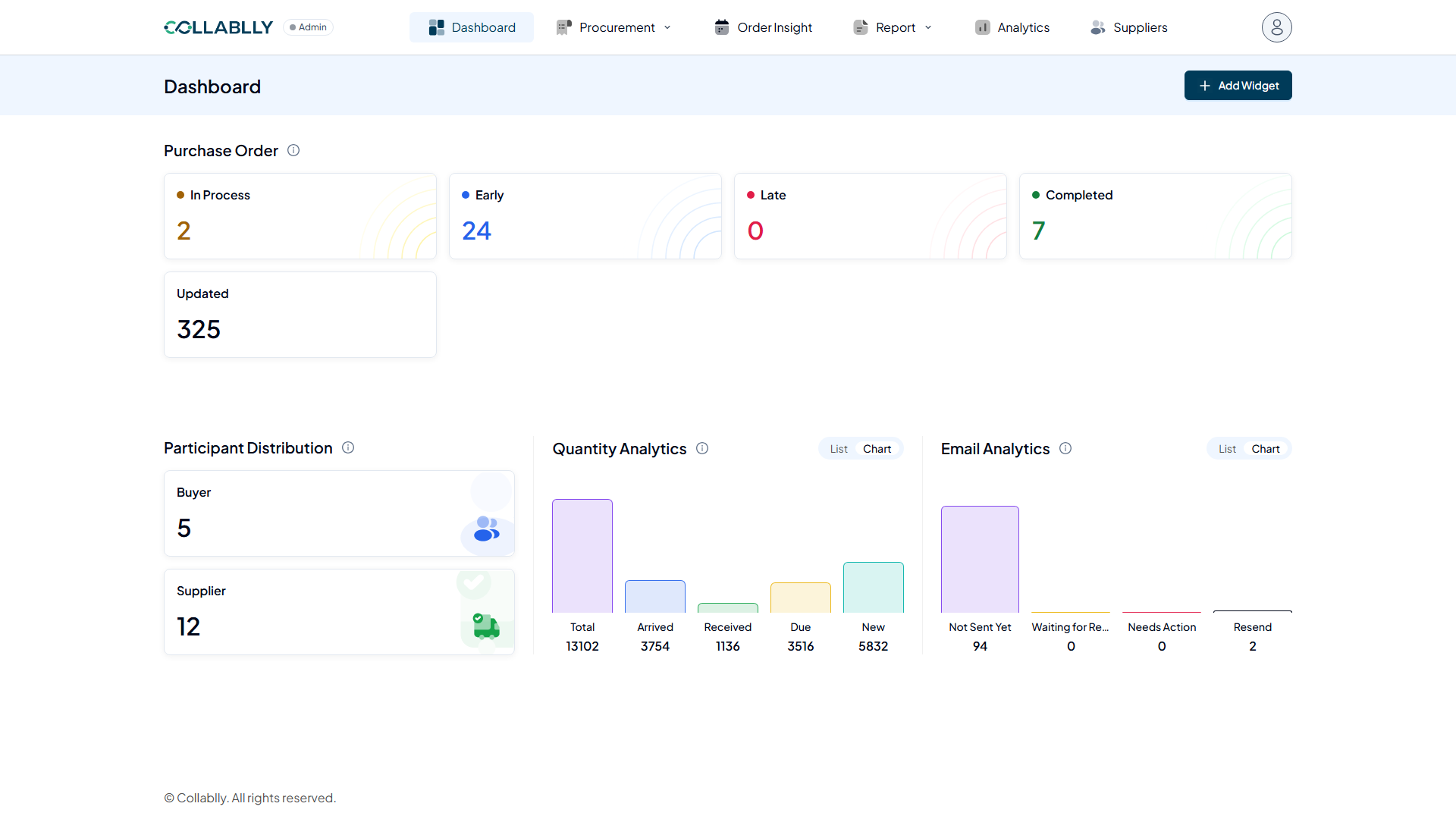
The Dashboard confirms it landed
The Purchase Order section's Updated tile on the Dashboard ticks up by exactly the number of lines just saved: 320 before this run, 325 right after. It's real proof the 5 edits reached the live PO lines, not just the upload log.