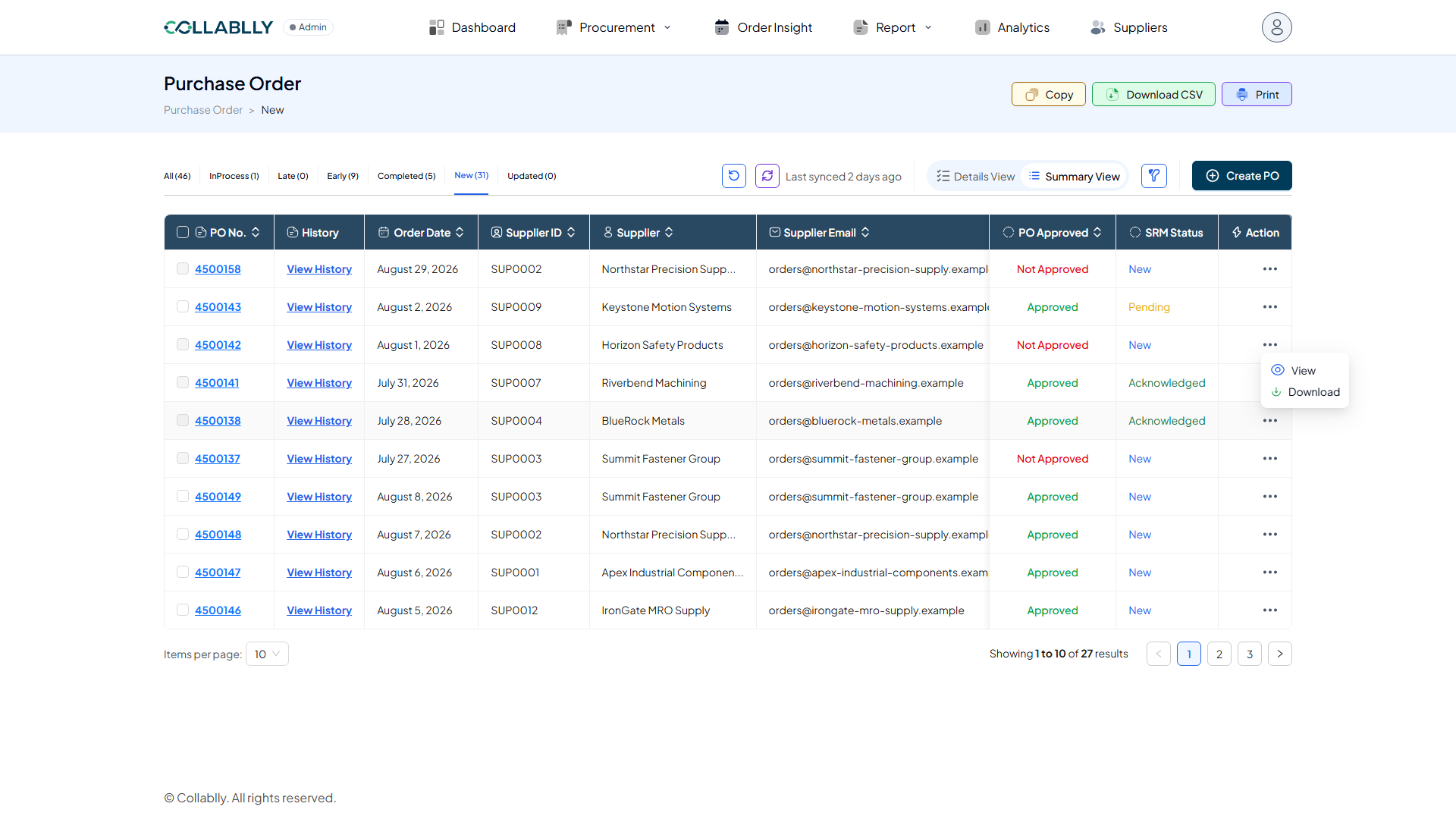
- Step 1 of 13
Start with an approved PO
In Purchase Order's Summary View, an approved PO sitting at SRM Status New is ready to send. PO Approved must read Approved before Send becomes available, this is a real prerequisite, not just a display detail.
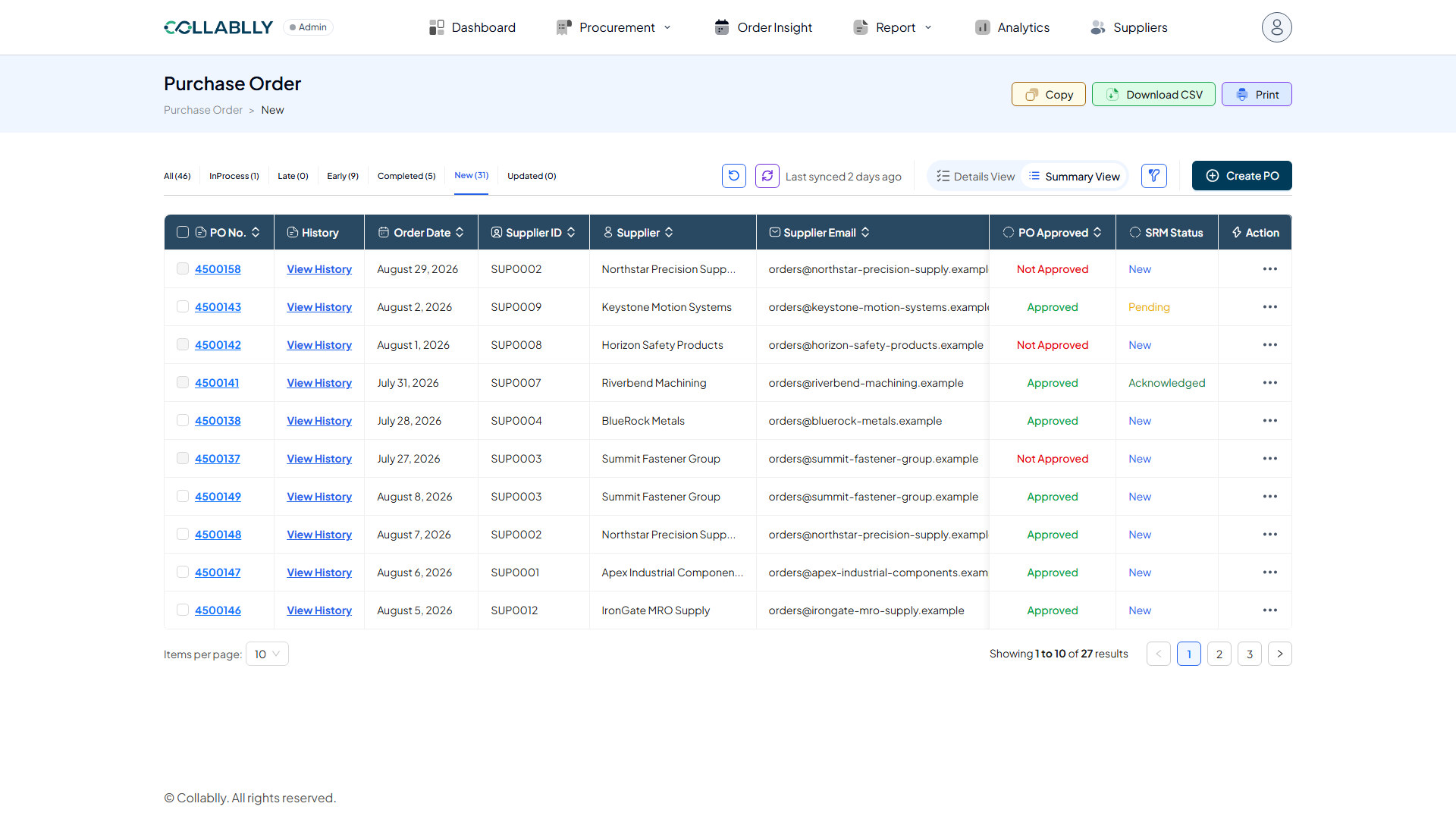
- Step 2 of 13
Open the Action menu
The row's Action menu (the ••• icon) offers View, Send, and Download while the PO is New. Send is what starts the initial communication.
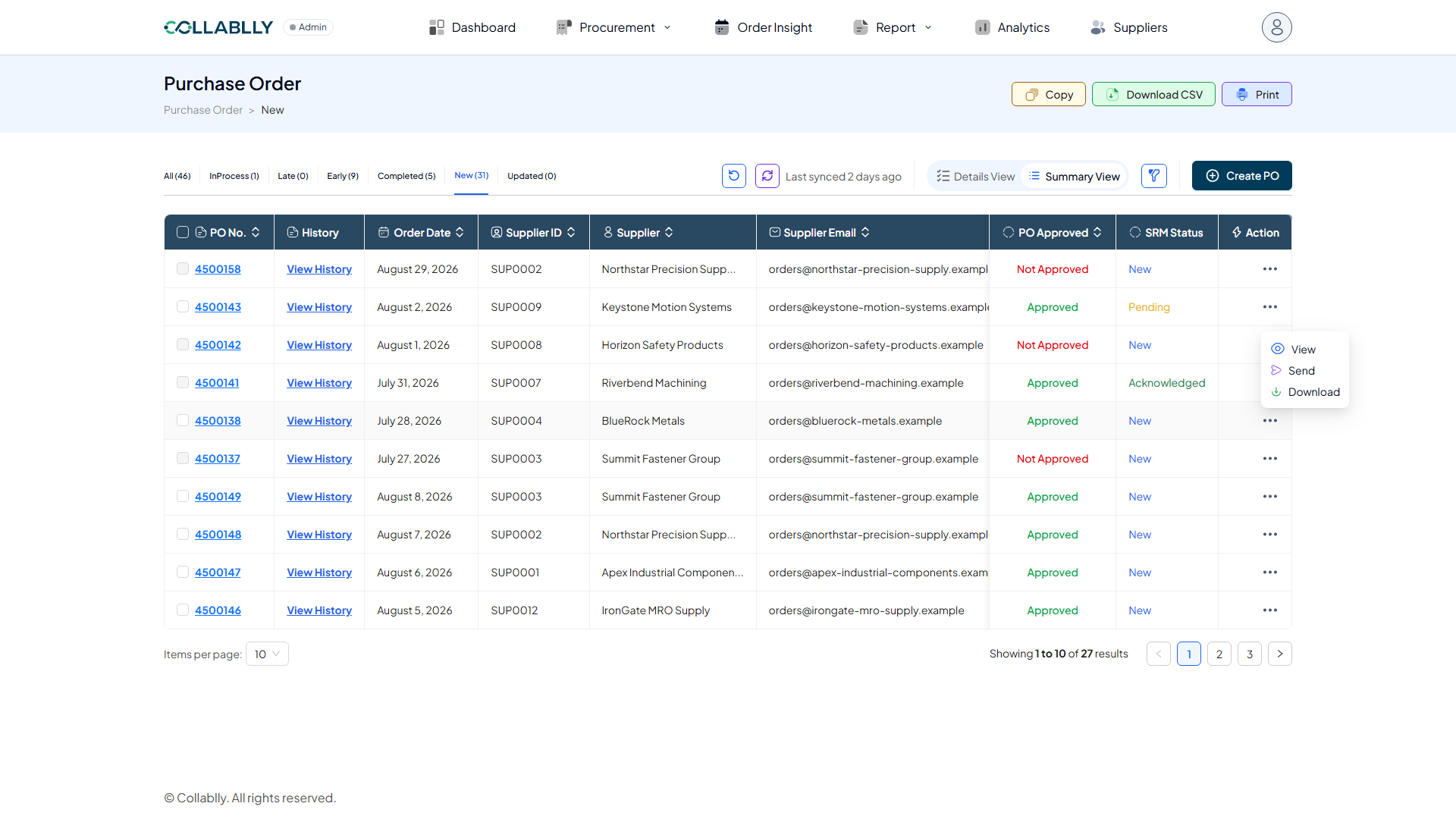
- Step 3 of 13
Review and address the email
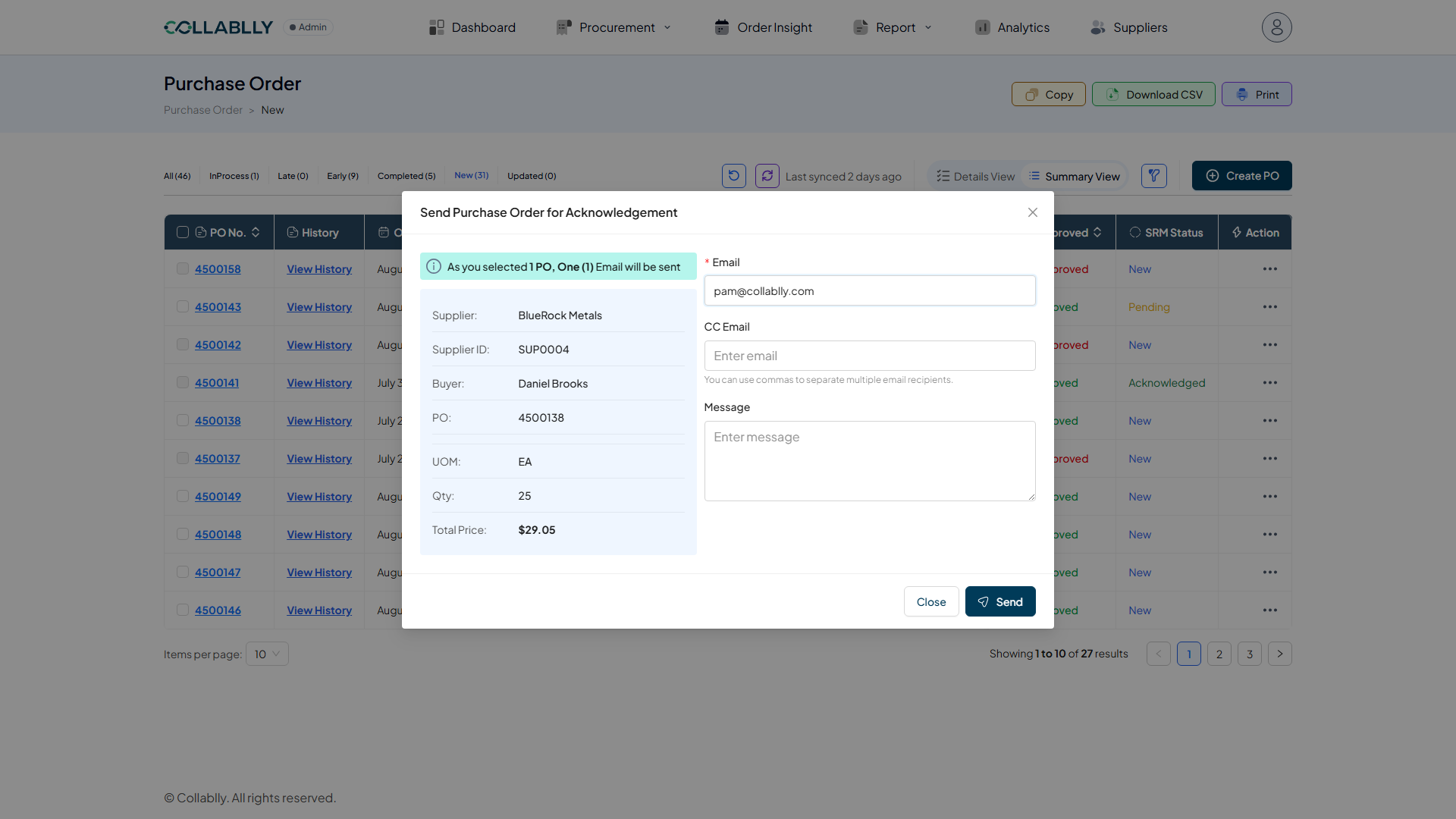
Send Purchase Order for Acknowledgement summarizes exactly what's being sent: Supplier, Supplier ID, Buyer, PO number, UOM, Qty, and Total Price. The Email field is pre-filled from the supplier record but is fully editable, along with an optional CC Email and Message.
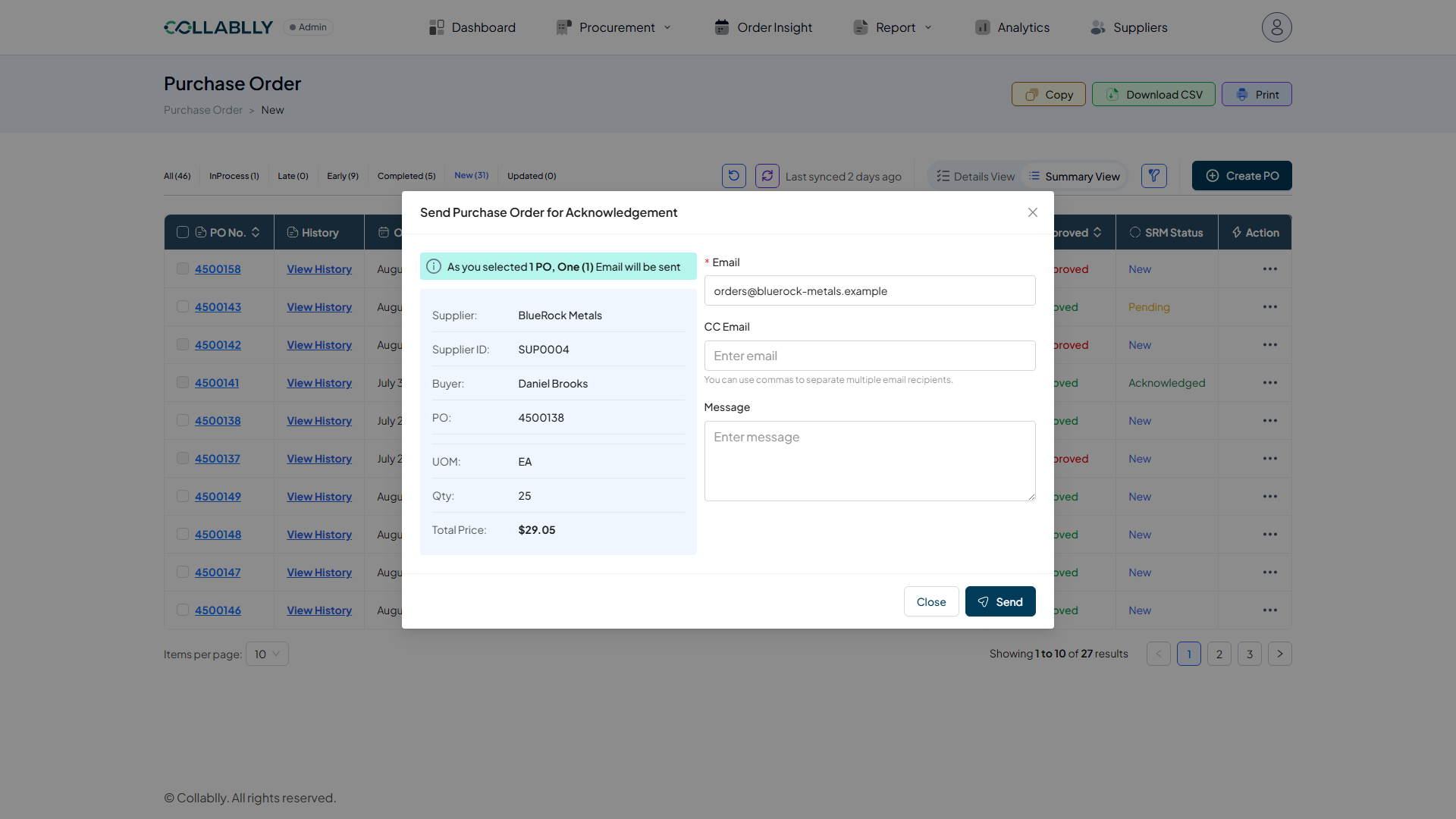
- Step 4 of 13
Send
With the address and message set, Send fires the email immediately, real, right now, to whatever address is in that field.
- Step 5 of 13
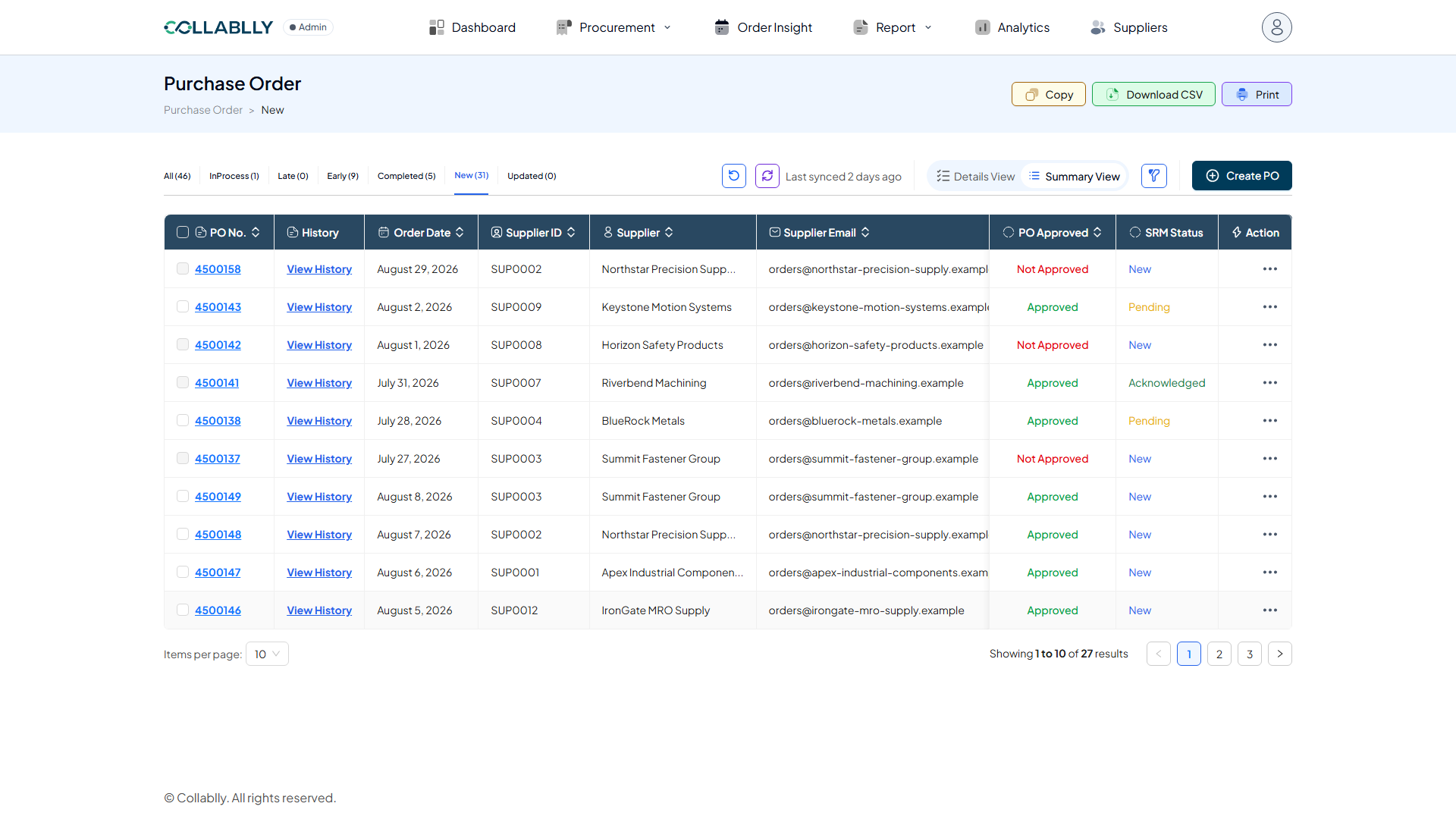
SRM Status flips to Pending
The instant the email goes out, this PO's SRM Status changes from New to Pending, visible immediately back in Summary View. It stays Pending until the supplier acts.
- Step 6 of 13
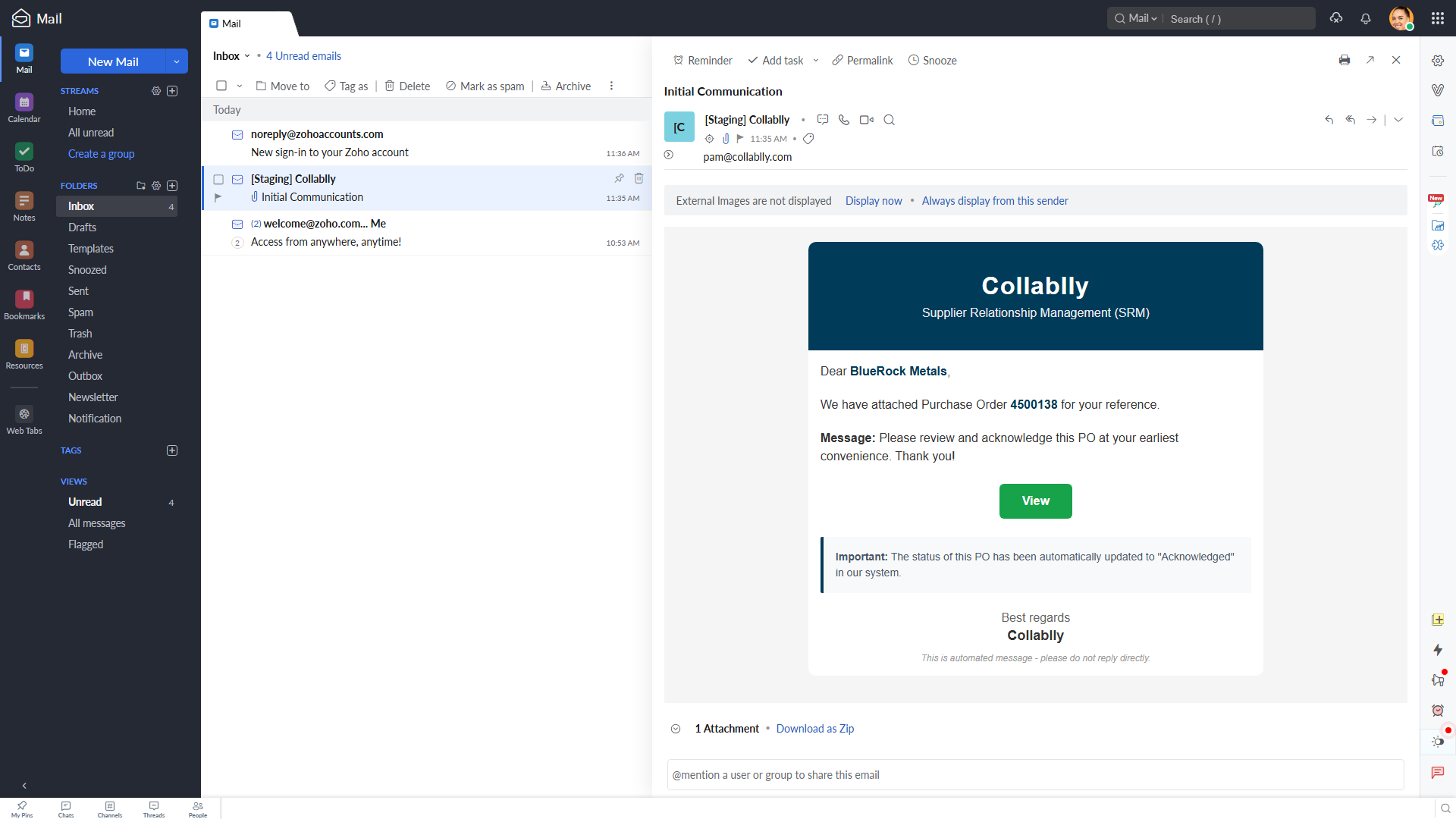
What the supplier's inbox shows
A real email lands in the supplier's inbox: "Dear {Supplier}," the PO number, the buyer's custom Message, a green View button, and, at the bottom, the PDF of the PO as an attachment. A callout claims the PO is already Acknowledged, that line is premature, it isn't yet, acknowledgment still requires the supplier's own action. The supplier hasn't decided anything yet, that comes from actually reading the attachment, not from this email text.
- Step 7 of 13
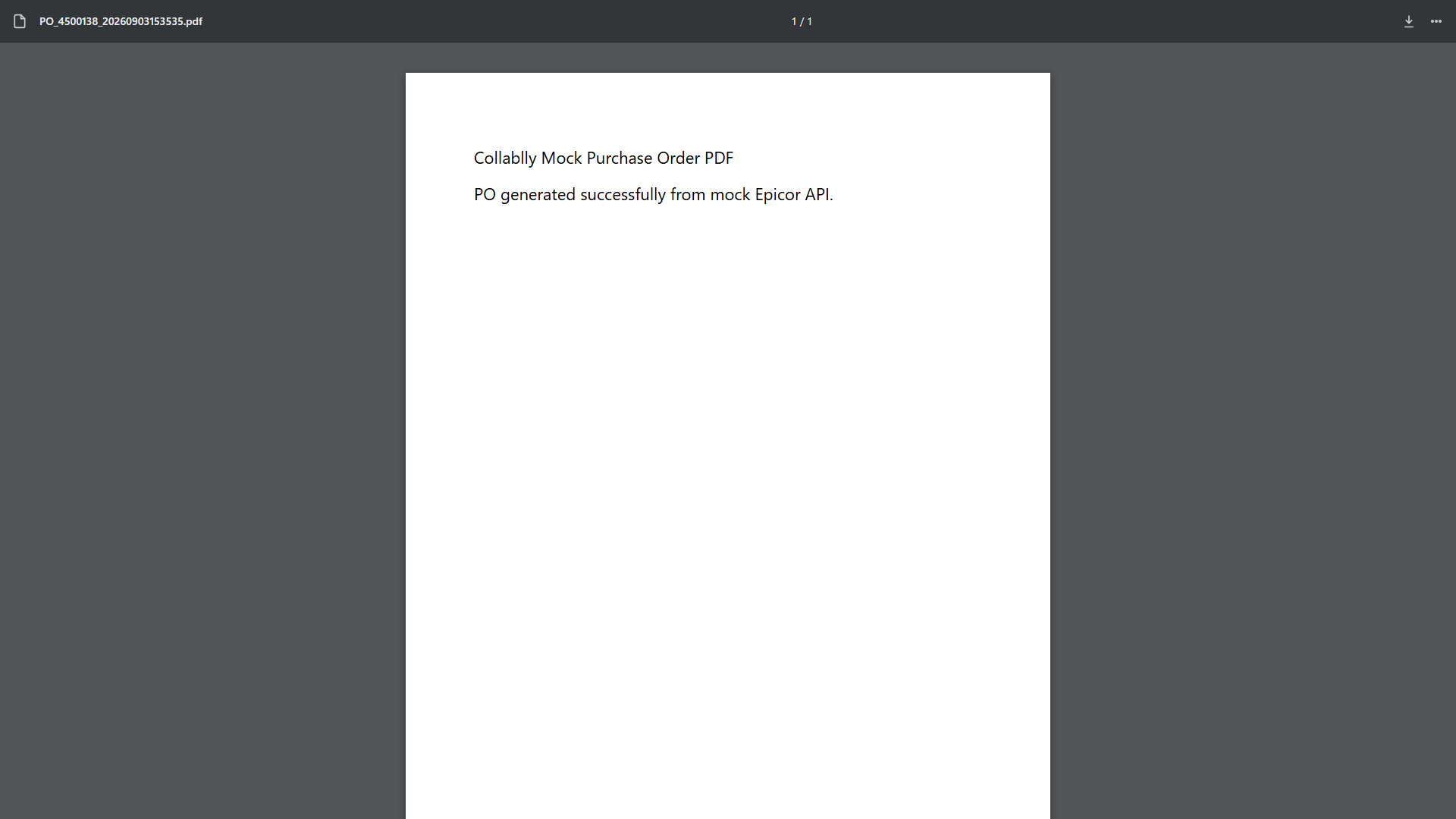
Review the attached PO before deciding
Opening the attachment, not clicking View, is what actually shows the supplier the Purchase Order: line items, quantities, pricing, due dates. This is what they check to know whether they can fill the order. Only after looking at this do they go back to the email to respond. This staging environment's ERP connection generates a placeholder PDF instead of a populated one, so the file shown here is that placeholder; in production, this attachment is the real, fully populated Purchase Order.
- Step 8 of 13
Satisfied, they click View
Having reviewed the attached PO and confirmed they can fill it, the supplier goes back to the email and clicks the green View button. This is what acknowledges receipt of the communication and moves things forward, not the act of opening the attachment.
- Step 9 of 13
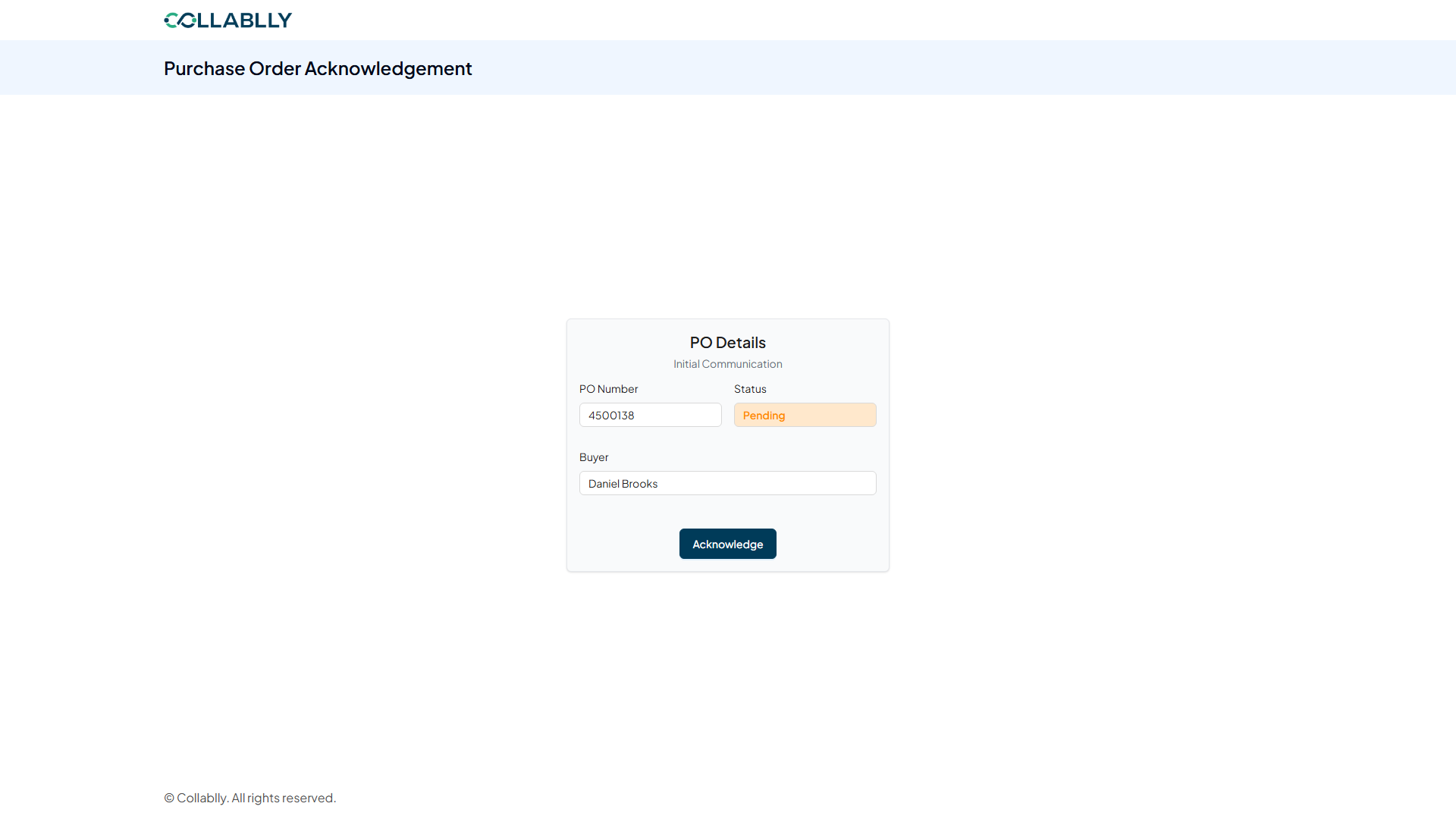
The Acknowledgement page, no login required
View opens a public page at collablly.com, no supplier account or password needed, matching the no-portal design. It shows the PO Number, a Status badge still reading Pending, the Buyer's name, and an Acknowledge button.
- Step 10 of 13
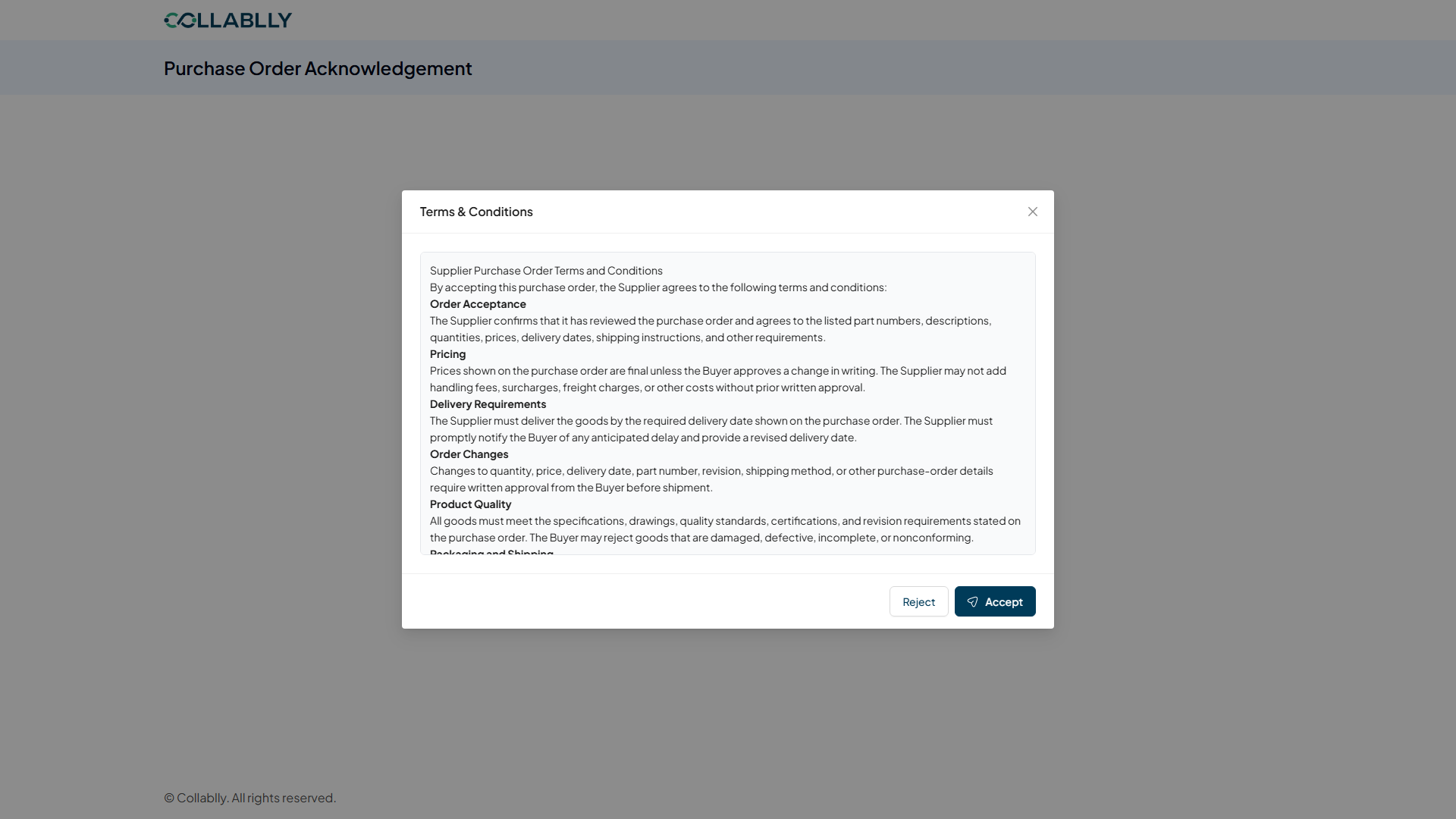
Terms & Conditions
Acknowledge opens the actual Purchase Order Terms and Conditions the supplier is agreeing to: Order Acceptance, Pricing, Delivery Requirements, Order Changes, Product Quality, Packaging and Shipping, and more, scrollable in full. The supplier can Accept or Reject from here.
- Step 11 of 13
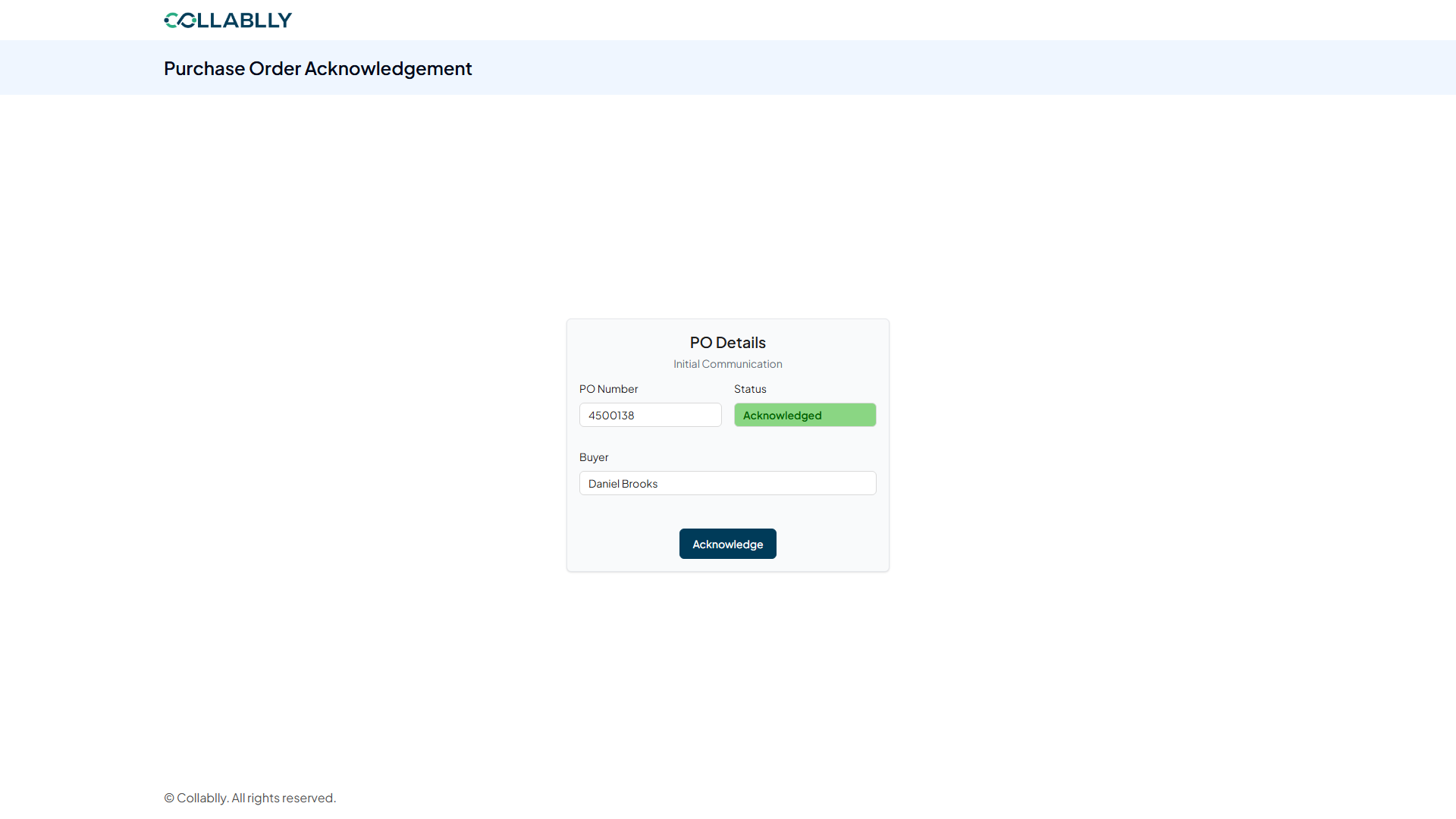
Status turns Acknowledged
Accept closes the terms and the same page updates in place, Status now reads Acknowledged in green. This is the supplier's last step, everything from here happens on the buyer's side.
- Step 12 of 13
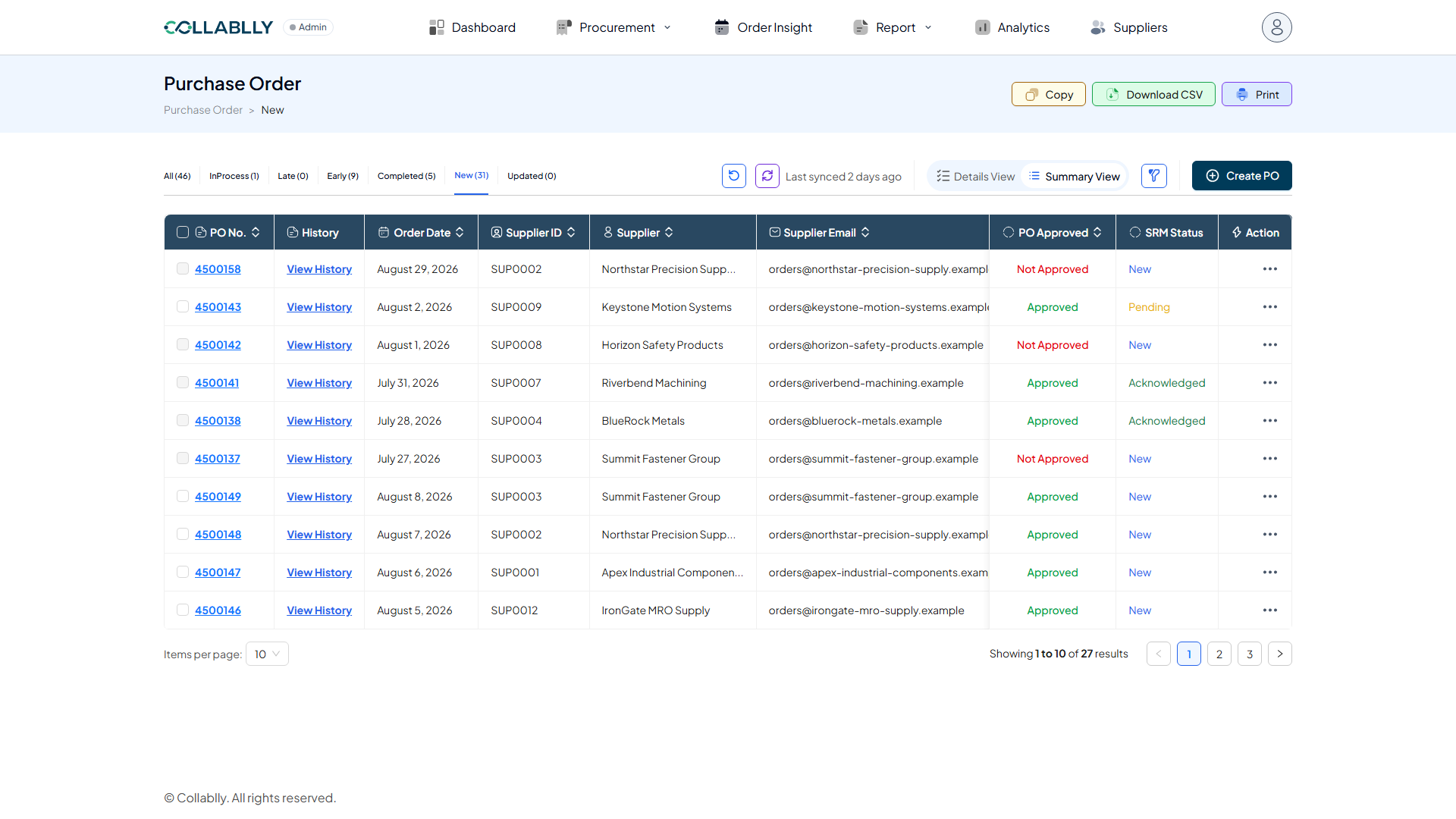
The buyer sees it land
Back in Purchase Order Summary View, with no refresh needed beyond reloading the list, this PO's SRM Status now reads Acknowledged. The full loop, buyer send, supplier reviews and accepts, buyer visibility, is closed.
- Step 13 of 13
The Action menu narrows
Open that same Action menu again and Send is gone, only View and Download remain. The initial communication is done; there's nothing left to (re-)send unless the PO changes again (see the Mass PO Update guide for what happens then).