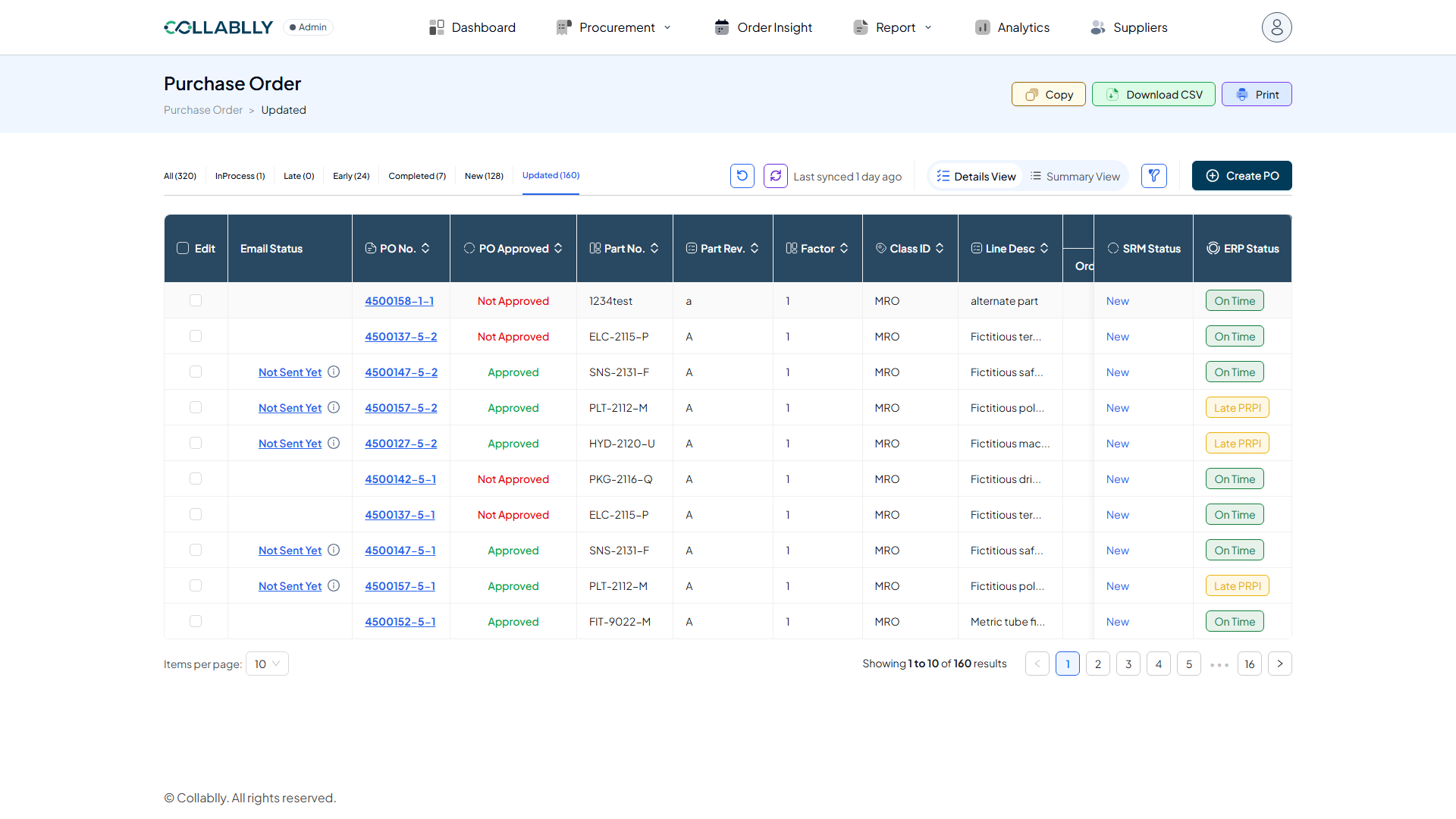
Mass PO Update lets you bulk-edit PO lines through a guided flow: download an Excel template, make your changes locally, re-upload it for validation and save, then track exactly what changed. It's the fastest way to update many PO lines at once instead of editing them one by one in Details View.
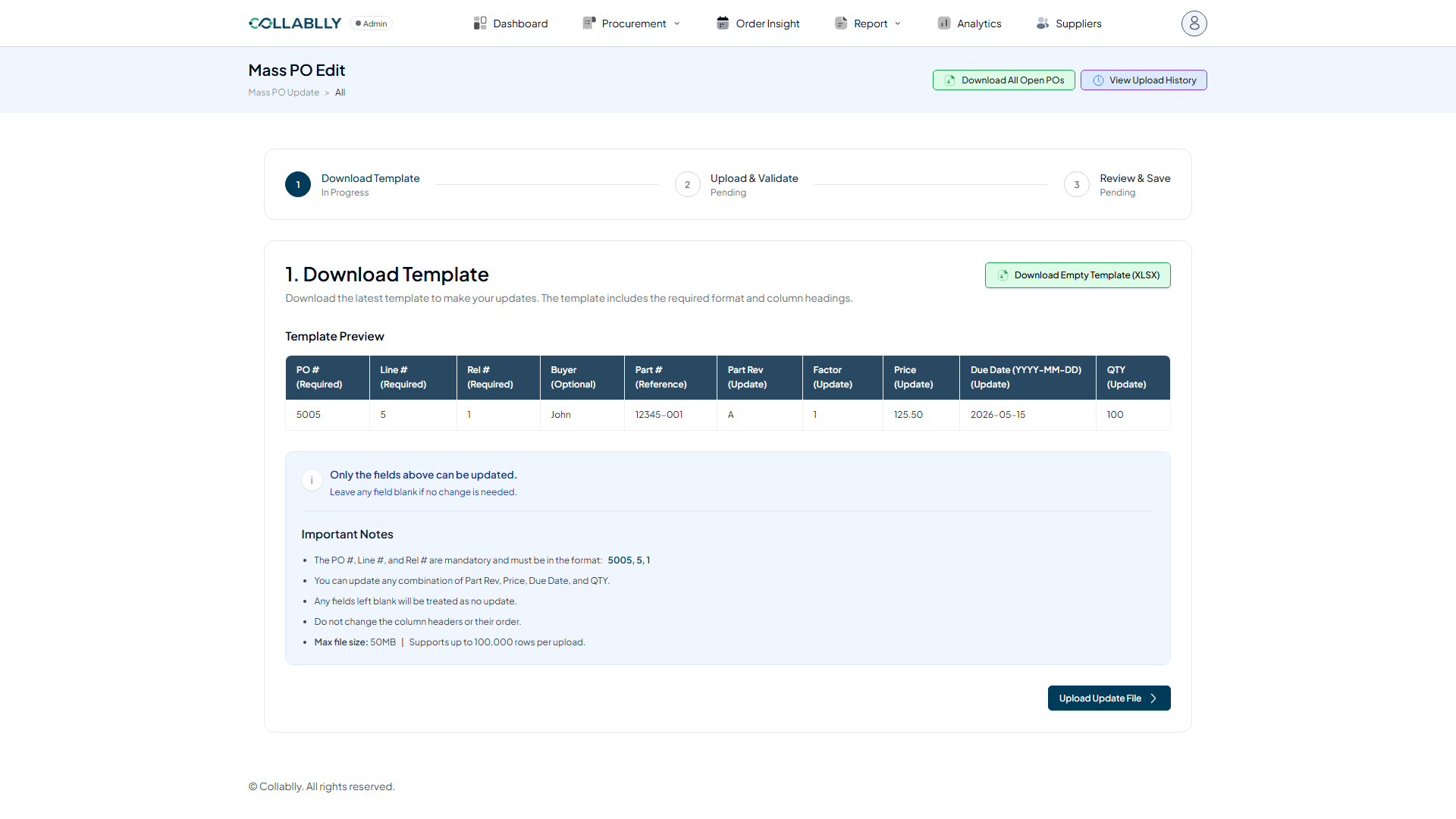
1. Download Template
Download All Open POs exports every open PO line you can currently edit, pre-filled with real values, so you're editing existing data rather than typing identifiers from scratch. Prefer to start blank instead? Download Empty Template (XLSX) gives you just the column headers.
Only five columns can actually be changed: Part Rev, Factor, Price, Due Date, and Qty. PO #, Line #, and Rel # are required identifiers (never edit these), Buyer is optional context, and Part # is reference-only. Leave any field blank to leave that value unchanged, and never rename or reorder the columns, both will break validation.
2. Upload & Validate
Once your file is edited, click Upload Update File and select it (.xlsx/.xls, up to 50MB, 100,000 rows). Clicking Review & Validate checks every row and reports Total Rows, Valid Rows, and Errors.
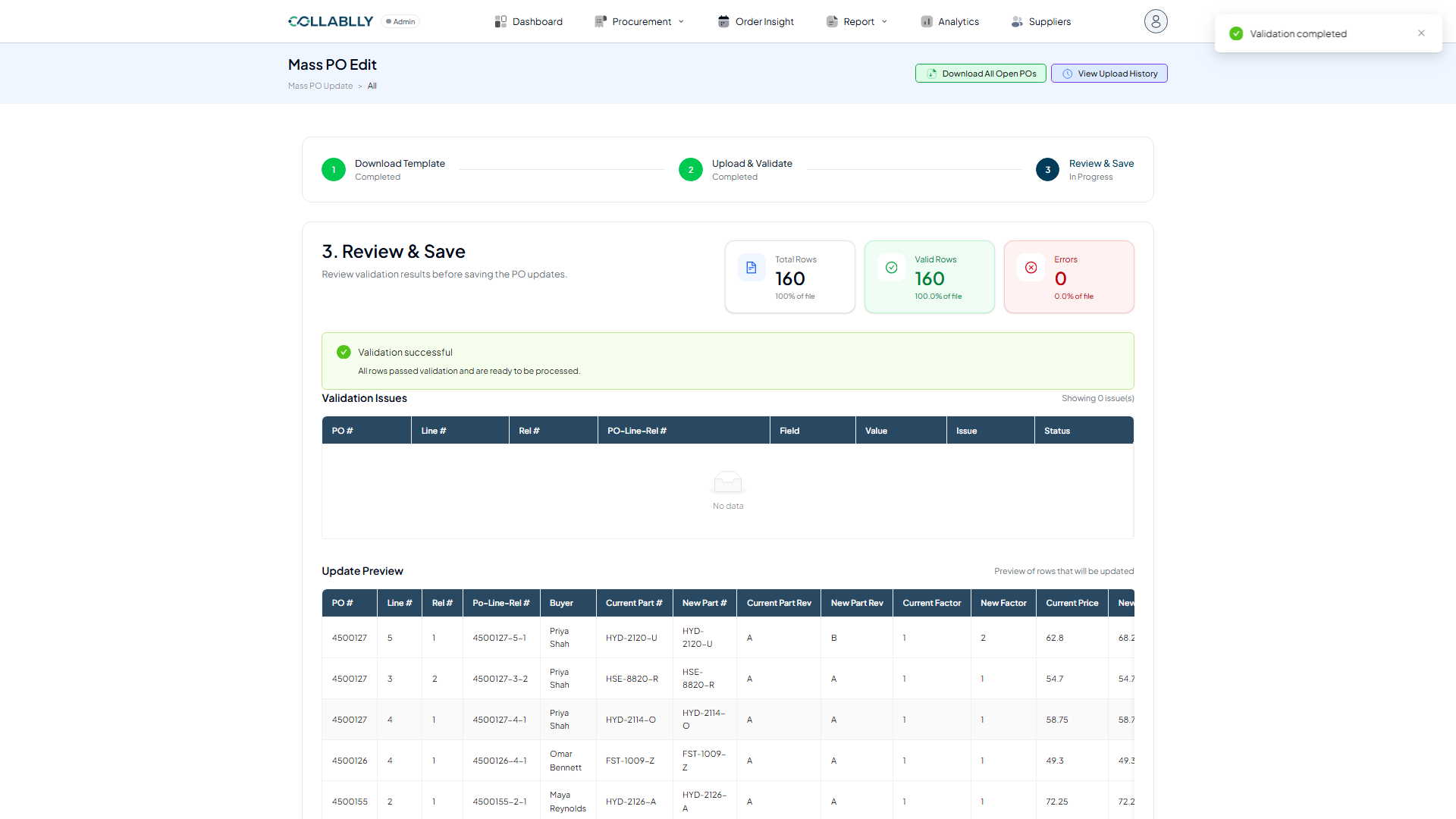
3. Review & Save
Before anything is committed, the Update Preview table shows Current vs. New for every field you touched, line by line, so you can confirm exactly what will change. Rows with validation errors are skipped automatically; only successfully validated rows are processed.
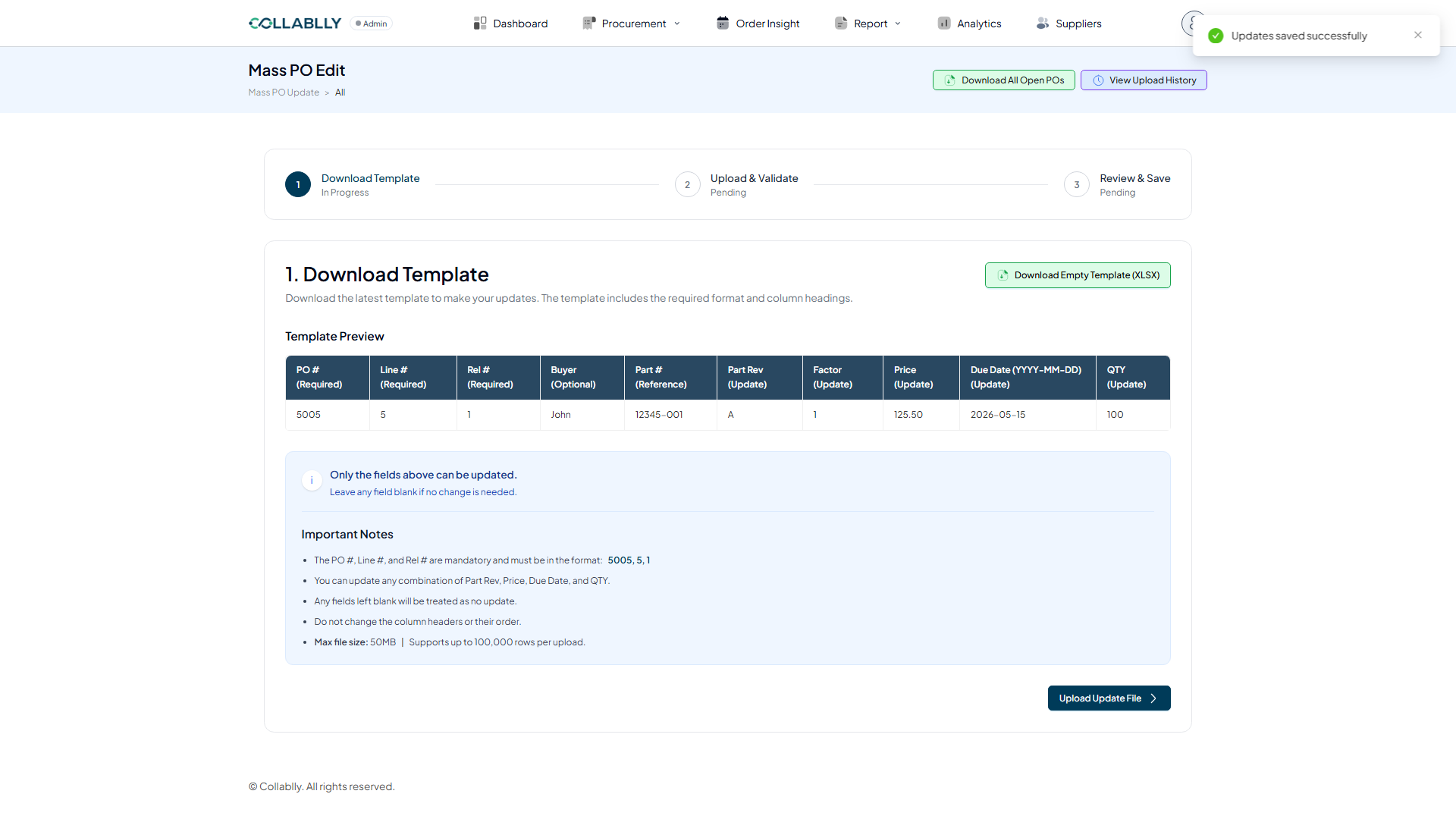
Locked or closed PO lines can't be updated, duplicate PO-Line-Rel rows may be ignored, and re-uploading a different file starts a new validation session. Save Valid Updates commits the change; a confirmation appears and the flow resets to step 1 for your next update.
4. Track & Verify
View Upload History (top right of the page) lists every file you've uploaded: who uploaded it, when, a live Progress bar (X out of Y rows processed), and a Status badge that reads PENDING while it's still writing back to the PO and ALL SYNCED once every row is done.
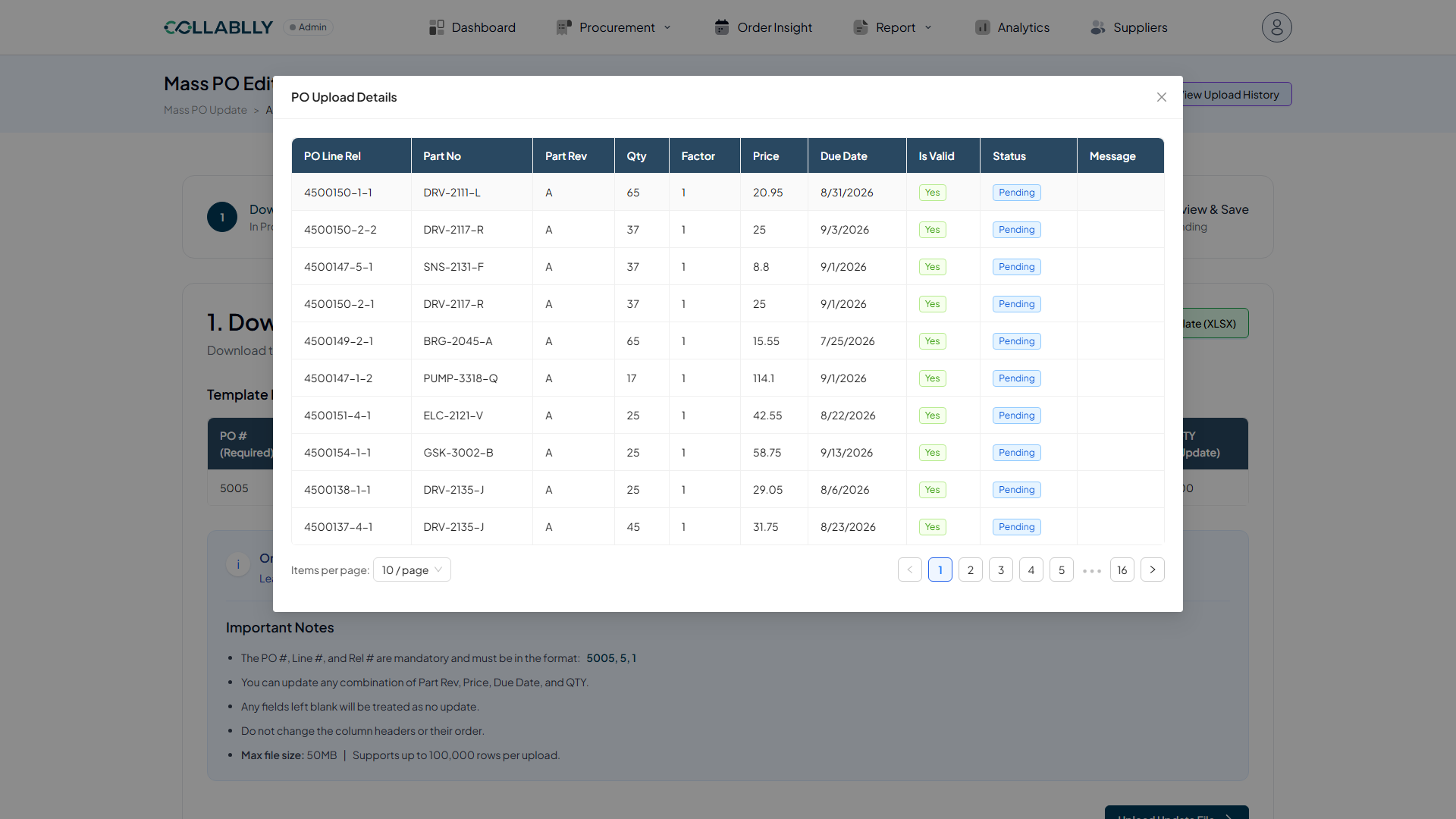
From any entry, View Details opens a line-by-line breakdown of that exact upload, PO Line Rel, Part No, the new Part Rev / Qty / Factor / Price / Due Date, whether the row Is Valid, its per-row Status, and any Message explaining a skip or error. This is the definitive record of what changed on every single PO line in that file.
5. What's next
Back on the Dashboard, the Purchase Order section's Updated tile counts every PO line changed by Mass PO Update. Click it to jump straight to those lines in Purchase Order's Details View, filtered by the Updated status just like any other status.
From there, treat these lines like the rest of your open POs: open the PO in Summary View and use the Action menu to send the update to the supplier so they can review and accept the new values. See the Purchase Order guide for that full send-and-accept flow.